



Screen-sets
Con
Dov WatermanDov Waterman muestra cómo configurar los screen-sets en Logic Pro, guardando y recuperando disposiciones de pantalla para tener las ventanas adecuadas a un solo toque de tecla.
Qué incluye el curso
10 lecciones (0h 46m) · 1 gratis
01. Bienvenido al curso y la visión de Dov sobre la creatividad
Lección gratis3:29
02. Introducción al flujo de trabajo y la eficiencia
1:30
03. Flujo de trabajo y eficiencia
7:13
04. Comandos de teclado
6:04
05. Crear una paleta de sonidos
4:02
06. Configurar y guardar una plantilla
4:30
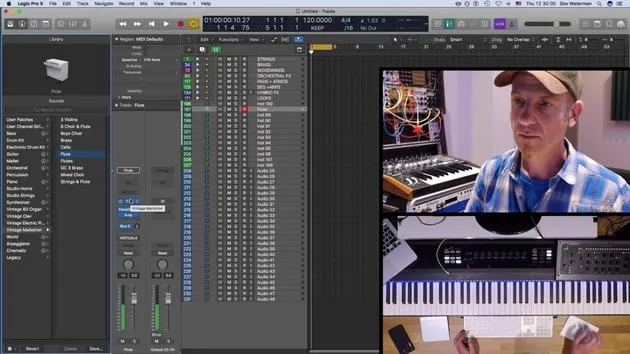
07. Visión general de la biblioteca y los channel strips
9:20
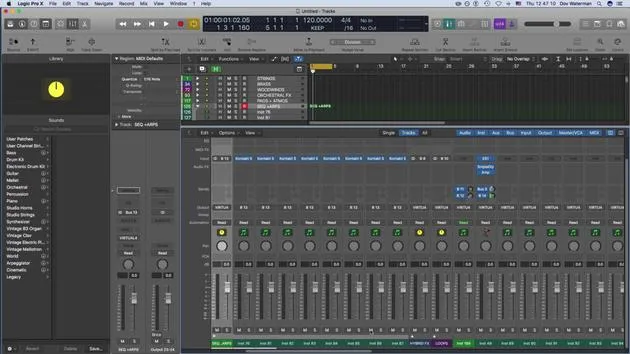
08. La barra de herramientas
4:23
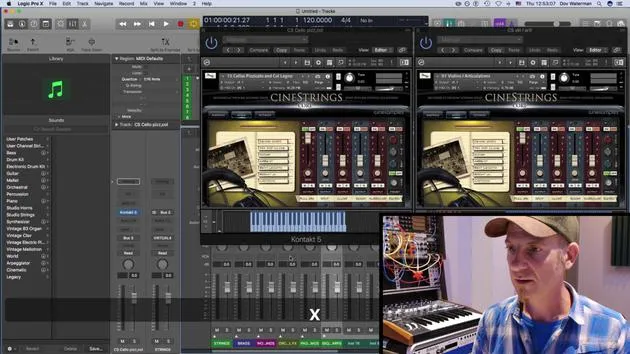
09. Screen-sets
Estás aquí4:34
10. Tarea: Crea tu plantilla
1:18
Transcripción de la lección
Customizing Screen Sets for Mixing
One other aspect to touch on in terms of customization is screen sets. Screen sets are great for:
- Working on a mix
- Managing a bunch of plugins on your output
For example, if you're mixing down and you have various outputs with plugins that you need to monitor, let's take a closer look.
Monitoring Signals
We'll pull up some metering plugins, such as:
- Correlation Meter
- Loudness Meter
Link Button Functionality
The link button, represented by the little purple icon, has a handy feature:
- When clicked, plugins will open in single plugin view.
This is useful when you only need one plugin open but not when you need several plugins visible to monitor various signals.
Saving Screen Sets
Now, let's proceed to open the various plugins. If I'm working on a mix and require certain plugins to be open, here's what I do:
- Duplicate the current screen set.
- Rename it: For example, call it "Mixing Window".
Now, I can return to the original screen set and delete the unnecessary plugins.
Mixing Pages
As you can see, these two pages serve different mixing purposes. This setup is particularly handy if I'm arranging and need multiple instrument plugins open.
For instance, if I'm arranging strings and working on the harmonization of various string articulations, I might have:
- My current plugin up for strings
- A cello plugin, such as cello pizzicato
Once I have the setup I need, I can save it as a template.
Instrument Page Setup
This will be my Instrument Page. I can go in here, turn off any excess plugins, and lock the page.
The lock button will ensure that:
- The preset is saved
- The screen preset remains unchanged
I can lock additional screens as needed, like Screen Set 3. All these screen sets can be accessed either:
- From the toolbar at the top or
- Through your key commands.
This allows easy navigation to Screen Set 1, Screen Set 2, and Screen Set 3.
Making Changes
If I need to make changes to a specific screen set that I don't like (for example, the mixing window), I simply:
- Unlock it
- Close the mixer
- Go back to my screen set
- Lock it again
Though there is a key command for this, I must admit I don't use screen sets often enough to have one memorized.
Conclusion
And that's it for setting up your template!
10 lecciones
0h 46m de lecciones en vídeo estructuradas
Funciones de vídeo avanzadas
Ralentiza, repite un pasaje, sigue la partitura
Móvil, tablet y ordenador
Practica donde quieras
Garantía de satisfacción 100%
30 días de garantía de devolución
Conoce a tu gurú
Conoce a tu gurú
Dov Waterman es compositor, pianista y productor. Ha escrito y diseñado el sonido de películas como After Earth, Terminator Genisys, Transformers: The Last Knight y The Snowman, y trabaja como editor de audio de bibliotecas de samples y diseñador de sonido con empresas como Native Instruments y SonoKinetic.
Su serie Composition in Logic recorre la construcción de un tema de principio a fin en Logic Pro —desde las plantillas y el flujo de trabajo hasta la síntesis y la programación de ritmos, los efectos MIDI, la edición y la mezcla final— para productores que quieran convertir sus ideas en discos terminados.







