



Configurar y guardar una plantilla

Con
Dov Waterman
Qué incluye el curso
10 lecciones (0h 46m) · 1 gratis
01. Bienvenido al curso y la visión de Dov sobre la creatividad
Lección gratis3:29
02. Introducción al flujo de trabajo y la eficiencia
1:30
03. Flujo de trabajo y eficiencia
7:13
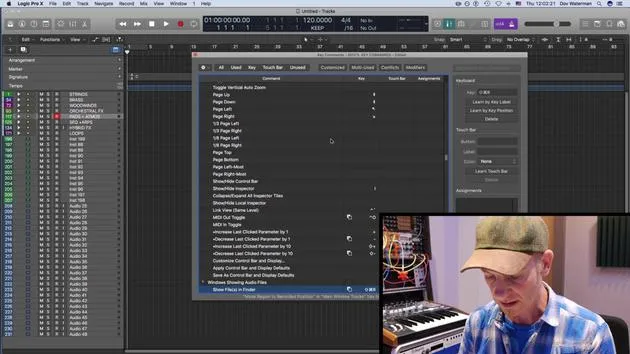
04. Comandos de teclado
6:04
05. Crear una paleta de sonidos
4:02
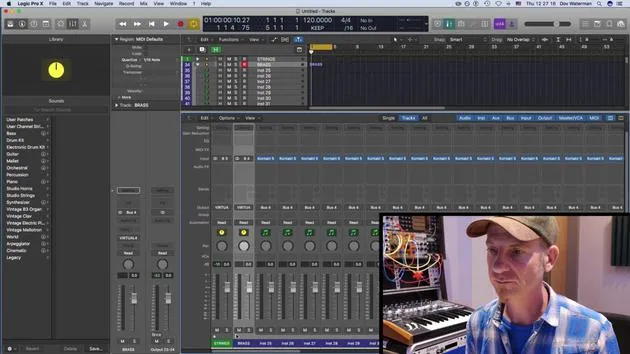
06. Configurar y guardar una plantilla
Estás aquí4:30
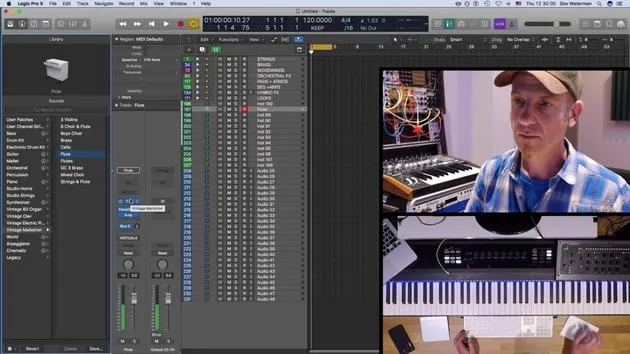
07. Visión general de la biblioteca y los channel strips
9:20
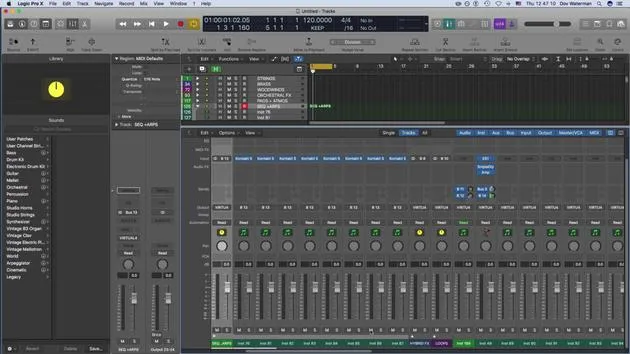
08. La barra de herramientas
4:23
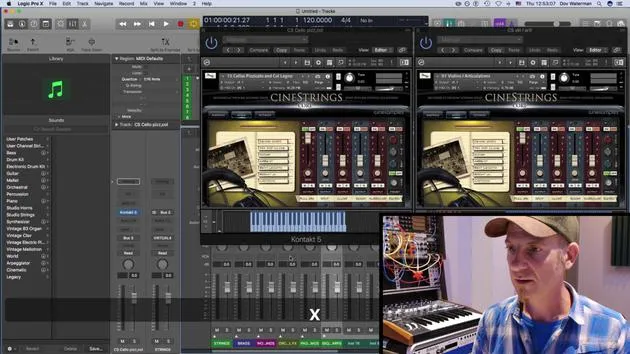
09. Screen-sets
4:34
10. Tarea: Crea tu plantilla
1:18
Transcripción de la lección
Music Production Lesson: Using Track Stacks in Your Template
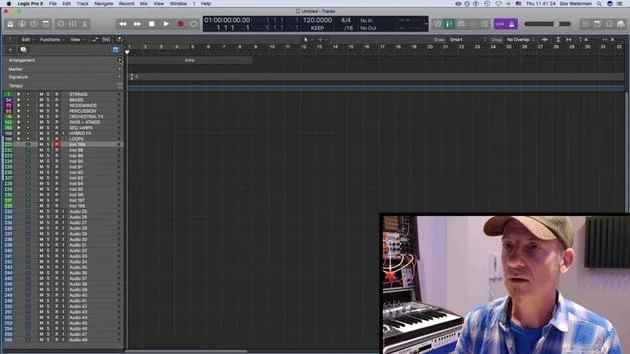
Okay, so my template is built up of a combination of electronic and orchestral sounds. I have various sections of the orchestra over here:
- Strings
- Brass section
- Woodwinds
- Orchestral effects pads
- Atmospheres
- Sequences
- Ops arpeggiators
Organizing Tracks
I save all my sounds into these track folders. Now, regarding track folders:
- If I select a bunch of tracks (like I've done here with my string sections) and do a Control+Click, I can create a Track Stack.
When I do this, it opens up a page giving me an option to save it as either:
- Folder Track
- Summing Track
Folder Track
A Folder Track basically just groups the tracks into what is known as a VC (Volume Control) channel strip. This will only control your volume. Any auxiliaries or outputs are specific to the instruments themselves and will go out wherever you've sent them.
Summing Track
A Summing Track, on the other hand, acts as a bus auxiliary. This means you're bussing all these instruments into a bus, allowing you to control them much easier.
- For example, if you wanted to add compression over your entire string section, this is where you would do it.
Demonstrating Folder vs. Summing Track
Let's reverse that for a moment and show what happens if I create a Folder Track.
- If I go to create a Track Stack and choose a Folder Track, it will produce a folder track that only has one volume control for it.
- The rest of these instruments are still going out; they should be bussed to the normal output.
However, because I've already created a Summing Track before, it has converted these to Bus 3. Normally, with the Folder Track, you would see the output as "Stereo Output."
Setting Up Summing Track
So, I'm going to reverse it back and do a Summing Track, which is what I normally use for this type of folder track.
- My outputs are now in Bus 3, which goes to my main output.
- As you can see, I've done this for all the rest of my instrument sections, such as:
- Brass, bussed out to this folder track Bus 4
- Woodwinds, and so on and so forth.
Final Thoughts
Basically, at the end of this, I've got a very large template that works efficiently for me.
- This template may be moderately large, but it suits my needs.
- Your template doesn't necessarily need to be as big. Depending on the type of music you're writing, you can have various different templates.
I have different templates for the varying genres of music I write for.
Saving Your Template
Once I'm satisfied with my settings, I'll save it as a template.
- To save, I go to File → Save as Template.
- If I've made any tweaks or changed some sounds and want to save them as a new template, I repeat the same steps.
This will save the template in your Templates folder, which is located in your Logic folder in your user library.
10 lecciones
0h 46m de lecciones en vídeo estructuradas
Funciones de vídeo avanzadas
Ralentiza, repite un pasaje, sigue la partitura
Móvil, tablet y ordenador
Practica donde quieras
Garantía de satisfacción 100%
30 días de garantía de devolución
Conoce a tu gurú
Conoce a tu gurú
Dov Waterman es compositor, pianista y productor. Ha escrito y diseñado el sonido de películas como After Earth, Terminator Genisys, Transformers: The Last Knight y The Snowman, y trabaja como editor de audio de bibliotecas de samples y diseñador de sonido con empresas como Native Instruments y SonoKinetic.
Su serie Composition in Logic recorre la construcción de un tema de principio a fin en Logic Pro —desde las plantillas y el flujo de trabajo hasta la síntesis y la programación de ritmos, los efectos MIDI, la edición y la mezcla final— para productores que quieran convertir sus ideas en discos terminados.







