



Intro to Apple Loops

With
Dov Waterman
What's in the course
14 lessons (1h 19m) · 1 free
Lesson transcript
Understanding Apple Loops in Rhythm and Beat Programming
Okay, one last aspect we'll talk about for now on rhythm and beat programming is Apple Loops.
What Are Apple Loops?
Underneath the guise of Apple Loops,
I'm not going to go into what an Apple Loop is exactly. For all intents and purposes, it is an audio file that, when dragged into an arrange page in Logic, will conform to the beat tempo.
- Harmonic Content: Depending on what it is, if it has any harmonic melodic content, it will conform to the pitch of the track.
- Practical Use: This is very handy. If you've purchased Logic 10 and downloaded all the sample packs, you will have all these not grayed out like I do. I just haven't downloaded everything.
Using Apple Loops
It's a great source of loops and inspiration. Because they are audio files, you can essentially do the following with them:
- Cut them up
- Reverse them
- Manipulate them in various ways
A great way to start is to play your track and preview Apple Loops.
Filtering and Searching
On your interface, you've got different loop packs that you can choose from. Filter down to find what you're looking for. Here are some categories to consider:
- Instrument Type: Say you're looking for a tambourine loop just for the heck of it.
Types of Apple Loops
Apple Loops are categorized into three different types:
- Audio Loops
- MIDI Loops (normally green)
For example, this green MIDI loop:
- If dragged into an audio track, it will convert into an audio file.
- If dragged into an instrument track, it will open up as a MIDI instrument.
Channel Strip Settings: What's saved in this Apple Loop is information about what instrument it is, specifically, a channel strip setting.
Example in Practice
Here's how it works:
- I'm going to drag this file over here.
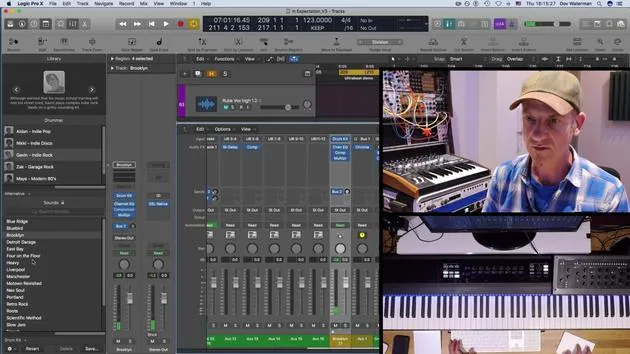
- Notice these yellow files; they look the same as the green ones. These yellow files are virtual drummer tracks, which are preset options in your library.
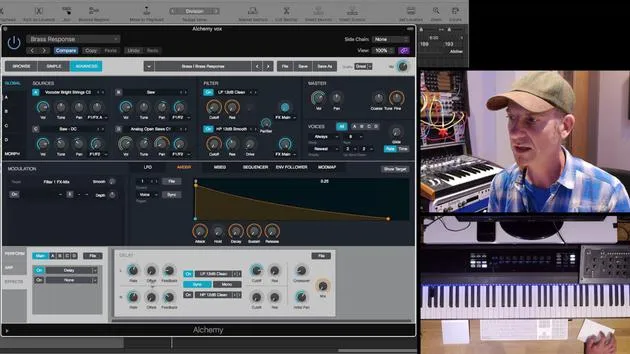
Going back to the green MIDI loop, Alchemy Swirl arp:
- I will drag it in.
- It hasn't turned into a piece of audio; it has remained as MIDI.
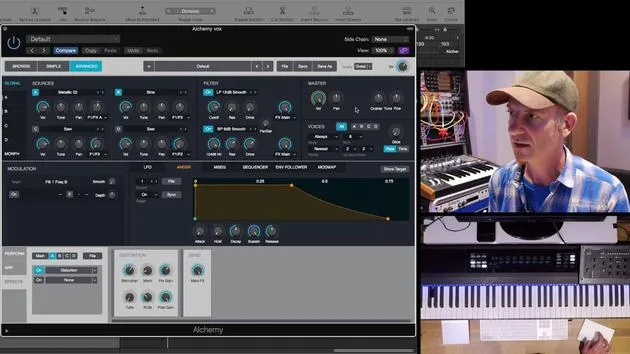
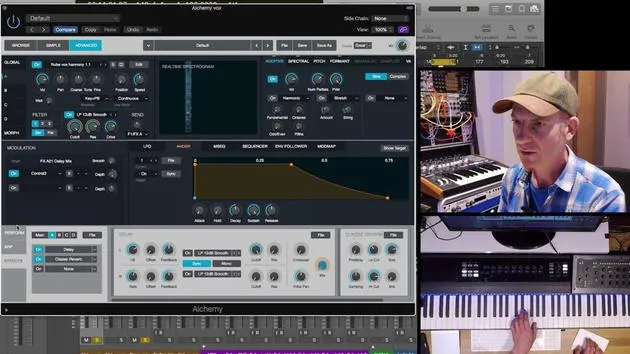
- When I check my instrument, it has pulled up Alchemy.
In this Apple Loop, I dragged in from my Apple Loops folder, it saved both the MIDI content and the channel strip.
Creating Your Own Apple Loops
What does this mean? You can create your own Apple Loops! This is very handy for our philosophical talk about keeping in the flow and creating a sound palette.
When you are in your creative zone and ideas are flowing, a great way to save these is by using Apple Loops.
"I will talk much more about how you do that in a later part of the course, but for now, over and out."
14 lessons
1h 19m of structured video lessons
Advanced video features
Slow down, loop a passage, follow along
Mobile, tablet & desktop
Practise wherever you are
100% satisfaction guarantee
30-day money-back guarantee
Meet your guru
Meet your guru
Dov Waterman is a composer, pianist and producer. He has written and designed sound for films including After Earth, Terminator Genisys, Transformers: The Last Knight and The Snowman, and works as a sample-library audio editor and sound designer with companies such as Native Instruments and SonoKinetic.
His Composition in Logic series walks through building a track end to end in Logic Pro - from templates and workflow to synthesis and beat programming, MIDI effects, editing and the final mix - for producers who want to turn their ideas into finished records.







