



Modulation in Alchemy
Mit
Dov WatermanDov Waterman zeigt, wie du in Logics Alchemy-Synth jeden Parameter modulierst, indem du eine Quelle wie einen LFO auf Regler wie den Filter-Cutoff legst.
Das steckt im Kurs
14 Lektionen (1h 19m) · 1 gratis
01. Einführung in Rhythmus- und Beat-Programmierung
1:18
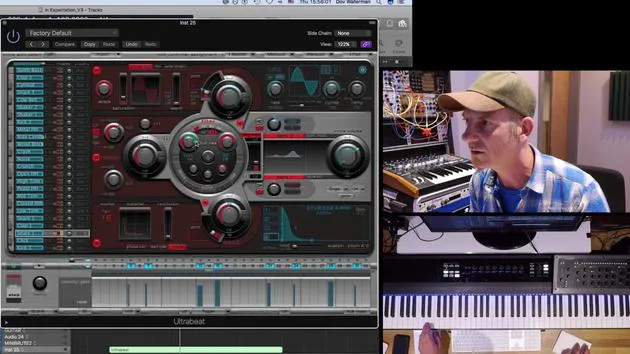
02. Einführung in Ultrabeat
7:56
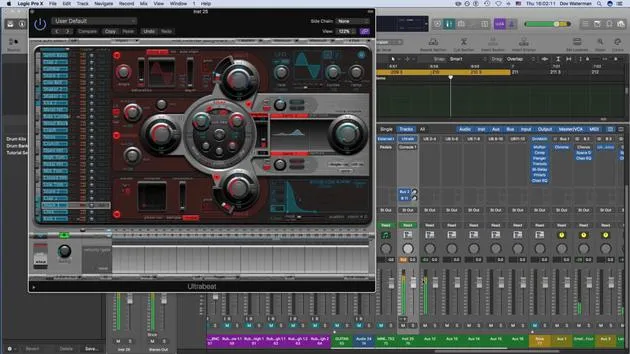
03. Ultrabeat als Multi-Output-Instrument
5:53
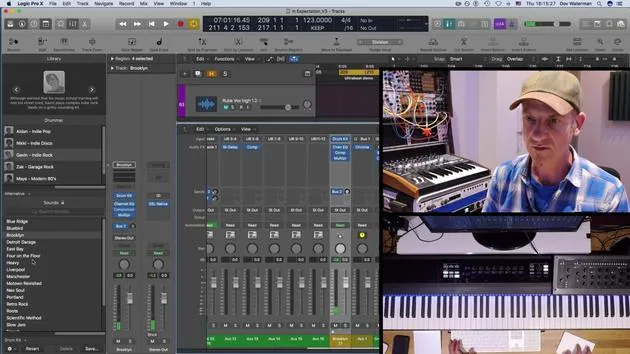
04. Einführung in Virtual Drummer
9:27
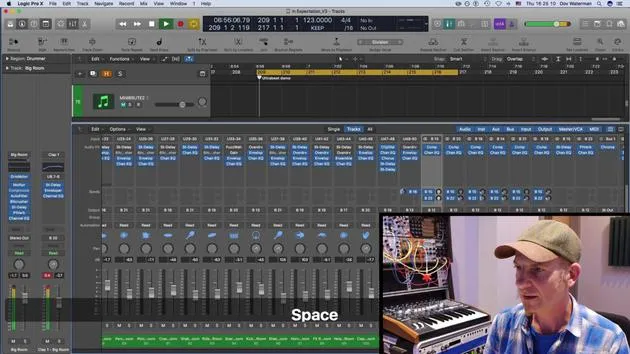
05. Virtual Drummer - fortgeschrittene Effekte und Layering
11:18
06. Einführung in Apple Loops
4:40
07. AUFGABE: Drum Machine Designer
1:07
Transkript der Lektion
Understanding Signal Flow and Modulation in Music Synthesis
Okay, so just to add to the complexity of this instrument, the signal flow, as we've seen, is straightforward in terms of:
- The sound sources
- The filters
- The effects section
- The master output
- Moving down to the modulation section
Modulating Parameters
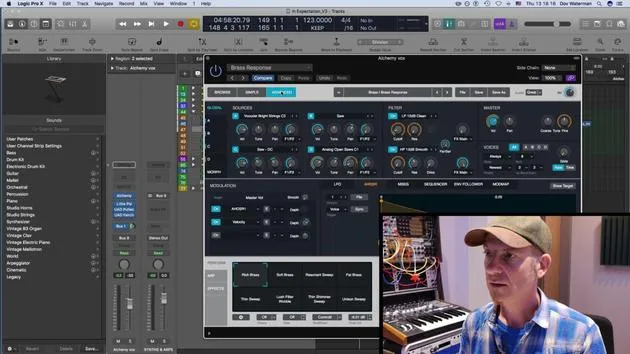
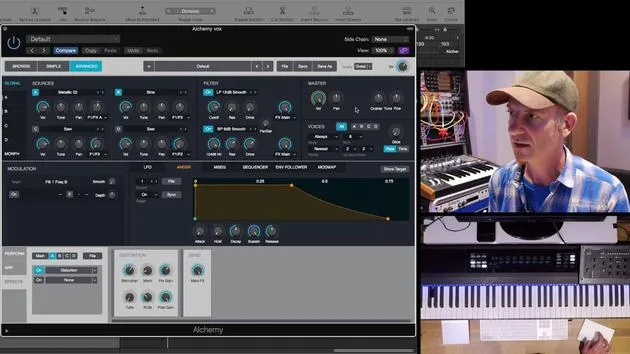
Any of these that turn blue can be modulated. Any of these parameters of each of the instruments can be modulated.
Example: Modulating Filter 1 Cutoff
For example, I'm going to modulate the Filter 1 cutoff from source A. Actually, we'll take source B, which was:
- If I click on it, it turns blue.
- As you can see down here in the section, every time I click on something, it'll show the target.
If I want to modulate, I'm going to modulate Filter 1 frequency B with an LFO.
- I'll turn it on.
- Click on the page of the drop-down menu over here, LFO1.
- It now shows me LFO1.
Modulation Functions
Now, these are modulation functions:
- LFOs
- Envelopes
- MSEG (we'll talk about this later)
- Sequences
- Envelope follower
- Mod map
So, MSEG and mod map, we'll leave out for now.
Utilizing the LFO
For our purposes, we're now going to turn this LFO. We're going to utilize this LFO on Frequency 1 of the sound source.
- Why is it not doing anything?
Okay, we need to modulate it by giving it some depth.
(Adjusting modulation)
That's a bit much. You get the idea. So we can open up as many of these as we like.
- Click on the damp section of the same filter.
- It comes up over here and is highlighted.
- Give us some target.
Now it's created the LFO.
- LFO1 is already used for this one.
- We can create a new LFO or use the same LFO to modulate this other parameter.
Creating Additional LFOs
I'm going to go and create a new LFO.
- As you can see here, it opens up and adds another LFO.
- So we've got two LFOs, each assigned to different sources.
You can open up to 16 different LFOs. This is just how deep this instrument is.
- LFO2 is modulating the damp section.
(Adjusting modulation again)
That's quite distorting.
Setting ADSR
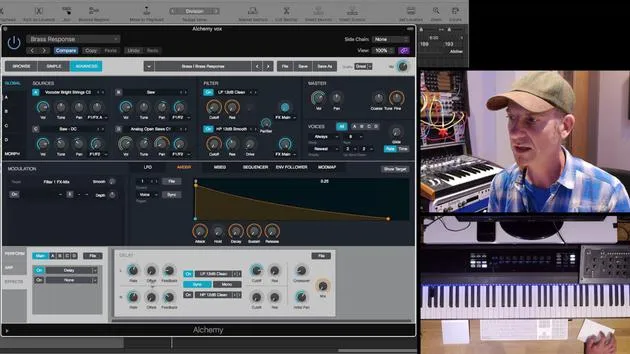
The same goes for ADSR. We can set anything to an ADSR.
- If we want a volume, we can set the instrument's ADSR as a control source for this parameter over here (volume B).
I'm just going to solo this sound for a second.
- See what I've done? I press the solo button, which is essentially the same as doing that.
- I'm in my source B right now, focusing on this.
Working with the ADSR Envelope
- Select my volume.
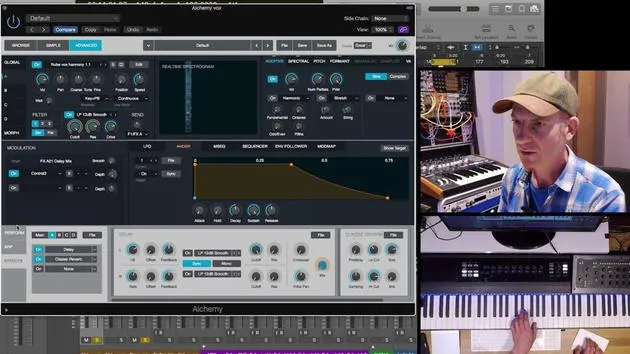
- Go down to here and pull down this menu showing the ADSR envelope.
- It's showing me this particular envelope over here.
Now I can go and adjust this to give it some depth, and we can pull this out for as long as we like.
Modulation Visualization
So, that's the modulation source.
- Very easy to see what's being modulated by this modulation source.
- The modulation matrix is indicated by the orange rings that are highlighted around the particular parameter.
Any parameter with an orange ring around it is being modulated. To find out what is being modulated by, just click it and it'll tell you down here what the modulation is.
Using the Sequencer
Sequencer: Same kind of thing.
I'm going to:
- Change the volume to my sequencer.
- Go to sequencer, and it pulls up my sequencer.
- Now I'm going to give it a little sequence.
What it's going to do is basically modulate my volume.
- Why is it not doing anything?
Because of this.
(Final thoughts)
So, you start getting an idea of how to create some movement.
14 Lektionen
1 Std. 19 Min. strukturierte Videolektionen
Erweiterte Videofunktionen
Verlangsamen, Passagen loopen, mitlesen
Handy, Tablet & Desktop
Üben, wo du willst
100 % Zufriedenheitsgarantie
30 Tage Geld-zurück-Garantie
Lern deinen Guru kennen
Lern deinen Guru kennen
Dov Waterman ist Komponist, Pianist und Produzent. Er hat für Filme wie After Earth, Terminator Genisys, Transformers: The Last Knight und The Snowman Musik geschrieben und das Sounddesign gestaltet und arbeitet als Audio-Editor für Sample-Bibliotheken und Sounddesigner mit Firmen wie Native Instruments und SonoKinetic.
Seine Reihe Composition in Logic geht den Aufbau eines Tracks von Anfang bis Ende in Logic Pro durch – von Templates und Workflow über Synthese und Beat-Programmierung, MIDI-Effekte, Editing bis zum finalen Mix – für Produzenten, die ihre Ideen in fertige Tracks verwandeln möchten.







