



Varispeed-Parameter und -Anwendungen

Mit
Aamir Yaqub
Das steckt im Kurs
14 Lektionen (1h 22m) · 1 gratis
01. Willkommen beim Aufnehmen von Audio
0:58
02. Einführung in die Audioaufnahme
4:47
03. Das Metronom verwenden
5:00
04. Deine erste Aufnahme machen
Gratis-Lektion5:32
05. Comping
13:03
06. Audio bearbeiten
9:41
07. Projektdateien verwalten
3:46
08. Eine Instrumentenspur aufnehmen
2:06
09. So verwendest du Flex Time
10:58
10. So verwendest du Flex Pitch
11:12
11. Tonhöhe in MIDI-Daten umwandeln
3:11
12. Smart Tempo
3:04
13. Varispeed-Parameter und -Anwendungen
Du bist hier4:08
14. Adaptives Projekttempo
5:00
Transkript der Lektion
Exploring Vary Speed in Logic
There's another very interesting feature in Logic that can really help you play around with certain aspects, such as tempos where you don't actually have Flex Time on, or it's not an Apple Loop. This feature is Vary Speed.
Step-by-Step Guide
-
Accessing the Feature
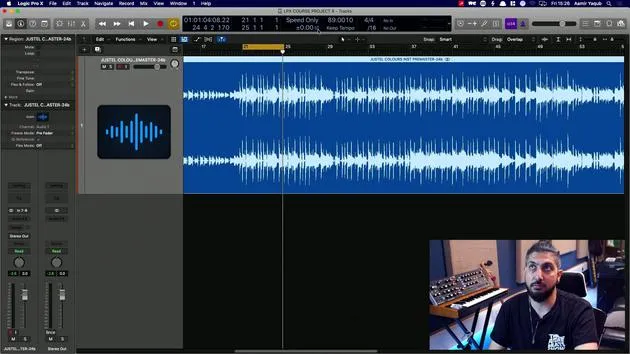
- First, go to your LCD and navigate down to Custom.
- You'll notice various options appearing there.
- Right-click on Customize Control Bar and Display.
- In the Custom menu, add Vary Speed.
-
Understanding Vary Speed
- Vary Speed brings up a section that has two different modes.
- You have the ability to change by percentage values or other adjustments.
- For example, let's determine the tempo here, which is approximately 89 BPM.
-
Listening to Sections
- Let's move to a different section of the song from what we heard before, which was just the guitar.
- We'll take the click off to listen more closely.
Options Available
-
Speed Only:
- I have two options here, Vary Speed and Speed and Pitch.
- For now, I'll choose Speed Only since I don't want to alter the pitch.
-
MIDI Information:
- I don't have any MIDI information in this particular session, but if I did, it would speed up or slow down that MIDI data as well.
Adjusting Speed
- Beneath the main controls, there's a percentage value.
- This represents the deviation in percentage of speed.
- You can also adjust it to detune in semitones and change the tuning reference.
Example Settings
- Let's say I want this to speed up by 2%:
- Double-click the percentage field and press 2.
- You will see the orange indicator for the Vary Speed button is now on.
Results
- The audio is now 2% faster, not 2 BPM faster.
- Let's look at what it sounds like:
- If you prefer this sped-up version, that's great!
Speed and Pitch Adjustment
- You can also choose to speed and pitch.
- This will change the pitch along with the speed when you enable this option.
Checking the Resulting BPM
- If you think this 2% faster setting works well, what is the new BPM?
- Let's check:
- It's actually sped up to 90.90.781.
- Essentially, you have sped this up by a couple of BPM, and it sounds good!
Conclusion
Vary Speed is a very handy feature; it's derived from the functionality of tape machines. It's an excellent tool to quickly evaluate if your session will sound better at a different speed and pitch.
14 Lektionen
1 Std. 22 Min. strukturierte Videolektionen
Erweiterte Videofunktionen
Verlangsamen, Passagen loopen, mitlesen
Handy, Tablet & Desktop
Üben, wo du willst
100 % Zufriedenheitsgarantie
30 Tage Geld-zurück-Garantie
Lern deinen Guru kennen
Lern deinen Guru kennen
Aamir Yaqub ist ein in London ansässiger Musikproduzent und Toningenieur. Er hat mit einigen der größten Namen der Musik gearbeitet, darunter Alicia Keys, David Guetta, Rihanna, Sia und will.i.am, und fördert außerdem unabhängige Künstler.
In seinen Kursen vermittelt er seinen kompletten Logic-Pro-Workflow – von der Oberfläche und dem Aufnehmen über Beatmaking, Synthese und MIDI-Effekte bis zum Mixing und Finalisieren eines Tracks.







