



Projektdateien verwalten

Mit
Aamir YaqubDas Arbeiten mit Audio ist sehr speicherintensiv. Lerne, deine Projektdateien aufzuräumen, zu verstehen, welche Assets zu deinem Projekt gehören, und sie in Projekten zusammenzuführen.
Das steckt im Kurs
14 Lektionen (1h 22m) · 1 gratis
01. Willkommen beim Aufnehmen von Audio
0:58
02. Einführung in die Audioaufnahme
4:47
03. Das Metronom verwenden
5:00

04. Deine erste Aufnahme machen
Gratis-Lektion5:32
05. Comping
13:03
06. Audio bearbeiten
9:41
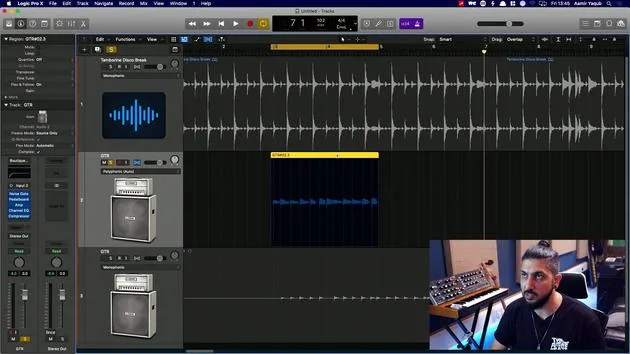
07. Projektdateien verwalten
Du bist hier3:46
08. Eine Instrumentenspur aufnehmen
2:06
09. So verwendest du Flex Time
10:58
10. So verwendest du Flex Pitch
11:12
11. Tonhöhe in MIDI-Daten umwandeln
3:11
12. Smart Tempo
3:04
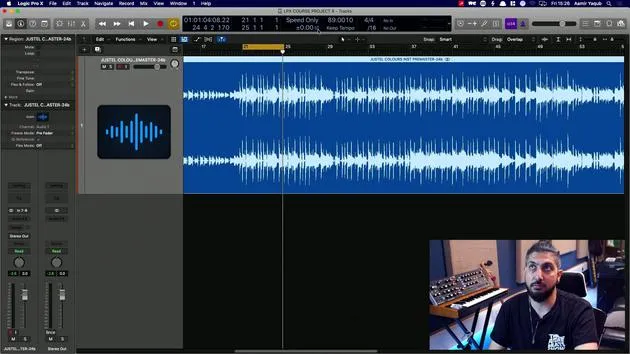
13. Varispeed-Parameter und -Anwendungen
4:08
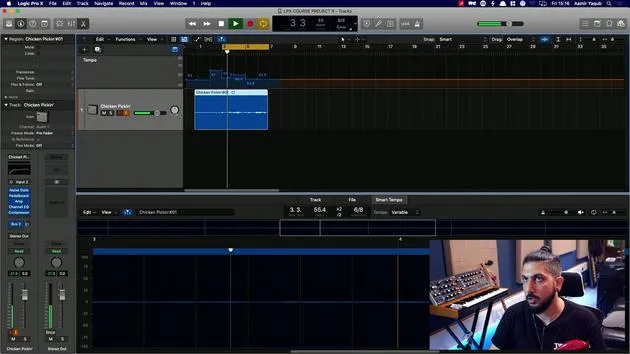
14. Adaptives Projekttempo
5:00
Transkript der Lektion
Managing Your Audio Project Efficiently
When you start recording audio files, you are adding more information into your project and, therefore, onto your hard drive. Audio files can start to take up space and get messy, among other issues.
Cleaning Up Your Project
To keep your project clean and slim, follow these steps:
-
Navigate to File Management
- Go to File > Project Management.
- Select Cleanup.
-
What Cleanup Does
- Deletes unused files.
- Removes backups.
- Eliminates any media browser files.
- Clears alternatives you may have created.
Important Consideration
Before cleaning up, ensure that you are completely satisfied with all your compositions, performances, and arrangements. You don't want to accidentally delete something important like a specific take or rendition you've recorded.
Locating Your Project
If you've lost track of your project:
-
Always Check Recent Projects
- Open Logic, and go to the Recent menu in File.
- You can open your project from there.
-
Show in Finder
- Navigate to File > Project Management > Show in Finder.
- This action will reveal the exact location of your project on your hard drive.
Exploring Your Audio Files
To see what audio files are in your project:
- Access the browser by pressing F.
- Make sure you are on the Project tab; this will show you all audio files currently in your project.
Understanding Your Audio Files
- Even if it appears that you have many files, if you collapse the view, you'll see the audio files you are actively using.
- When you open an audio file, it's divided into different regions, but only the top files are the ones saved on your drive.
Finding the Exact Location of an Audio File
To find where your audio files are stored:
-
Click the Name
- This will reveal its location in your iCloud drive within the project session package.
-
Right Click to Show in Finder
- This action shows you the session's location, but note that if you're operating within a package, the specific audio file may be hidden.
-
Accessing Package Contents
- If you need to extract an audio file to use in another session or share it with someone:
- Right-click on the session and select Show Package Contents.
- Inside the Media folder, you will find all of your audio files.
- If you need to extract an audio file to use in another session or share it with someone:
Conclusion
Managing your audio files properly not only keeps your project organized but also ensures that you can easily find and utilize your recordings when needed. Happy recording!
14 Lektionen
1 Std. 22 Min. strukturierte Videolektionen
Erweiterte Videofunktionen
Verlangsamen, Passagen loopen, mitlesen
Handy, Tablet & Desktop
Üben, wo du willst
100 % Zufriedenheitsgarantie
30 Tage Geld-zurück-Garantie
Lern deinen Guru kennen
Lern deinen Guru kennen
Aamir Yaqub ist ein in London ansässiger Musikproduzent und Toningenieur. Er hat mit einigen der größten Namen der Musik gearbeitet, darunter Alicia Keys, David Guetta, Rihanna, Sia und will.i.am, und fördert außerdem unabhängige Künstler.
In seinen Kursen vermittelt er seinen kompletten Logic-Pro-Workflow – von der Oberfläche und dem Aufnehmen über Beatmaking, Synthese und MIDI-Effekte bis zum Mixing und Finalisieren eines Tracks.







