



Das Metronom verwenden

Mit
Aamir YaqubAamir Yaqub zeigt, wie du zum Metronom von Logic aufnimmst, inklusive einer kleinen Buffergröße und dem Low Latency Mode, damit der Klick beim Spielen präzise bleibt.
Das steckt im Kurs
14 Lektionen (1h 22m) · 1 gratis
01. Willkommen beim Aufnehmen von Audio
0:58
02. Einführung in die Audioaufnahme
4:47
03. Das Metronom verwenden
Du bist hier5:00
04. Deine erste Aufnahme machen
Gratis-Lektion5:32
05. Comping
13:03
06. Audio bearbeiten
9:41
07. Projektdateien verwalten
3:46
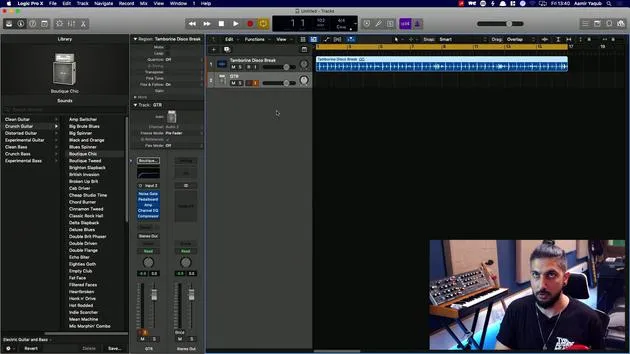
08. Eine Instrumentenspur aufnehmen
2:06
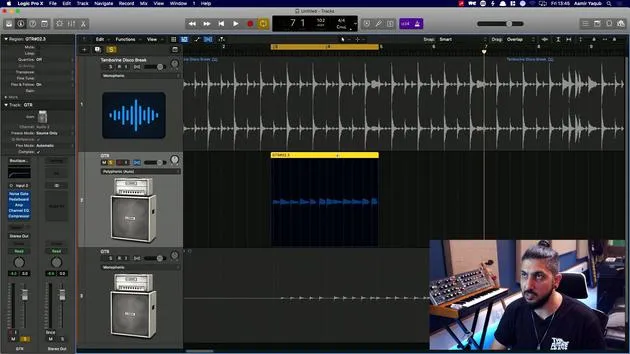
09. So verwendest du Flex Time
10:58
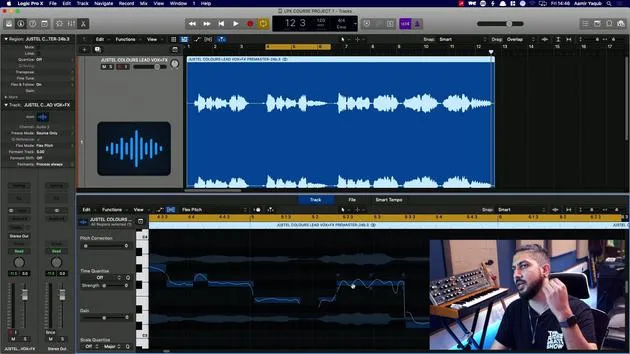
10. So verwendest du Flex Pitch
11:12
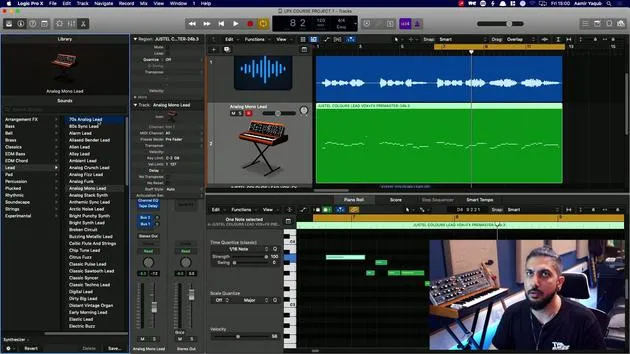
11. Tonhöhe in MIDI-Daten umwandeln
3:11
12. Smart Tempo
3:04
13. Varispeed-Parameter und -Anwendungen
4:08
14. Adaptives Projekttempo
5:00
Transkript der Lektion
Reducing Latency in Recording
To reduce the latency experienced while recording, follow these steps:
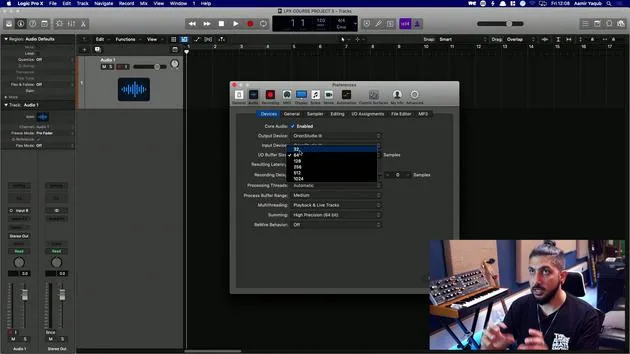
Adjusting Buffer Size
-
Access Audio Preferences:
- Navigate to your audio preferences.
- Locate the buffer size setting.
-
Optimal Buffer Size:
- Ideally, keep the buffer size as low as possible:
- 32 samples: Excellent for minimizing latency.
- 64 samples: Acceptable.
- 128 samples: Barely acceptable, beyond which recording may become difficult.
- Ideally, keep the buffer size as low as possible:
-
Impact of Buffer Size:
- A smaller buffer size results in:
- Shorter latency (the time taken to hear your voice or instrument after playing).
- A higher buffer size can create delays that hinder performance.
- A smaller buffer size results in:
Setting Input and Output Devices
- Ensure your input and output devices are set to your interface (e.g., Orion Studio 3).
Using Low Latency Mode
If you're in the middle of a session that uses considerable CPU power:
- Enable Low Latency Mode to temporarily suspend CPU-intensive plugins:
- Access via Record Menu: Select and tick Low Latency Mode.
- Alternatively, customize the Control Bar:
- Right-click on the control bar, choose Customize Control Bar and Display.
- Add the Low Latency Mode button, which will turn orange when activated.
Keeping Time with the Metronome
A metronome (or click) is crucial for keeping time during recording:
-
Accessing the Metronome:
- Locate the metronome button in the interface.
- Shortcut for toggling: Press K.
-
Metronome Settings:
- Right-click on the metronome button to adjust settings.
- Options include:
- Click while recording.
- Click only during the count-in.
- Polyphonic clicks for varied accents.
-
Customizing the Click:
- Choose accented notes for the click.
- Create louder clicks on downbeats for better guidance (higher note and sound).
- Adjust the tonality and volume to your preference:
- Softer tones for a less harsh click.
- Alternatively, a more pronounced tone for clear guidance.
-
Count-In Click:
- The area next to the metronome button displays the count (1, 2, 3, 4).
- This serves as the count-in click before recording starts.
- Access all settings via the metronome button by right-clicking.
By following these guidelines, you can optimize your recording experience and smooth out your performances!
14 Lektionen
1 Std. 22 Min. strukturierte Videolektionen
Erweiterte Videofunktionen
Verlangsamen, Passagen loopen, mitlesen
Handy, Tablet & Desktop
Üben, wo du willst
100 % Zufriedenheitsgarantie
30 Tage Geld-zurück-Garantie
Lern deinen Guru kennen
Lern deinen Guru kennen
Aamir Yaqub ist ein in London ansässiger Musikproduzent und Toningenieur. Er hat mit einigen der größten Namen der Musik gearbeitet, darunter Alicia Keys, David Guetta, Rihanna, Sia und will.i.am, und fördert außerdem unabhängige Künstler.
In seinen Kursen vermittelt er seinen kompletten Logic-Pro-Workflow – von der Oberfläche und dem Aufnehmen über Beatmaking, Synthese und MIDI-Effekte bis zum Mixing und Finalisieren eines Tracks.







