



Adaptives Projekttempo

Mit
Aamir YaqubAamir Yaqub zeigt, wie du Logics Smart Tempo und Adapt Project Tempo nutzt, damit das Raster deinem Spiel folgt, wenn du frei ohne Klick aufnimmst.
Das steckt im Kurs
14 Lektionen (1h 22m) · 1 gratis
01. Willkommen beim Aufnehmen von Audio
0:58
02. Einführung in die Audioaufnahme
4:47
03. Das Metronom verwenden
5:00
04. Deine erste Aufnahme machen
Gratis-Lektion5:32
05. Comping
13:03
06. Audio bearbeiten
9:41
07. Projektdateien verwalten
3:46
08. Eine Instrumentenspur aufnehmen
2:06
09. So verwendest du Flex Time
10:58
10. So verwendest du Flex Pitch
11:12
11. Tonhöhe in MIDI-Daten umwandeln
3:11
12. Smart Tempo
3:04
13. Varispeed-Parameter und -Anwendungen
4:08
14. Adaptives Projekttempo
Du bist hier5:00
Transkript der Lektion
Working with Smart Tempo in Logic
So, a really handy feature that we have when we're working with Smart Tempo is actually different from the example shown before, which involved pre-recorded audio.
Free Recording Without a Click
What if I was just sitting here playing guitar and thought, "I want to put the idea in, but I don't want to record with a click?" I want my grid and my tempo to conform to what I'm playing.
Logic uses Smart Tempo to help you when you're free recording, meaning you're recording without a click. Here's how to do it:
-
Adapt Project Tempo
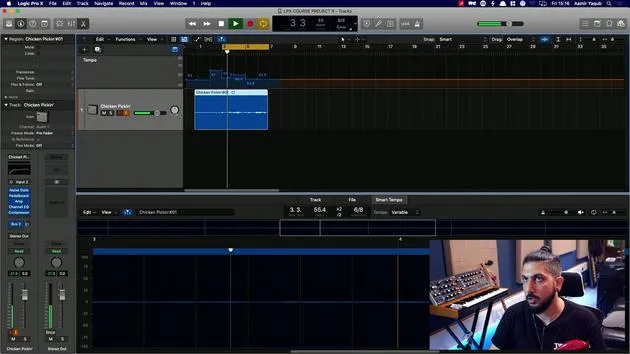
- Go to the LCD and select Adapt Project Tempo.
- Once you've done that, you'll see a notification appear, but it won't do anything yet.
-
Disable the Metronome
- Right-click on the metronome and ensure it's not clicking while recording.
-
Start Recording
- Now you can press Record. This will start to adapt to and follow the tempo you are playing.
Demonstration
You can see that I've got my record going on. If I just start strumming, Logic will now detect the tempo, and as you can see, it's moving the tempo around.
Smart Tempo Editor
Next, you'll get a prompt that says "Click Show to open the Smart Tempo editor." Here you can:
- Preview the audio file.
- Shift the downbeat if needed.
- Adjust the detected tempo.
Now, let's look at the editor.
-
Identify the Downbeat
-
The first beat you've played should be set as the downbeat.
-
Let's zoom into the waveform to see what's going on.
-
If I look closely, I can identify that the first hit there is actually the downbeat. The downbeat just means the first beat of the bar.
-
-
Adjust the Downbeat Marker
- Move the marker to signify that as being the downbeat.
Tempo Changes
When I adjust that marker, you'll notice that the tempo has changed in my global tempo track. It didn't just jump from 78.5 to 38.8, so you might need to adjust the next downbeat marker as well.
- Move the marker back to accurately represent the start of the bar.
- As I progress, I adjust it accordingly to reflect where the music actually starts.
This consistency allows my tempo map to change constantly because I'm not stuck in a rigid tempo.
Adding Drums
Next, if I wanted to go in and program some drums or even use something like Drummer, I can do that easily:
- Add a Drummer Track
- Go to add a drummer track, select the songwriter option, and pick a drummer.
- Let's choose Mason and see what he brings to the mix.
You can see there that the drummer adapts to the tempo changes. This is signified in the global tempo track and allows for dynamic adjustments.
Final Thoughts
You might find that sometimes the tempo feels a little too fast or too slow, especially with a range jump from 80 to 120.
Always make sure your markers are in the right place, and everything should work out just fine.
14 Lektionen
1 Std. 22 Min. strukturierte Videolektionen
Erweiterte Videofunktionen
Verlangsamen, Passagen loopen, mitlesen
Handy, Tablet & Desktop
Üben, wo du willst
100 % Zufriedenheitsgarantie
30 Tage Geld-zurück-Garantie
Lern deinen Guru kennen
Lern deinen Guru kennen
Aamir Yaqub ist ein in London ansässiger Musikproduzent und Toningenieur. Er hat mit einigen der größten Namen der Musik gearbeitet, darunter Alicia Keys, David Guetta, Rihanna, Sia und will.i.am, und fördert außerdem unabhängige Künstler.
In seinen Kursen vermittelt er seinen kompletten Logic-Pro-Workflow – von der Oberfläche und dem Aufnehmen über Beatmaking, Synthese und MIDI-Effekte bis zum Mixing und Finalisieren eines Tracks.







