



Deine Arbeit speichern und sichern
Ciaran Robinson behandelt das Speichern von Sessions in Pro Tools und das Einrichten von Auto Backup, damit du deine Arbeit bei einem Absturz nie verlierst.
Das steckt im Kurs
31 Lektionen (2h 41m) · 1 gratis
01. Überblick über Abschnitt 1
0:25
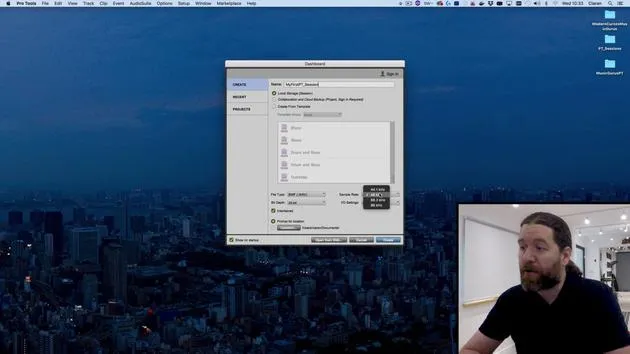
02. Eine Pro-Tools-Session öffnen und Einstellungen
Gratis-Lektion4:37
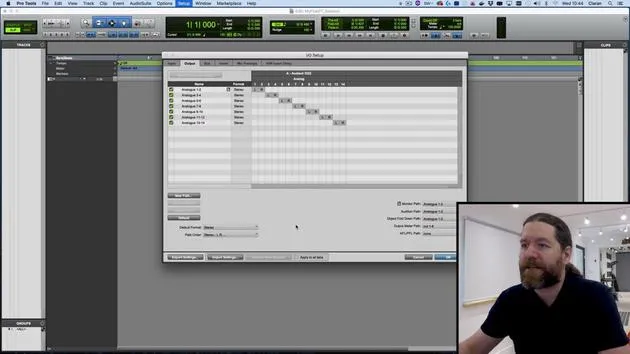
03. IO-Setup und Audio-Interface
8:12
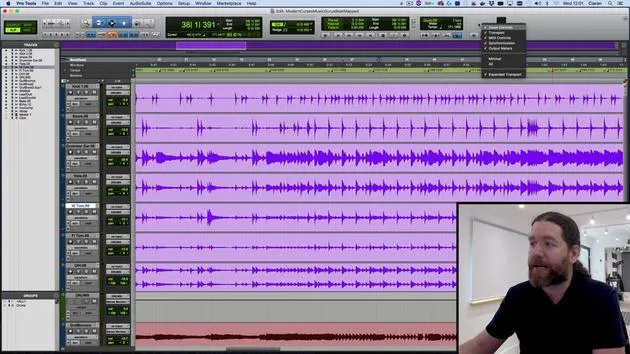
04. Überblick über das Bearbeitungsfenster
9:35
05. Zoomen und Spurhöhen
11:00
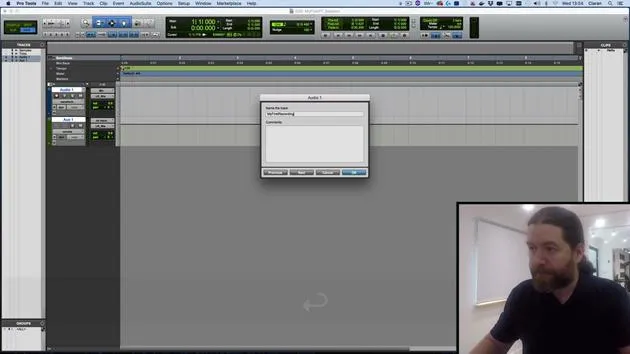
06. Spurtypen und Anlegen von Spuren
9:47
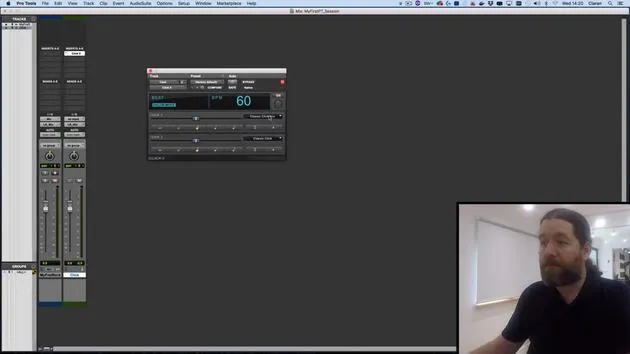
07. Einen Click-Track einrichten
5:11
08. Deine erste Aufnahme machen
4:01
09. Aufnahmekonfiguration
6:11
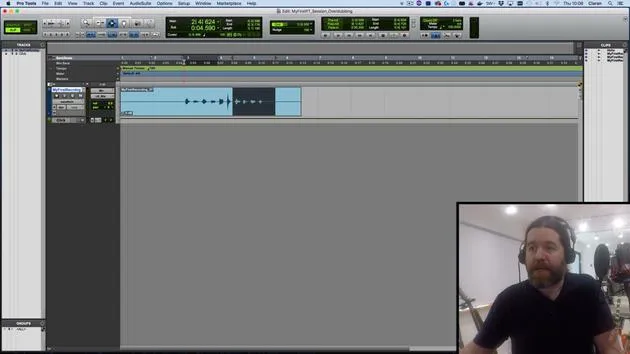
10. Ein- & Ausstanzen (Punch In/Out)
9:10
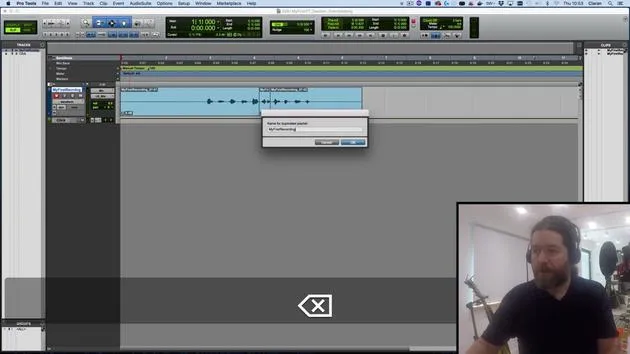
11. Playlists & Loop-Aufnahme
4:28
12. Deine Arbeit speichern und sichern
Du bist hier5:04
13. CHALLENGE #1: DEINE ERSTE AUFNAHME
0:27
Transkript der Lektion
Saving and Backing Up Your Work in Pro Tools
In this video, we're going to quickly talk about saving and backing up your work.
Regular Saving
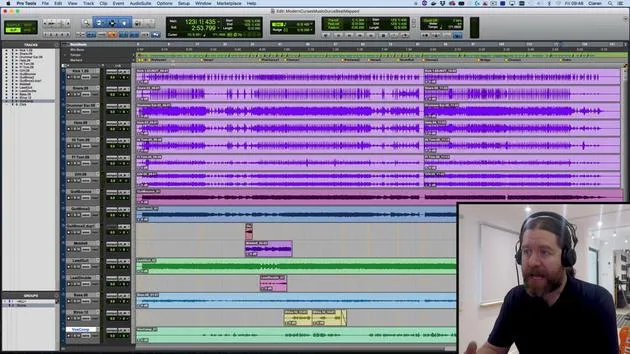
- On a regular basis, you want to go up to File and choose Save.
- Like myself, many users develop a command-S left-hand twitch after you pretty much do anything at all.
If it crashes, it's not necessarily the end of the world:
- Any audio you've recorded will still be there somewhere.
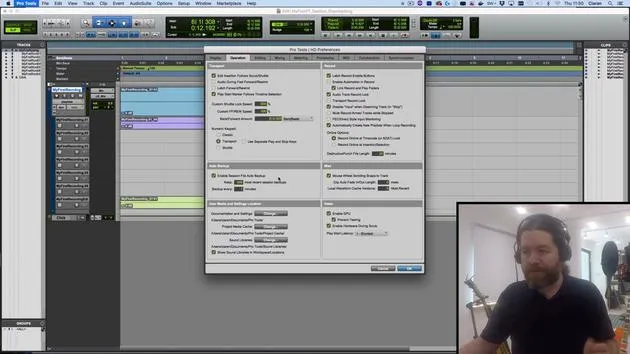
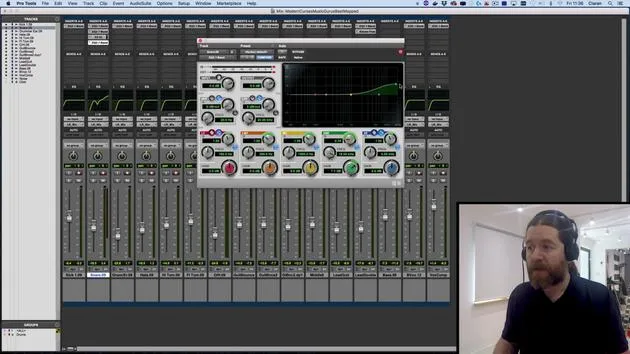
- If we check in the Pro Tools preferences under Operation, we can see that Auto Backup has been turned on.
- I've set this to its maximum value: 999 most recent session backups, at most every minute.
If you make no changes over that minute, it doesn't create another backup.
So, it's fairly safe.
Understanding Pro Tools Session Files
Now, what happens with the Pro Tools session?
- If I go back here and right-click on the file name, here's the session folder, and it has a lot of things inside.
- These are the PTX files.
Now, this is the one that we just were using, and you can see that this is 45 kilobytes. This should be a clue that it doesn't actually contain everything we need, it's just what we know, an EDL (Edit Decision List).
If you just save this, you have thrown away a lot of the stuff you still need.
For example, the Audio Files folder is the bulk of your file sizes.
Other Important Folders
- Audio Files: This is your actual audio.
- Bounce Files: You might have something here.
- Clip Groups: We won't cover that in this course.
- Session File Backups: These are for emergencies.
- Video Files: We haven't used any of these.
- Wave Cache: You can get rid of it; it will just take a little longer for Pro Tools to open up each time.
It's how the waveform is displayed.
Proper Backup Procedures
You want to make sure that you take everything inside this folder, as well as any audio files that your Pro Tools session is referencing.
Now, when you are moving things or backing them up, do things in a slightly different way:
- Take the Audio Files folder and the PTX session. Just to be safe, take the entire Pro Tools session.
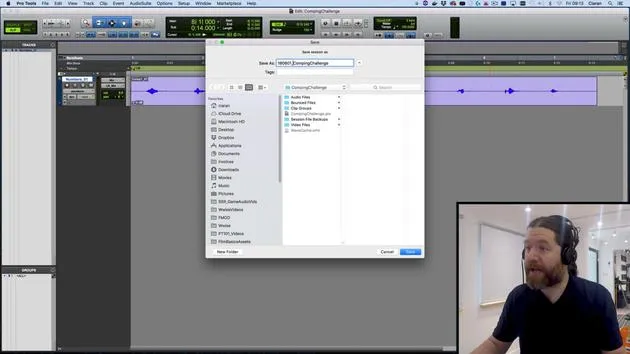
- When working on a project, go to File and do a Save As. I will call this "Demo Backup."
After doing this, you can see I now have a new PTX file. This still references the same audio files that I was working on earlier.
If I make mistakes, it's not unusual when doing a mix to spend a couple of hours and suddenly realize, "You know what? This was better before I started working on this."
Since I've done a Save As, I can always go back to the previous version. This is worthwhile!
Understanding File Sizes
As you can see, they're pretty small, only 45 kilobytes. These files are never going to get that huge unless you bring in loads and loads of automation.
Another option to be aware of is File > Save Copy In.
This allows us to make a copy and place it somewhere else:
- You can check the file size, sample rate, and bit depth.
- Import all audio files: Not just the main playlist but all of them.
- Generally, leave all settings in default, except for audio files.
Don't include the root plugin settings folder, you can end up with enormous files because you're saving all of your presets.
Archiving Your Session
I'll save this on the desktop, which usually takes longer. This just happens to be a very small session.
If we go back to the desktop, you'll see I now have this folder that doesn't contain all of the other bits and pieces:
- It doesn't have the bounce files.
- It doesn't have the video files folder.
These will exist when I first open this up.
Remember:
- We are not currently working on this "Save Copy In."
- If I make any changes to this Pro Tools session here, the copy I just made will be unaffected.
This is essentially what you do when backing up and archiving a session. Because I checked the audio files box, it will bring in any audio files that it was accessing but weren't in the audio files folder.
This consolidates everything into one location. If you're going from one computer to another, this is a way to guarantee you have everything you need with you.
Conclusion
So, that's Save, Save As, and Save Copy In. All of these are very important, whether it's Pro Tools or any other system you're using.
That's it for this session. In the next session, we'll start looking at editing audio.
See you then!
Bye!
31 Lektionen
2 Std. 41 Min. strukturierte Videolektionen
Erweiterte Videofunktionen
Verlangsamen, Passagen loopen, mitlesen
Handy, Tablet & Desktop
Üben, wo du willst
100 % Zufriedenheitsgarantie
30 Tage Geld-zurück-Garantie
Lern deinen Guru kennen
Lern deinen Guru kennen
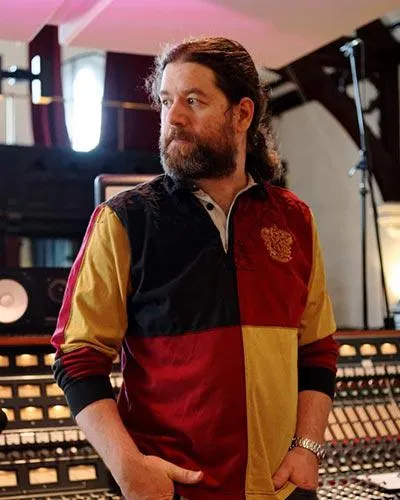
Ciarán Robinson ist ein Toningenieur mit über 25 Jahren Erfahrung in Live-Technik, Mixing, Recording, Studiodesign und Sound für Film, Fernsehen und Games. Derzeit leitet er den Music-Producer-Master an der Tileyard Education in London und hat an Instituten für zeitgenössische Musik wie BIMM, SSR und SAE unterrichtet.
Seit mehr als 20 Jahren lehrt er Audioproduktion und hat Kurse zu Pro Tools, Game-Audio, Studiotechnik und Postproduktion aufgebaut; einige seiner ehemaligen Studierenden arbeiten inzwischen mit Acts wie Coldplay und Biffy Clyro.







