



Playlists & Loop-Aufnahme
Ciaran Robinson zeigt, wie Playlists dir erlauben, mehrere Takes eines Parts auf einer Spur aufzunehmen, sodass du weiter probieren kannst, ohne frühere Versionen zu verlieren oder riskante Bearbeitungen vorzunehmen.
Das steckt im Kurs
31 Lektionen (2h 41m) · 1 gratis
01. Überblick über Abschnitt 1
0:25
02. Eine Pro-Tools-Session öffnen und Einstellungen
Gratis-Lektion4:37
03. IO-Setup und Audio-Interface
8:12
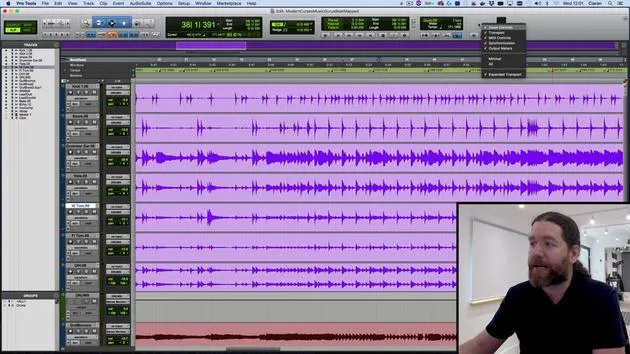
04. Überblick über das Bearbeitungsfenster
9:35
05. Zoomen und Spurhöhen
11:00
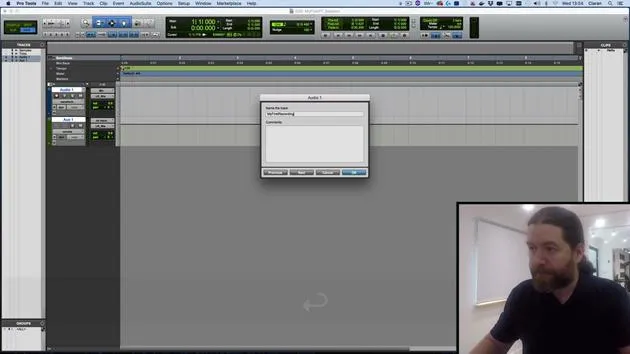
06. Spurtypen und Anlegen von Spuren
9:47
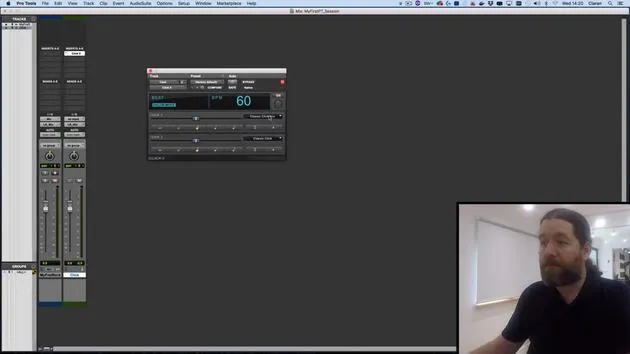
07. Einen Click-Track einrichten
5:11
08. Deine erste Aufnahme machen
4:01
09. Aufnahmekonfiguration
6:11
10. Ein- & Ausstanzen (Punch In/Out)
9:10
11. Playlists & Loop-Aufnahme
Du bist hier4:28
12. Deine Arbeit speichern und sichern
5:04
13. CHALLENGE #1: DEINE ERSTE AUFNAHME
0:27
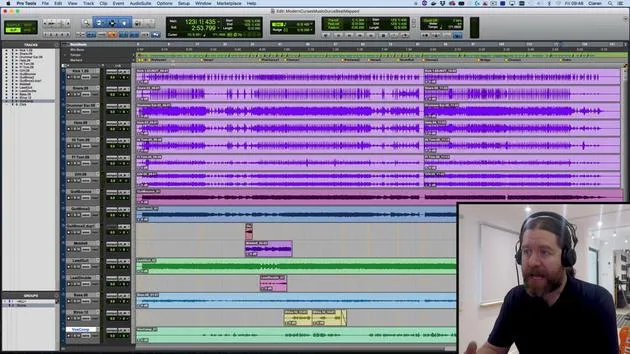
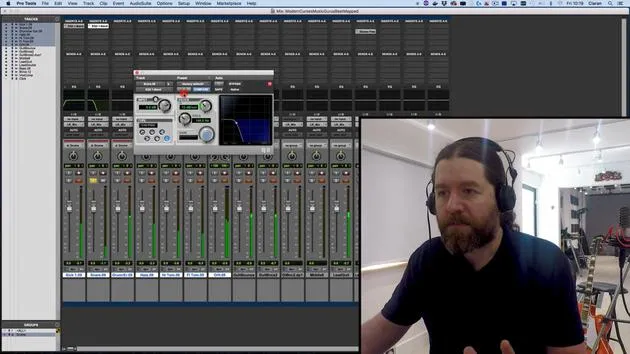
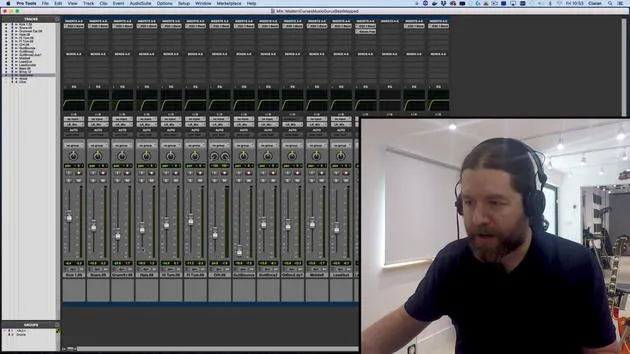
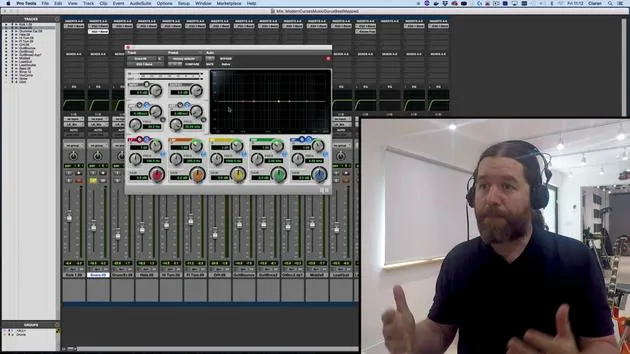
Transkript der Lektion
Understanding Playlists in Pro Tools
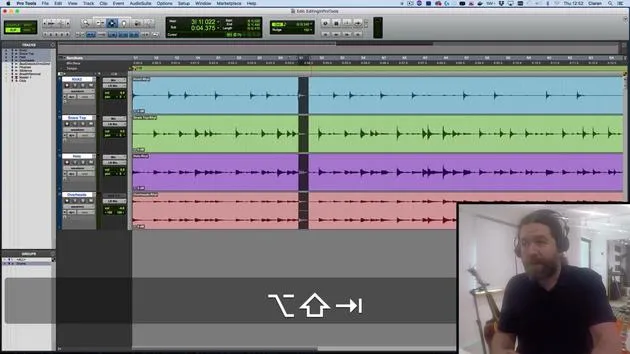
In this video, we're going to take a look at playlists. These are alternative versions of tracks, allowing you to capture multiple attempts at a performance without losing the earlier versions.
Creating a New Playlist
- Let's say I want to redo the numbers 1 to 10. I still haven't quite got the hang of it.
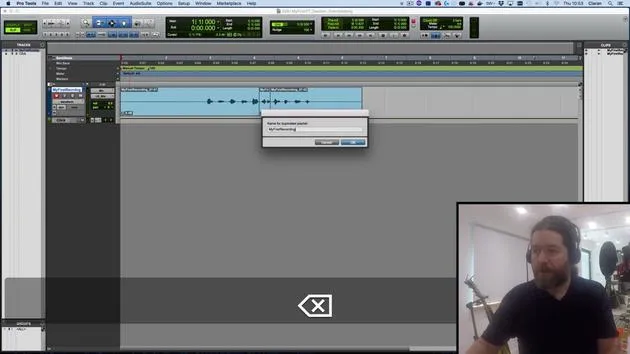
- Instead of overwriting the existing track, I'll click on the little triangle next to the track name and select New.
- I'm happy with the name; it just adds a number at the end of it.
Recording New Takes
- I will arm my track and hit Record:
- "1, 2, 3, 4, 5, 6, 7, 8, 9, 10."
- Great! If I prefer the previous version, not a problem. I can simply click and go back.
Benefits of Playlists
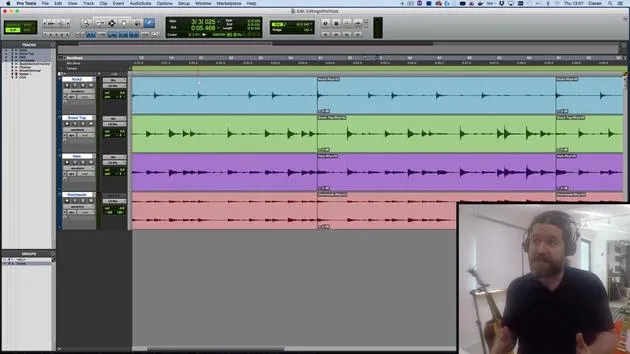
Playlists can also be useful when you're doing some editing and are not 100% sure the changes will be successful.
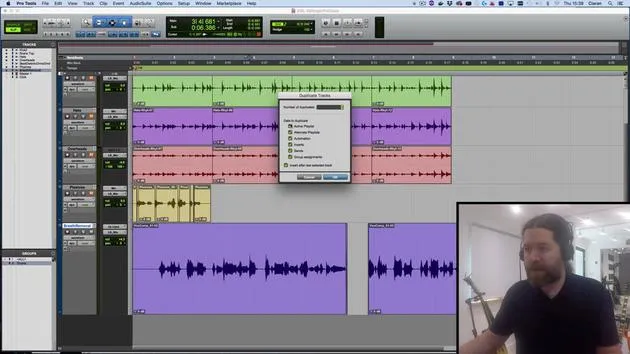
- Instead of relying on the "undo" function, which has a limited capacity in Pro Tools 64, I can back things up as a duplicate playlist.
- To do this, I click here and choose Duplicate from the top menu, adding the word "edit" to the end of that.
Making Edits
Now, I can go through and make some changes:
- Let's say I just want to trim this to here.
- There's my new version.
- If I want to go back to the unedited version, it's still available in the original playlist.
Playlists are really handy for this type of work.
Loop Recording
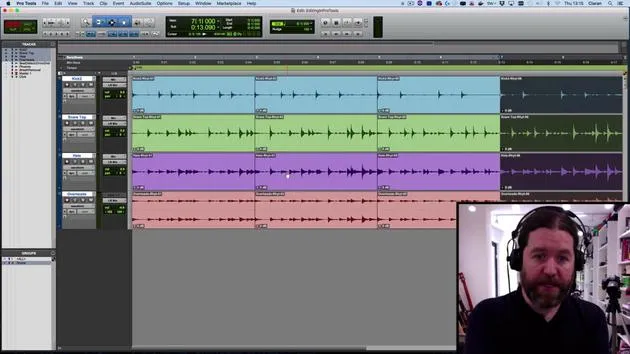
We can also use playlists for loop recording.
- This is where, rather than stopping and starting every single time, we create one continuous loop.
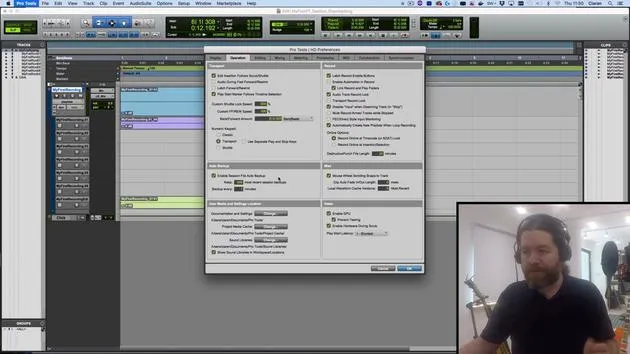
Before we continue, let's check the Pro Tools preferences:
- Navigate to the Operation tab.
- Ensure it is set to automatically create new playlists when loop recording.
Setting Up Loop Recording
- I'll make a selection and turn on Loop Record.
- You might have spotted earlier that we can right-click here; it's also accessible by hitting the 5 button on the numeric keypad.
Recording the Loop
When I hit record:
- "1, 2, 3, 4. 1, 2, 3, 4. 1, 2, 3, 4. 1, 2, 3, 4."
- I'll stop it before it gets halfway.
- This discards the very last started loop. If I went more than halfway, I would get up to that point.
What this does is create one continuous recording.
Listening to the Recording
Let's have a listen to this:
- "1, 2, 3, 4. 1, 2, 3, 4..."
- I can undo that by pressing Z since I have Edit Key Focus turned on.
Each of those loop cycles goes into separate playlists. I can access them similarly to before.
Viewing Playlists
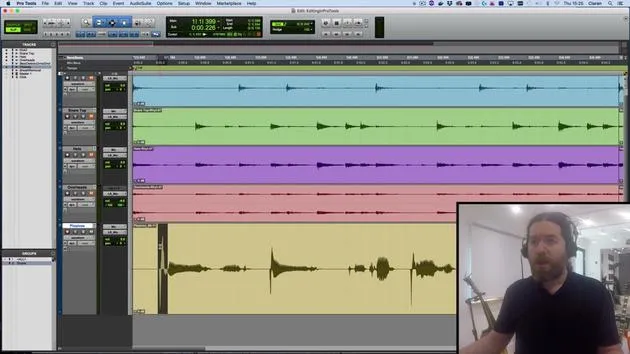
- But a neater option is to change from Waveform View to Playlist View.
- Now we can see all of the different playlists we've created:
- The edit version
- The second version
- The original (with this part replaced)
- All the loops
What's Next?
In the next session, we'll look at comping. This means taking all the good bits from these playlists and creating one version that contains all the best moments.
Remember: Playlists are incredibly useful! If you have a musician who needs multiple attempts to get things right, you can later pick and choose the best parts.
31 Lektionen
2 Std. 41 Min. strukturierte Videolektionen
Erweiterte Videofunktionen
Verlangsamen, Passagen loopen, mitlesen
Handy, Tablet & Desktop
Üben, wo du willst
100 % Zufriedenheitsgarantie
30 Tage Geld-zurück-Garantie
Lern deinen Guru kennen
Lern deinen Guru kennen
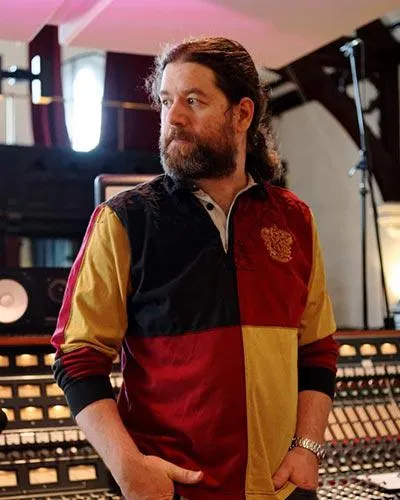
Ciarán Robinson ist ein Toningenieur mit über 25 Jahren Erfahrung in Live-Technik, Mixing, Recording, Studiodesign und Sound für Film, Fernsehen und Games. Derzeit leitet er den Music-Producer-Master an der Tileyard Education in London und hat an Instituten für zeitgenössische Musik wie BIMM, SSR und SAE unterrichtet.
Seit mehr als 20 Jahren lehrt er Audioproduktion und hat Kurse zu Pro Tools, Game-Audio, Studiotechnik und Postproduktion aufgebaut; einige seiner ehemaligen Studierenden arbeiten inzwischen mit Acts wie Coldplay und Biffy Clyro.







