



Einen Click-Track einrichten
Ciaran Robinson zeigt, wie man in Pro Tools mit dem Befehl Create Click Track einen Click-Track einrichtet, und erklärt, wie er als Auxiliary-Spur funktioniert.
Das steckt im Kurs
31 Lektionen (2h 41m) · 1 gratis
01. Überblick über Abschnitt 1
0:25
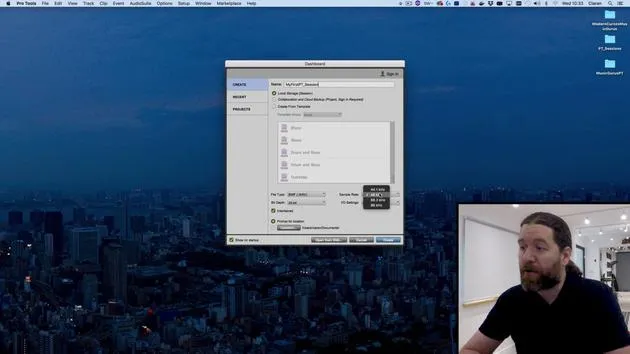
02. Eine Pro-Tools-Session öffnen und Einstellungen
Gratis-Lektion4:37
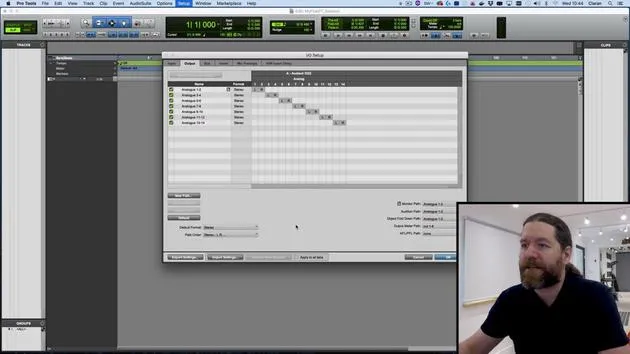
03. IO-Setup und Audio-Interface
8:12
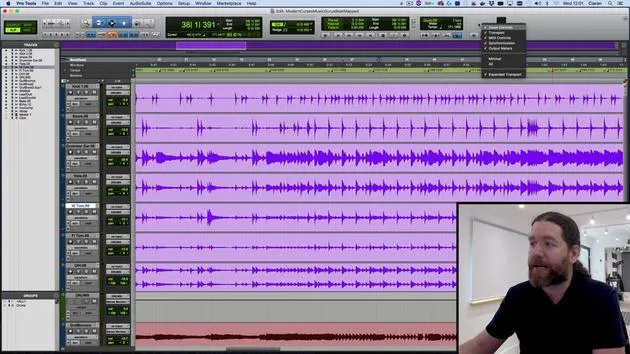
04. Überblick über das Bearbeitungsfenster
9:35
05. Zoomen und Spurhöhen
11:00
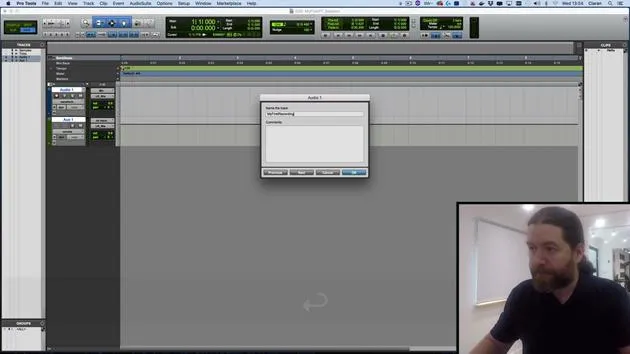
06. Spurtypen und Anlegen von Spuren
9:47
07. Einen Click-Track einrichten
Du bist hier5:11
08. Deine erste Aufnahme machen
4:01
09. Aufnahmekonfiguration
6:11
10. Ein- & Ausstanzen (Punch In/Out)
9:10
11. Playlists & Loop-Aufnahme
4:28
12. Deine Arbeit speichern und sichern
5:04
13. CHALLENGE #1: DEINE ERSTE AUFNAHME
0:27
Transkript der Lektion
Setting Up a Click Track
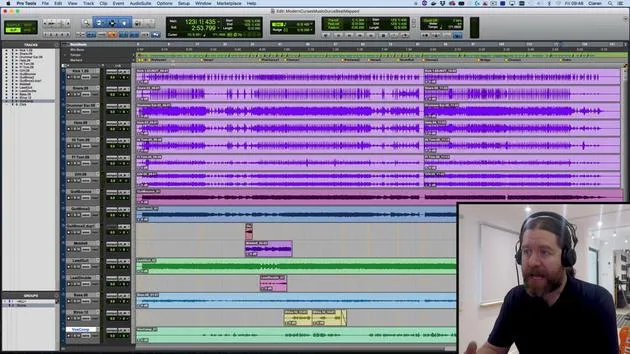
So our audio track isn't quite ready to go. We've got a few more tweaks we need to make to it first. But before we come back to that, let's set up a click track.
Creating the Click Track
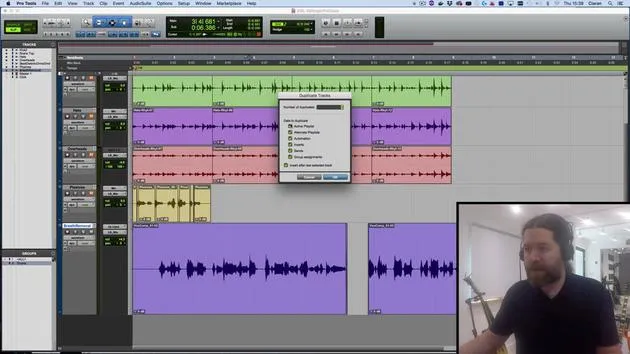
The easiest way to do this is to go up to the Track Menu, and at the bottom, there's the option of Create Click Track.
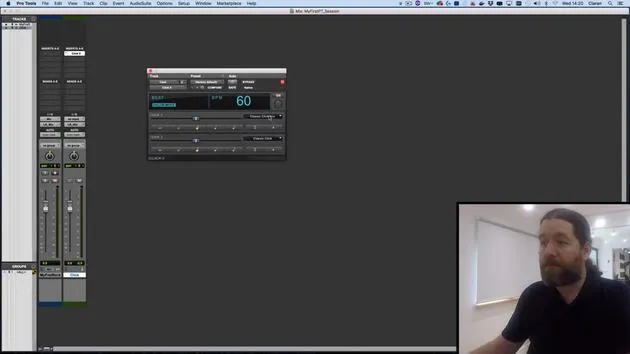
What this has actually done is create an auxiliary track for us.
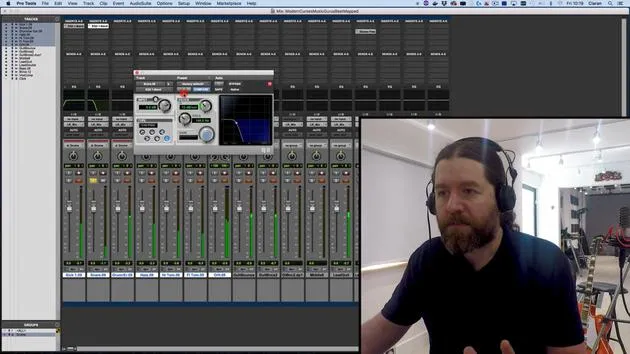
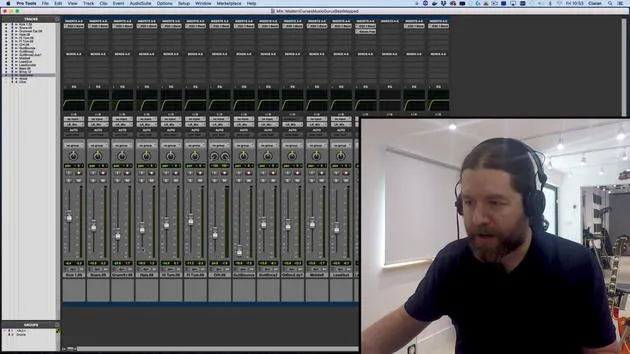
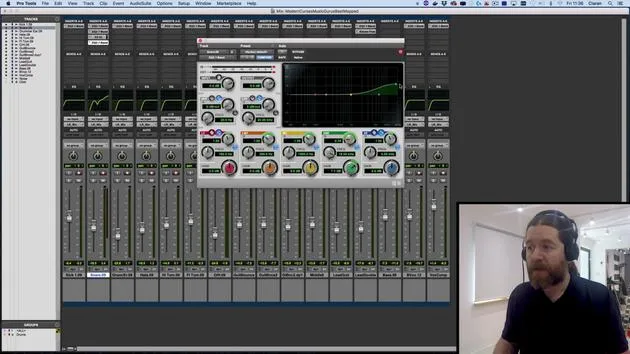
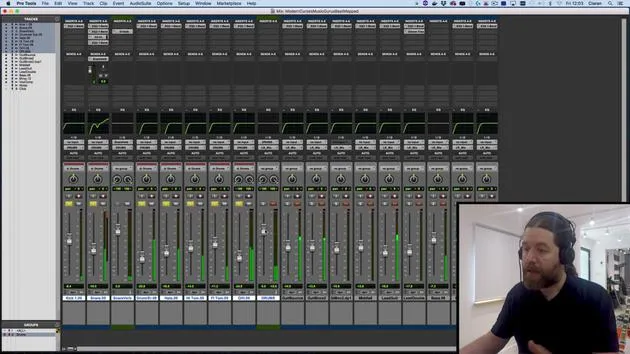
- If I go back to the mix window, you can see here is the auxiliary track.
- You can tell this for a couple of reasons:
- It's green (although you can change that).
- The icon here is the arrow.
Remember, I described an auxiliary track as being like a throughput track. The arrow indicates how it behaves.
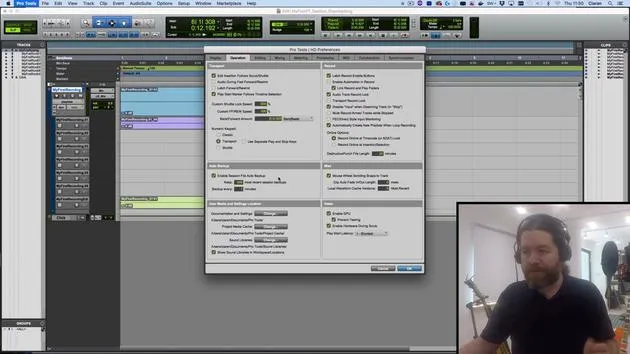
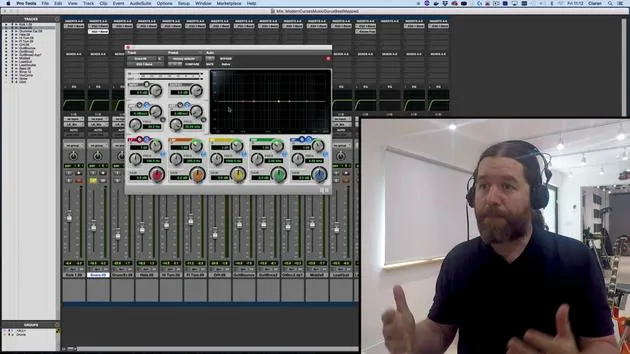
You can see it has a plugin insert here of Click 2. If I click once on this, it opens up, and you can decide to change how the click sounds.
For example, I could choose a smooth stick acoustic instead.
"I could have set that up manually, but it's kind of nice to have the preset."
Setting the Tempo
Now, let's set the tempo.
Currently, it is set to 60 bpm. We did this in the last video. You can change it from here or double-click on this diamond (which looks like a triangle but has half hidden behind).
This gives me the ability to input a tempo change of 110 bpm.
Great. But at the moment, we have the conductor track turned on. You can tell because the little picture of the conductor (or what I like to think of as Harry Potter) is up here.
This conductor track allows you to draw in tempo changes over time.
"Remember in the earlier video I mentioned there was a tempo map of a band's performance? That was the conductor track."
If I turn this off now, you only have one tempo setting for the entire session. It is currently 120 bpm.
Why Use Tap Tempo?
You might ask, why would you want to do this?
One of the things that it now gives you is the ability to do what we call tap tempo.
- I can click where it says 120 bpm.
- Then, using the T button on my keyboard, I can just tap at the tempo I want to play at.
There we go, 92 bpm.
Pro Tip: "I often find this is a much easier way to do things. Rather than ask the band what tempo they want for the click track, just ask them to clap their hands at the tempo they want."
Then you just tap along and everything's set.
Handling Band Temperament
This tends to be a pretty smooth process, although quite often when the band comes into the studio, they're a little bit overexcited.
You might find the tempo is pushed a little bit faster than they really want it to be, which is where pre-production comes in.
You want to make these decisions ideally before you get there, but we'll talk about that kind of thing at later dates.
Testing the Click Track
The click track is already turned on. If I hit the spacebar, you can hear the click.
Why is that happening? It's because the picture of the metronome is turned on. If I turn this off now, there's no click track.
"Remember from earlier, you can also press the 7 key on the numeric keypad to do the same thing."
You might find the click track is behaving a little oddly. Perhaps you have count off turned on.
If I click on where it says count off, now when we actually hit play, you would have two bars of what everyone else in the world would call a count-in before it actually starts.
- This can be useful.
- It can also be annoying, to tell you the truth.
Usually, I don't bother with count offs for initial recordings. I might use them before punching in later in the track, but again, we'll discuss that later.
Click Track Settings
Secondly, it might only work some of the time.
If I double-click on this metronome icon, you will see the click count-off options. I have it set to during play and record.
"Only during record would mean that if I turn the click track on and hit the spacebar, you wouldn't hear anything at all because you're not recording, you're just playing back."
So, you want to be a little careful about how this is set. The same thing goes for count off. If you turn it on only during record for two bars from that, you might sometimes just get the count-off clicks and then lose the click track.
So just make sure you have these settings the way you want them.
There are occasions when all of those options would be suitable; you'll have to figure it out with the band or whoever you're recording.
Conclusion
So that's a click track all set up. Over the next couple of videos, we'll finish off making your first recording.
31 Lektionen
2 Std. 41 Min. strukturierte Videolektionen
Erweiterte Videofunktionen
Verlangsamen, Passagen loopen, mitlesen
Handy, Tablet & Desktop
Üben, wo du willst
100 % Zufriedenheitsgarantie
30 Tage Geld-zurück-Garantie
Lern deinen Guru kennen
Lern deinen Guru kennen
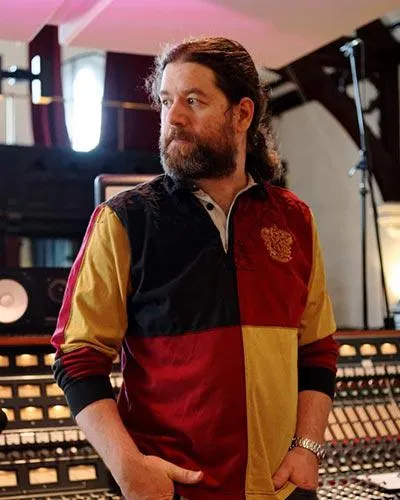
Ciarán Robinson ist ein Toningenieur mit über 25 Jahren Erfahrung in Live-Technik, Mixing, Recording, Studiodesign und Sound für Film, Fernsehen und Games. Derzeit leitet er den Music-Producer-Master an der Tileyard Education in London und hat an Instituten für zeitgenössische Musik wie BIMM, SSR und SAE unterrichtet.
Seit mehr als 20 Jahren lehrt er Audioproduktion und hat Kurse zu Pro Tools, Game-Audio, Studiotechnik und Postproduktion aufgebaut; einige seiner ehemaligen Studierenden arbeiten inzwischen mit Acts wie Coldplay und Biffy Clyro.







