



MIDI-Controller in Ableton Live installieren und einrichten

Mit
Isaac CotecWie du einen MIDI-Controller in Ableton Live installierst und einrichtest – von den MIDI- und Sync-Einstellungen bis zum Aktivieren von Track und Remote, damit du Parts spielen und aufnehmen kannst.
Das steckt im Kurs
17 Lektionen (1h 33m) · 1 gratis

Transkript der Lektion
Recording MIDI in Ableton Live
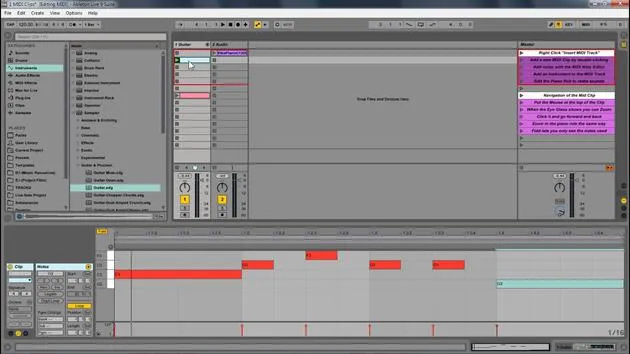
In this module, we're going to be looking at how we can record new MIDI parts and add them directly into Ableton Live. Recording MIDI in Ableton Live allows us to add new MIDI in real-time.
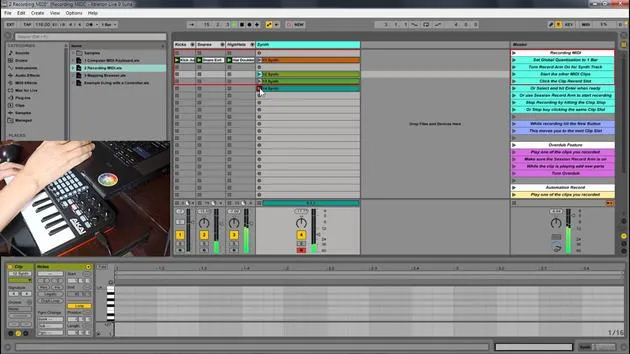
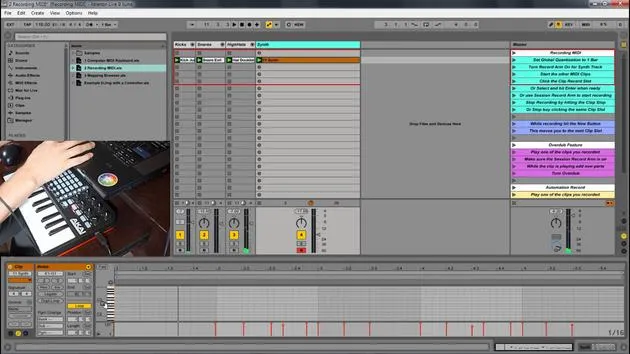
Recording New Clips
- You can record new clips on the fly into any session slot.
- You can record new MIDI using:
- A keyboard
- A MIDI controller
Benefits of MIDI Controllers
MIDI controllers provide a much easier way to control aspects of Live. They can transform Live from just a Digital Audio Workstation (DAW) into a musical instrument. There is a wide variety of MIDI controllers available, such as:
- Keyboards
- Drum pads
- Devices like the Ableton Push, which enhances the feeling of playing an instrument rather than just working within a screen.
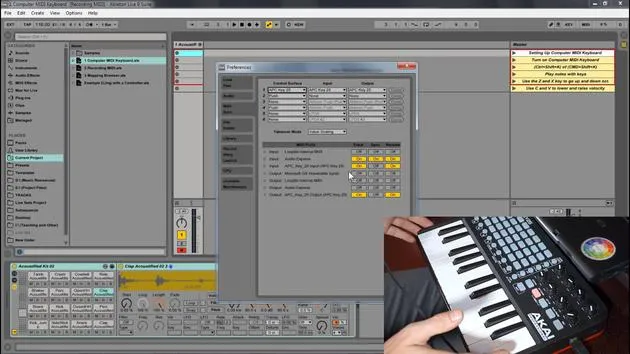
Setting Up a MIDI Controller
To set up a MIDI controller in Ableton Live:
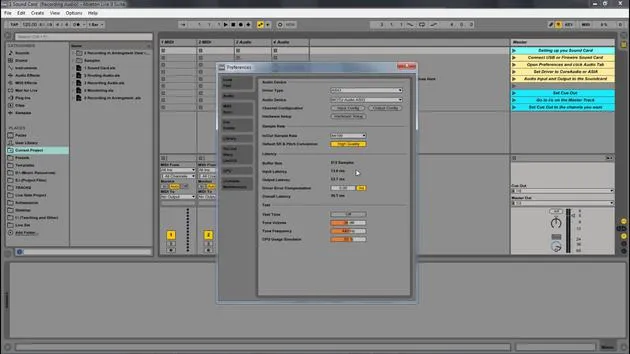
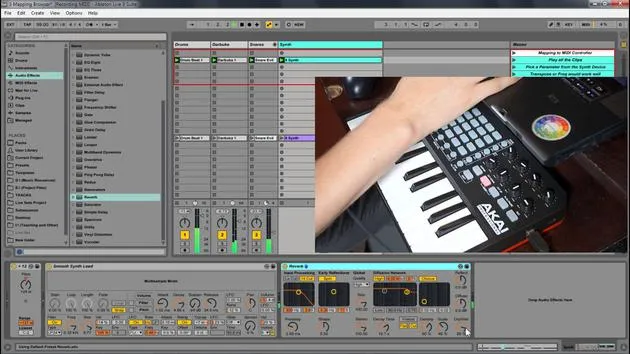
- Go to Options > Preferences.
- Under MIDI and Sync, you'll find your different MIDI preferences.
For instance, I have the APC Key 25, which functions similarly to a launchpad:
- It features grids corresponding with Ableton.
- It includes knobs and keys for additional control.
Configuration Steps
- If you are using a control surface (like the APC Key 25), set the control surface in the preferences.
- Set the inputs and outputs accordingly (e.g., your audio interface, like the Audio Express, and the APC Key 25).
Make sure to enable "Track" and "Remote" so you can control various aspects of Ableton. Once the armed button is set, you can use your keyboard to input information.
Quick Review
- Go to Live Preferences.
- Check the MIDI and Sync section.
- Ensure that the MIDI device is set to "Remote On" and "Track On".
This might vary depending on the specific controller you are using, and the manufacturer will generally provide the necessary setup information.
Using Your Computer Keyboard
If you do not have a MIDI controller, you can always use your computer keyboard.
- The image shows the white and black keys of a piano represented on the computer keyboard:
- White Keys: A, S, D, F, G, H, J, K, L
- Black Keys: W, E, T, Y, U, O, P
Activating the Computer MIDI Keyboard
To activate the computer MIDI keyboard:
- Press the designated button in Ableton to turn it on.
After activation, you can use the following keys to play:
- W, A, S, D will produce sound.
Visual Feedback
In the drum rack, you will see little yellow dots indicating active spaces. If there are no instruments loaded there, hitting the keys won't produce any sound.
To adjust the octave:
- Press Z to lower the octave and keep pressing to adjust further.
Velocity Sensitivity
While using the computer keyboard:
- It may not be velocity sensitive by default.
- Press C to lower velocity and V to raise it.
I've seen amazing producers write music on the fly using just their computer keyboard while traveling. So, don't let the lack of a MIDI controller hold you back, your computer keyboard is a great starting point!
Summary
- The keys A, S, D represent the white keys on a keyboard.
- The keys W, E, T represent the black keys.
- You can adjust octave and velocity directly from your keyboard.
- Always ensure the activation button for the computer MIDI keyboard is on; otherwise, it will default to MIDI control for external devices.
17 Lektionen
1 Std. 33 Min. strukturierte Videolektionen
Erweiterte Videofunktionen
Verlangsamen, Passagen loopen, mitlesen
Handy, Tablet & Desktop
Üben, wo du willst
100 % Zufriedenheitsgarantie
30 Tage Geld-zurück-Garantie
Lern deinen Guru kennen
Lern deinen Guru kennen
Isaac Cotec ist wohl einer der besten Ableton-Trainer der Welt! Während er an seiner eigenen Musik arbeitete, begann er, Privatschülern Aufnahmetechniken, Sounddesign und Ableton Live beizubringen, und seit seiner Zertifizierung als offizieller Ableton Certified Trainer hat er Tausenden von Produzenten geholfen, ihr Niveau zu steigern und als Musiker erfolgreich zu sein.
Isaac begann 2005 mit Psyche Sonics elektronische Musik zu produzieren, einer experimentellen Gruppe, die sich mit der Wissenschaft und Erforschung binauraler Beats und der Bewusstseinsveränderung durch Klang beschäftigte. Nach dem Touren schrieb er weiter Musik unter dem Alias Cotec und trat später als Künstler Subaqueous hervor, der seine elektronische Vergangenheit mit zukunftsgewandten wie organischen Produktionstechniken verband. Bis heute hat er 3 Alben und 4 EPs veröffentlicht.
Isaac ist außerdem Gründer und Manager des Plattenlabels Invibe Music, das einige der besten Elektronik-Künstler des Pacific Northwest vertritt und sich auf Midtempo-Dance-Musik spezialisiert.
In seinen Ableton-Live-Kursen teilt Isaac die Produktions-, Sounddesign- und Songwriting-Techniken, die er über Jahre verfeinert hat – genau jene Fähigkeiten, mit denen er aus dem Funken einer Idee einen fertigen Track macht.







