



Eine externe Soundkarte in Ableton Live einrichten

Mit
Isaac Cotec
Das steckt im Kurs
17 Lektionen (1h 33m) · 1 gratis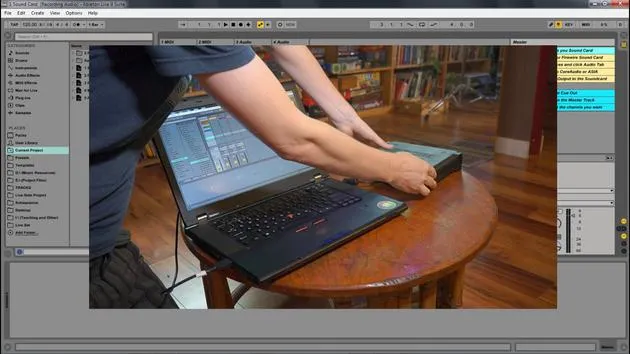
Transkript der Lektion
Recording Audio in Ableton Live
In this module, we're going to be looking at how we can record audio within Ableton Live. We'll cover:
- Setting up our system to record external audio
- Creating new parts, clips, and recordings
You can only get so far using loops and pre-made clips. Let's expand the palette with our own recording.
Setup Overview
To do this, there are a few things we need to set up and learn:
- Set up your external audio interface
- Routing the ins and outs within Live
- Arming tracks and monitoring
- Global record, recording, and playback
- Metronome, multi-tracking, and editing recordings
External Audio Interface
An external audio interface or sound card allows you to connect microphones, instruments, and other external sounds to your computer, and in turn, to Ableton Live.
Important Note: You don't need an external audio interface, but you will be limiting your sound quality and ability to record external sounds if you don't.
External interfaces typically use USB or FireWire to connect to your computer.
Steps for Connecting Your Audio Device
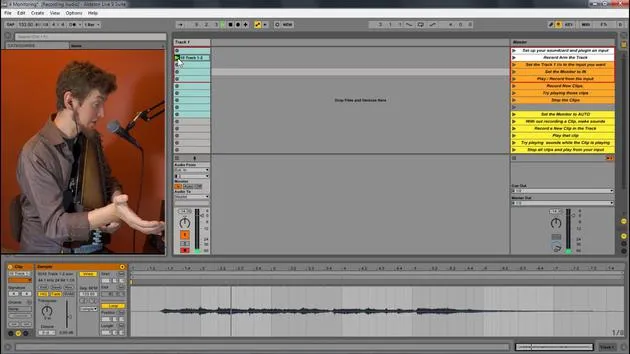
Let's look at connecting your audio device within Ableton Live. This Ableton Live set goes through all the different necessary steps to prepare your audio interface.
Setting Up Your Sound Card
-
Connect Your Interface
Here I am connecting my MOTU sound card to my computer via USB. -
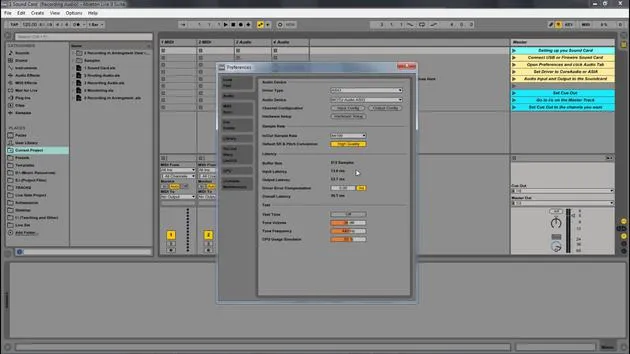
Open Preferences
- Go to: Options > Preferences (or File > Preferences on Mac).
-
Choose Your Audio Driver
- Main driver type:
- ASIO for PC
- Core Audio for Mac
- MME DirectX is for the onboard sound card.
If I set it to this, I can choose my headphones or speakers. Note that you can only select one thing at a time in this setting.
- Main driver type:
-
Select ASIO or Core Audio
When using ASIO or Core Audio, you can pick the device, which can have multiple inputs and outputs.- Example: I would select the MOTU interface.
-
Input Choices
- You can look at your inputs; my device has several options, and you can choose either mono or stereo.
- I typically only use these.
-
Output Settings
- I also have several output options, but I usually only need two channels in stereo.
- You can turn inputs and outputs on and off by clicking them.
By following these setup steps, you'll be able to effectively record audio within Ableton Live, expanding your creative capabilities!
17 Lektionen
1 Std. 33 Min. strukturierte Videolektionen
Erweiterte Videofunktionen
Verlangsamen, Passagen loopen, mitlesen
Handy, Tablet & Desktop
Üben, wo du willst
100 % Zufriedenheitsgarantie
30 Tage Geld-zurück-Garantie
Lern deinen Guru kennen
Lern deinen Guru kennen
Isaac Cotec ist wohl einer der besten Ableton-Trainer der Welt! Während er an seiner eigenen Musik arbeitete, begann er, Privatschülern Aufnahmetechniken, Sounddesign und Ableton Live beizubringen, und seit seiner Zertifizierung als offizieller Ableton Certified Trainer hat er Tausenden von Produzenten geholfen, ihr Niveau zu steigern und als Musiker erfolgreich zu sein.
Isaac begann 2005 mit Psyche Sonics elektronische Musik zu produzieren, einer experimentellen Gruppe, die sich mit der Wissenschaft und Erforschung binauraler Beats und der Bewusstseinsveränderung durch Klang beschäftigte. Nach dem Touren schrieb er weiter Musik unter dem Alias Cotec und trat später als Künstler Subaqueous hervor, der seine elektronische Vergangenheit mit zukunftsgewandten wie organischen Produktionstechniken verband. Bis heute hat er 3 Alben und 4 EPs veröffentlicht.
Isaac ist außerdem Gründer und Manager des Plattenlabels Invibe Music, das einige der besten Elektronik-Künstler des Pacific Northwest vertritt und sich auf Midtempo-Dance-Musik spezialisiert.
In seinen Ableton-Live-Kursen teilt Isaac die Produktions-, Sounddesign- und Songwriting-Techniken, die er über Jahre verfeinert hat – genau jene Fähigkeiten, mit denen er aus dem Funken einer Idee einen fertigen Track macht.







