



Starting up Logic and customizing the software

With
Aamir YaqubOpen Logic Pro for the first time and walk through the project chooser, templates and the new-project settings - tempo, key and time signature.
What's in the course
13 lessons (1h 23m) · 1 free
01. Welcome to the course
0:39
02. What is Logic
2:21
03. Starting up Logic and customizing the software
You are here4:55
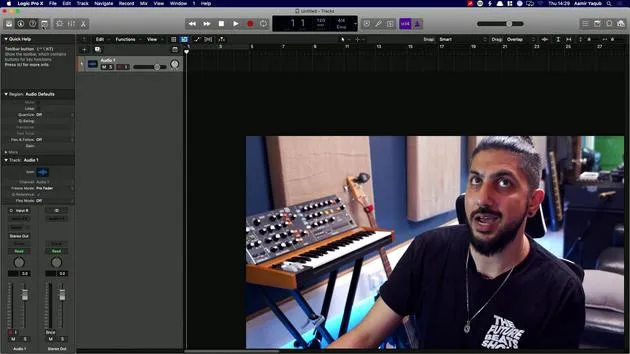
04. Control bar and display area
7:35
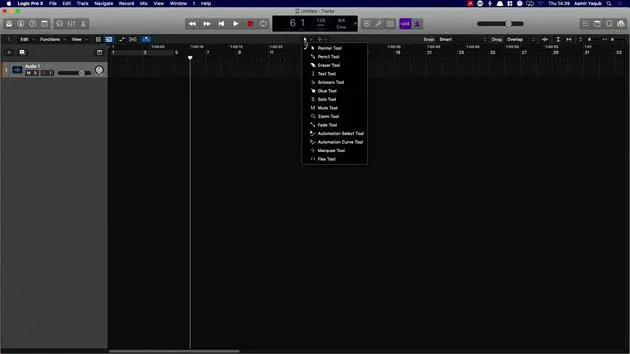
05. Workspace exploration - Ruler area
5:09
06. Track header area
7:35
07. Navigating your first sounds
7:51
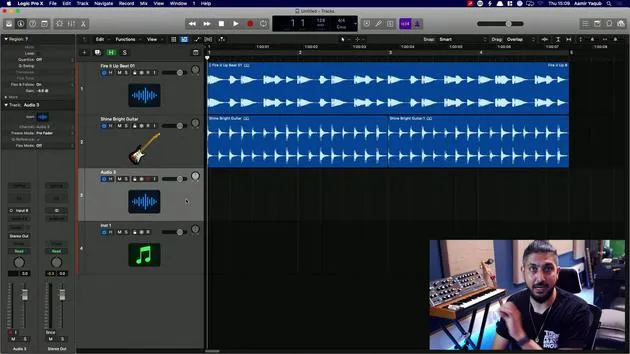
08. Using Tracks and Regions
4:44
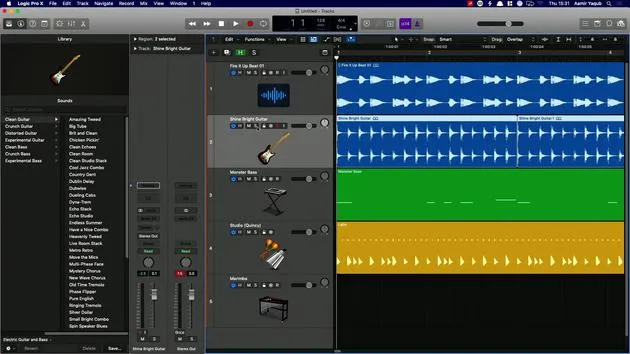
09. Channel strips and plugins
4:35
10. Project properties, Saving, Templates
14:58
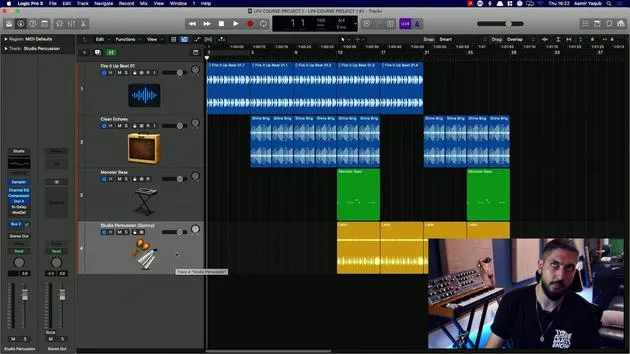
11. Working with Tracks
3:42
12. Working with Regions
8:11
13. Cutting, Looping, Cycling regions
11:04
Lesson transcript
Introduction to Logic Pro X
When we open up Logic and click on the icon to launch it, we are presented with a screen that allows us to do many different things. One option is to open a new project, which could be an empty project or a new Live Loops project.
Overview of Options
On the main screen, we can explore various features:
- Recent Projects: Review your previously opened projects.
- Starter Grid: A quick way to access different templates for Live Loop projects.
- Tutorials: Available tutorials for Live Loops and Step Sequencer.
- Demo Project: Check out Billie Eilish's Ocean Eyes project to see how it was created.
- Templates: Explore the templates that come with Logic. You can also create your own templates, which will appear in the My Templates section.
Setting Project Details
In the Details section, you can set:
- Tempo
- Key Signature
- Time Signature
- Interface used
- Sample Rate
Don't worry if these terms are unfamiliar; we will go through them all. You also have the option to open an existing project.
Creating a New Project
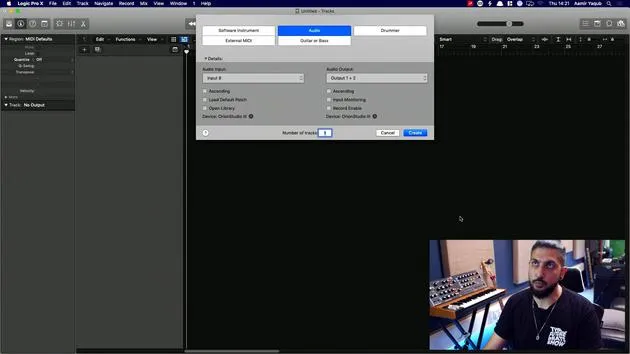
For now, I will open a new empty project:
- Click on Choose.
- Next, I need to create a track. This track can be:
- Software Instrument Track
- Audio Track
- Drummer Track
- External MIDI Track
For this tutorial, I will choose an Audio Track.
Track Creation Process
- In the Details section, select your audio input and other parameters (these specifics will be covered later).
- Click on Create.
Now, welcome to the main window of Logic!
Understanding the Main Window
If the layout looks complicated, that's completely normal; we will break it down into four main sections:
- LCD and Control Bar Area: Located at the top, consisting of the silverish bar.
- Workspace Area: This large empty space is where you will populate all your regions.
- Track Header Section: The area where the track details are displayed.
- Inspector Section: Located on the left, showing region and track parameters.
Additional Section
You might also see the Library Section before continuing.
First-Time User Recommendations
If this is your first time using Logic, check the preferences to enable specific functionalities:
- Go to the Logic Pro X menu.
- Click on Preferences.
- Under Advanced Tools, ensure all options are enabled.
This makes Logic behave more like Logic Pro X and less like GarageBand.
Downloading Sounds
Logic is packed with free sounds, including Apple Loops and instrument patches. To ensure you have everything you need:
- Click on the Logic Pro X dropdown.
- Go to Sound Library.
- Select Download All Available Sounds.
This action ensures you have all the sounds that come with Logic, enhancing your music-making experience. Watch the status bar in the LCD display to see the progress as you download sounds.
Make sure you have everything sorted to maximize your creative potential!
13 lessons
1h 23m of structured video lessons
Advanced video features
Slow down, loop a passage, follow along
Mobile, tablet & desktop
Practise wherever you are
100% satisfaction guarantee
30-day money-back guarantee
Meet your guru
Meet your guru
Aamir Yaqub is a music producer and engineer based in London. He has worked with some of the biggest names in music, including Alicia Keys, David Guetta, Rihanna, Sia and will.i.am, as well as developing independent artists.
Across his courses he teaches his complete Logic Pro workflow - from the interface and recording through beat-making, synthesis and MIDI effects to mixing and finishing a track.







