



Control bar and display area

With
Aamir YaqubAn exhaustive look at all of the buttons on the control bar and display area and what they do.
What's in the course
13 lessons (1h 23m) · 1 free
01. Welcome to the course
0:39
02. What is Logic
2:21
03. Starting up Logic and customizing the software
Free lesson4:55
04. Control bar and display area
You are here7:35
05. Workspace exploration - Ruler area
5:09
06. Track header area
7:35
07. Navigating your first sounds
7:51
08. Using Tracks and Regions
4:44
09. Channel strips and plugins
4:35
10. Project properties, Saving, Templates
14:58
11. Working with Tracks
3:42
12. Working with Regions
8:11
13. Cutting, Looping, Cycling regions
11:04
Lesson transcript
Understanding the Control Bar and Display Area in Logic
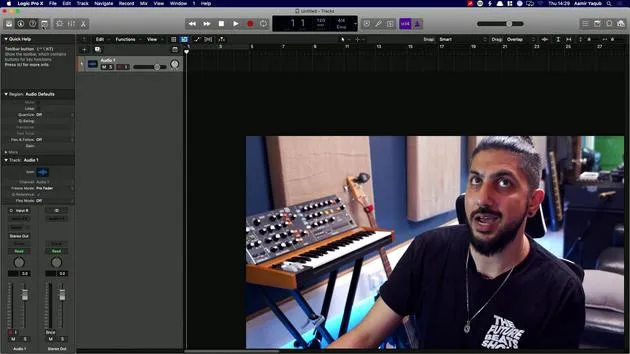
Logic can get a little complicated at times. We've looked at various parts of the window in front of you, and now we're going to take a look at the top, which is the control bar and display area. This whole top section is essential for navigation and control. Let's break down its components for clarity.
Control Bar Components
On the left side of the control bar, you'll find four main buttons that allow us to perform various functions:
-
Library Button
- Function: Opens and closes (toggles) the library to view and change patches on certain software instruments, and select audio chains of plugins.
- Shortcut: Press Y to toggle on and off.
-
Inspector
- Function: Displays region parameters, track parameters, and the channel strip.
- This area will be further explored in future lessons.
-
Help Button
- Function: A handy feature for new users that provides a quick help dialog in the Inspector section.
- Example: Hovering over a button displays its name and function, such as the "Record Enable" button.
-
Toolbar Button
- Function: Toggles an additional toolbar on or off for more functions, accommodating users with limited screen space.
-
Smart Controls Button
- Function: Gives quick access to plugin functions for on-the-fly adjustments.
- Shortcut: Press B to toggle.
-
Mixer Button
- Function: Displays all of your tracks for mixing.
- Shortcut: Press X to toggle.
-
Editors Button
- Function: Changes based on the track type; it offers audio editing functions for audio tracks and features like the piano roll for software instrument tracks.
Transport Section
Moving to the next section, we have the transport section. You'll recognize these buttons for basic operations:
- Rewind, Forward, Stop, Play
- Record Button
- Cycle/Loop Button
You can use shortcuts for these functions:
- Play: Press the space bar.
- Stop: Press the space bar again.
Display Area
In the display area, you can see:
- Bars and beats
- Tempo
- Time signature
- Key signature
You can switch views by clicking the drop-down menu to display beats and time, or select a custom view for a more extended display.
Modes and Functions Area
Next, we have the modes and functions area:
- Tuner: For tuning instruments like guitars and basses.
- Metronome and Counting: Essential for timing during recording.
Master Volume and Views
On the right side, you'll find the master volume output slider. As you work, this slider visually represents sound levels coming in and out of Logic.
Views Buttons:
- List Views: Displays MIDI event data, marker data, tempo, and signature data.
- Notepad View: For writing lyrics, chords, or notes for changes.
- Loops Browser: Access to Apple Loops, which will be explored in detail later.
- File Browser: A version of Finder for accessing audio files and other media from your computer.
By familiarizing yourself with these components, you'll streamline your workflow in Logic and enhance your overall music production experience.
13 lessons
1h 23m of structured video lessons
Advanced video features
Slow down, loop a passage, follow along
Mobile, tablet & desktop
Practise wherever you are
100% satisfaction guarantee
30-day money-back guarantee
Meet your guru
Meet your guru
Aamir Yaqub is a music producer and engineer based in London. He has worked with some of the biggest names in music, including Alicia Keys, David Guetta, Rihanna, Sia and will.i.am, as well as developing independent artists.
Across his courses he teaches his complete Logic Pro workflow - from the interface and recording through beat-making, synthesis and MIDI effects to mixing and finishing a track.







