



Cutting, Looping, Cycling regions

With
Aamir YaqubAamir Yaqub digs into the scissors tool in Logic Pro, chopping drum regions into equal slices and looping and cycling sections as you work.
What's in the course
13 lessons (1h 23m) · 1 free
01. Welcome to the course
0:39
02. What is Logic
2:21
03. Starting up Logic and customizing the software
Free lesson4:55
04. Control bar and display area
7:35
05. Workspace exploration - Ruler area
5:09
06. Track header area
7:35
07. Navigating your first sounds
7:51
08. Using Tracks and Regions
4:44
09. Channel strips and plugins
4:35
10. Project properties, Saving, Templates
14:58
11. Working with Tracks
3:42
12. Working with Regions
8:11
13. Cutting, Looping, Cycling regions
You are here11:04
Lesson transcript
Music Lesson: Working with Regions in Logic
Even though I have the ability to resize in this way to, you know, use my marquee tool to swipe and cut, you would say, "Well, what's the point in the scissors tool?"
The Scissors Tool
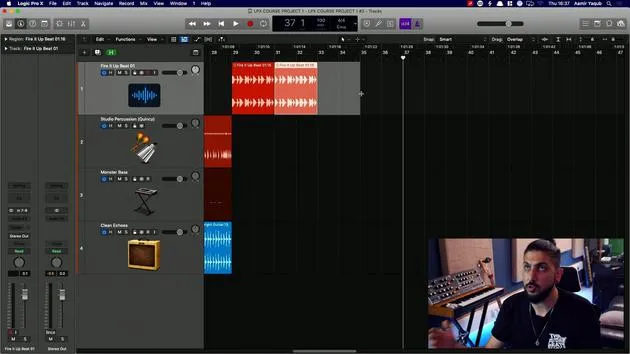
One cool thing that I like to do with the scissors tool is this awesome technique where I can take, say for instance, I've got these drums. I can chop them all up equally.
Steps to Use the Scissors Tool
-
Select the Scissors Tool:
- I can do it from there, or right-click to select the scissors tool.
- I could go in and do this manually, but that would be boring and take a lot of time.
-
Using Option to Split Regions:
- Press Option to reveal a little plus sign, which indicates that when I click, it will split that region into whatever division I have selected.
- This essentially divides the region at every beat of the bar, allowing for more creative manipulation.
Working with Regions
- Switch back to the pointer tool and remember that you can click on a region and press Control + M to mute it.
- Try different sound combinations to see what works.
Quick Adjustments
- Command + Z is your friend for undoing actions.
- Adjust divisions more tightly using the scissors tool, always holding Option.
Joining Regions
Now, let's discuss how to join regions. This is quite simple, and there are a couple of ways to do it:
-
Using the Glue Tool:
- Select all the regions you want to join. You can access the glue tool from various places or right-click to find it.
- All selected regions can be joined together easily.
-
Keyboard Shortcut:
- If you're already in the pointer tool, select the regions and press Command + J to join them.
- This command creates a new audio file if you're working with audio tracks.
Working with MIDI Data
- When joining MIDI data on software instrument tracks, Command + J will not create a new audio file but will combine them into one region.
Loop Functionality
Before we wrap this part up, let's quickly explore the loop (or cycle) functionality in Logic:
-
Selecting a Section:
- Use the yellow bar at the top, known as the cycle in Logic, to select a specific part of your project.
- You can continuously cycle around this part to play performances or check arrangements.
-
Activating Cycle:
- Press C to toggle the cycle on and off.
- To adjust the cycle range, click and drag the yellow bar or adjust the length in the lane provided.
Using Command + U for Quick Edits
- A super handy tip is to set your cycle range quickly. Select a region and press Command + U. This will automatically adjust your cycle range to the selected region.
Additional Techniques with the Marquee Tool
- The marquee tool can be quite useful for selecting parts of regions.
- Use Command + Click to activate the marquee tool, allowing you to swipe a range of another part of the song and listen to that momentarily.
Setting Your Focus
- When you press play, the playhead will go to the beginning of the cycle range.
- If you want to focus on a different part while listening, you can adjust your cycle range with Command + U again after using the marquee tool.
Conclusion
That's how you work with regions in Logic.
- Mastering shortcuts and tools like the scissors and marquee tools is crucial for speeding up your workflow.
- The way you jump around your session is vital for saving time, so always strive to get those shortcuts under your fingers. You'll be whizzing through your tracks in no time!
13 lessons
1h 23m of structured video lessons
Advanced video features
Slow down, loop a passage, follow along
Mobile, tablet & desktop
Practise wherever you are
100% satisfaction guarantee
30-day money-back guarantee
Meet your guru
Meet your guru
Aamir Yaqub is a music producer and engineer based in London. He has worked with some of the biggest names in music, including Alicia Keys, David Guetta, Rihanna, Sia and will.i.am, as well as developing independent artists.
Across his courses he teaches his complete Logic Pro workflow - from the interface and recording through beat-making, synthesis and MIDI effects to mixing and finishing a track.







