



Utiliser le métronome

Avec
Aamir YaqubAamir Yaqub montre comment enregistrer avec le métronome de Logic, notamment en réglant une petite taille de buffer et le Low Latency Mode pour que le clic reste précis pendant que tu joues.
Le contenu du cours
14 leçons (1h 22min) · 1 gratuites
01. Bienvenue dans l'enregistrement audio
0:58
02. Introduction à l'enregistrement audio
4:47
03. Utiliser le métronome
Tu es ici5:00
04. Faire ton premier enregistrement
Leçon gratuite5:32
05. Comping
13:03
06. Éditer l'audio
9:41
07. Gérer les fichiers du projet
3:46
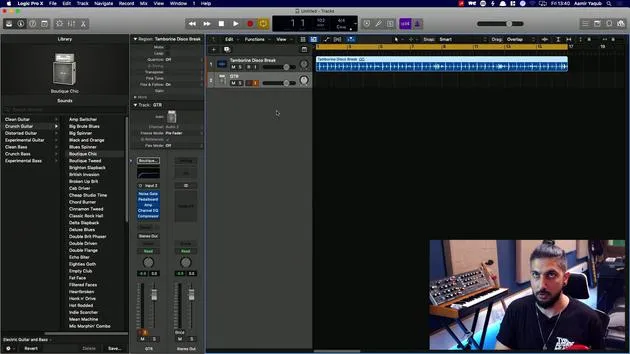
08. Enregistrer une piste d'instrument
2:06
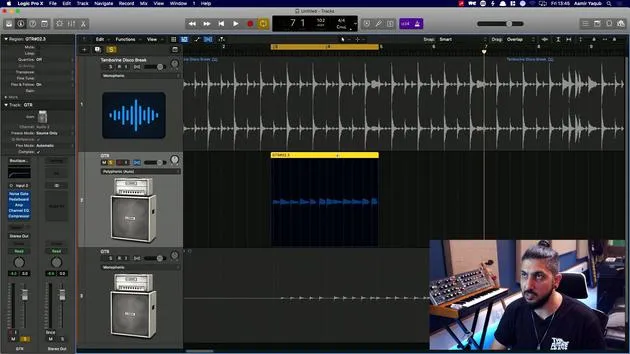
09. Comment utiliser Flex Time
10:58
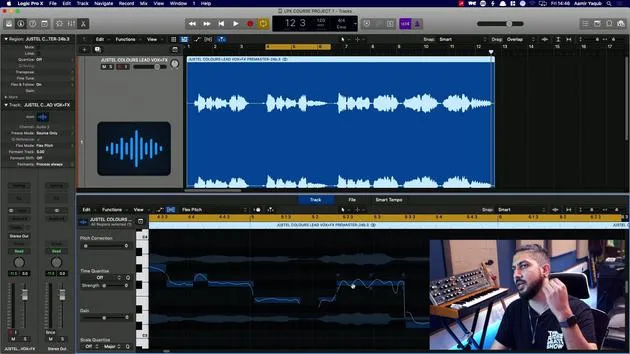
10. Comment utiliser Flex Pitch
11:12
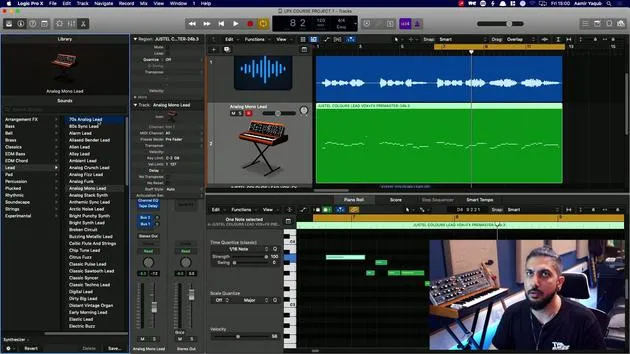
11. Convertir la hauteur en données MIDI
3:11
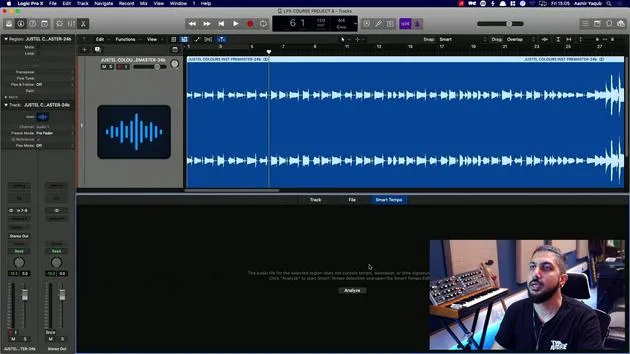
12. Smart Tempo
3:04
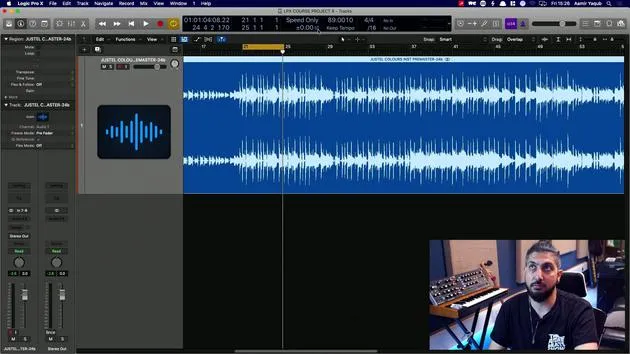
13. Paramètres et usages de Varispeed
4:08
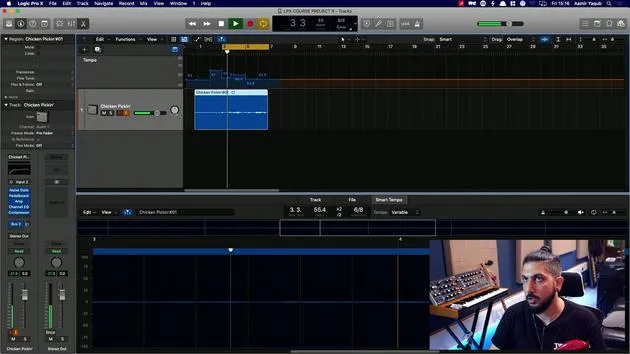
14. Tempo de projet adaptatif
5:00
Transcription de la leçon
Reducing Latency in Recording
To reduce the latency experienced while recording, follow these steps:
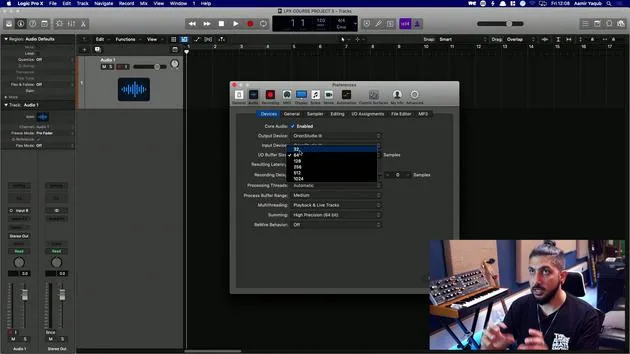
Adjusting Buffer Size
-
Access Audio Preferences:
- Navigate to your audio preferences.
- Locate the buffer size setting.
-
Optimal Buffer Size:
- Ideally, keep the buffer size as low as possible:
- 32 samples: Excellent for minimizing latency.
- 64 samples: Acceptable.
- 128 samples: Barely acceptable, beyond which recording may become difficult.
- Ideally, keep the buffer size as low as possible:
-
Impact of Buffer Size:
- A smaller buffer size results in:
- Shorter latency (the time taken to hear your voice or instrument after playing).
- A higher buffer size can create delays that hinder performance.
- A smaller buffer size results in:
Setting Input and Output Devices
- Ensure your input and output devices are set to your interface (e.g., Orion Studio 3).
Using Low Latency Mode
If you're in the middle of a session that uses considerable CPU power:
- Enable Low Latency Mode to temporarily suspend CPU-intensive plugins:
- Access via Record Menu: Select and tick Low Latency Mode.
- Alternatively, customize the Control Bar:
- Right-click on the control bar, choose Customize Control Bar and Display.
- Add the Low Latency Mode button, which will turn orange when activated.
Keeping Time with the Metronome
A metronome (or click) is crucial for keeping time during recording:
-
Accessing the Metronome:
- Locate the metronome button in the interface.
- Shortcut for toggling: Press K.
-
Metronome Settings:
- Right-click on the metronome button to adjust settings.
- Options include:
- Click while recording.
- Click only during the count-in.
- Polyphonic clicks for varied accents.
-
Customizing the Click:
- Choose accented notes for the click.
- Create louder clicks on downbeats for better guidance (higher note and sound).
- Adjust the tonality and volume to your preference:
- Softer tones for a less harsh click.
- Alternatively, a more pronounced tone for clear guidance.
-
Count-In Click:
- The area next to the metronome button displays the count (1, 2, 3, 4).
- This serves as the count-in click before recording starts.
- Access all settings via the metronome button by right-clicking.
By following these guidelines, you can optimize your recording experience and smooth out your performances!
14 leçons
1h 22m de leçons vidéo structurées
Fonctions vidéo avancées
Ralentissez, bouclez un passage, suivez la partition
Mobile, tablette et ordinateur
Pratiquez où vous voulez
Satisfaction garantie à 100 %
Garantie remboursement 30 jours
Rencontrez votre guru
Rencontrez votre guru
Aamir Yaqub est un producteur et ingénieur du son basé à Londres. Il a travaillé avec certains des plus grands noms de la musique, dont Alicia Keys, David Guetta, Rihanna, Sia et will.i.am, tout en développant des artistes indépendants.
Au fil de ses cours, il enseigne l'intégralité de son flux de travail sur Logic Pro : de l'interface et de l'enregistrement à la création de beats, la synthèse et les effets MIDI, jusqu'au mixage et à la finalisation d'un morceau.







