



Tempo de projet adaptatif

Avec
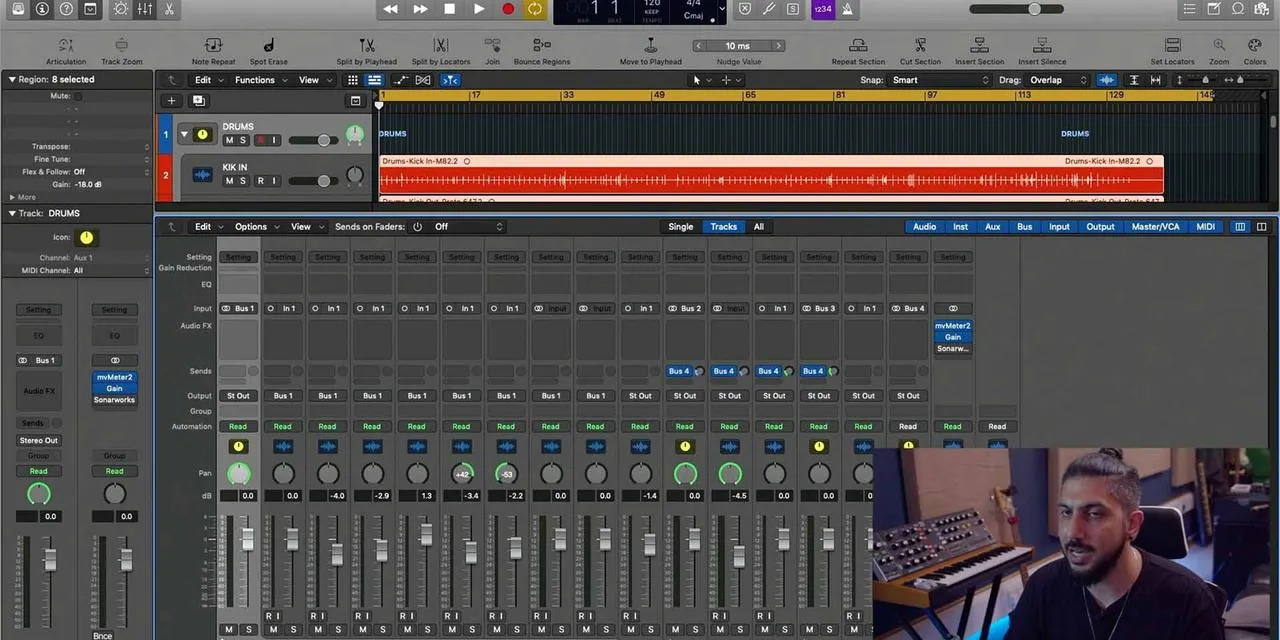
Aamir YaqubAamir Yaqub montre comment utiliser Smart Tempo et Adapt Project Tempo de Logic pour que la grille suive ton jeu quand tu enregistres librement sans clic.
Le contenu du cours
14 leçons (1h 22min) · 1 gratuites
01. Bienvenue dans l'enregistrement audio
0:58
02. Introduction à l'enregistrement audio
4:47
03. Utiliser le métronome
5:00
04. Faire ton premier enregistrement
Leçon gratuite5:32
05. Comping
13:03
06. Éditer l'audio
9:41
07. Gérer les fichiers du projet
3:46
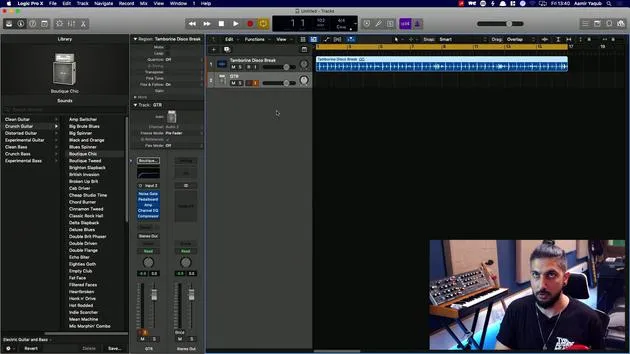
08. Enregistrer une piste d'instrument
2:06
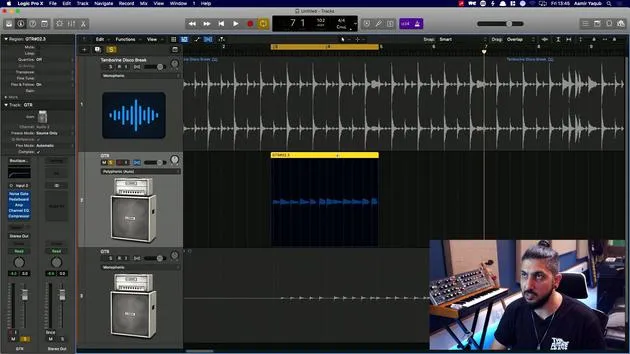
09. Comment utiliser Flex Time
10:58
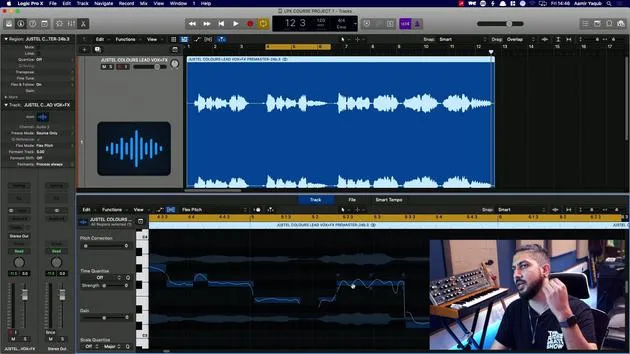
10. Comment utiliser Flex Pitch
11:12
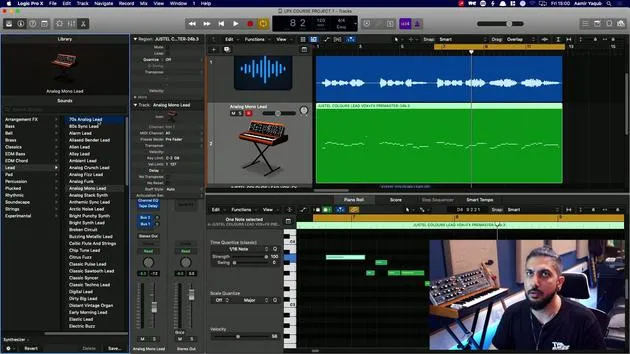
11. Convertir la hauteur en données MIDI
3:11
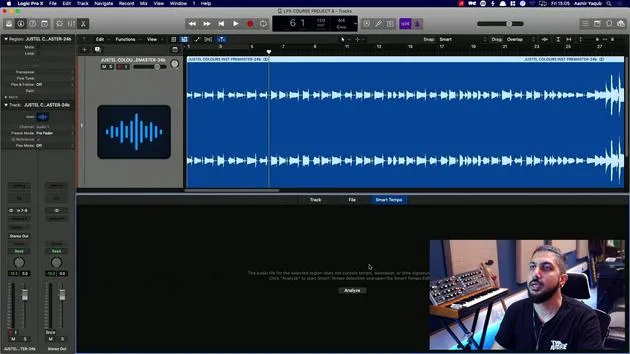
12. Smart Tempo
3:04
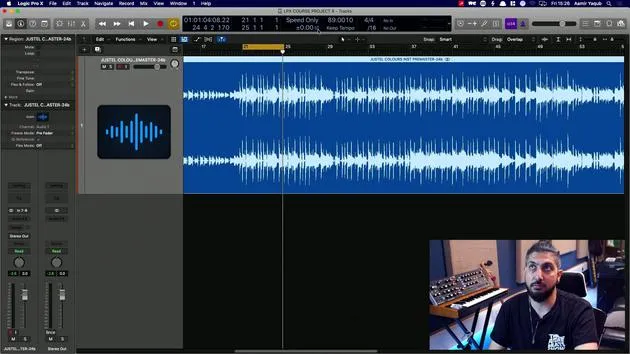
13. Paramètres et usages de Varispeed
4:08
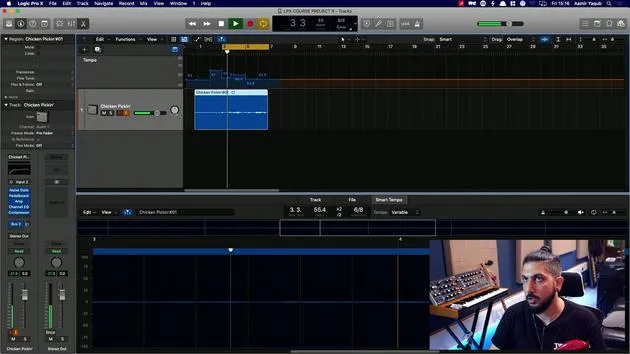
14. Tempo de projet adaptatif
Tu es ici5:00
Transcription de la leçon
Working with Smart Tempo in Logic
So, a really handy feature that we have when we're working with Smart Tempo is actually different from the example shown before, which involved pre-recorded audio.
Free Recording Without a Click
What if I was just sitting here playing guitar and thought, "I want to put the idea in, but I don't want to record with a click?" I want my grid and my tempo to conform to what I'm playing.
Logic uses Smart Tempo to help you when you're free recording, meaning you're recording without a click. Here's how to do it:
-
Adapt Project Tempo
- Go to the LCD and select Adapt Project Tempo.
- Once you've done that, you'll see a notification appear, but it won't do anything yet.
-
Disable the Metronome
- Right-click on the metronome and ensure it's not clicking while recording.
-
Start Recording
- Now you can press Record. This will start to adapt to and follow the tempo you are playing.
Demonstration
You can see that I've got my record going on. If I just start strumming, Logic will now detect the tempo, and as you can see, it's moving the tempo around.
Smart Tempo Editor
Next, you'll get a prompt that says "Click Show to open the Smart Tempo editor." Here you can:
- Preview the audio file.
- Shift the downbeat if needed.
- Adjust the detected tempo.
Now, let's look at the editor.
-
Identify the Downbeat
-
The first beat you've played should be set as the downbeat.
-
Let's zoom into the waveform to see what's going on.
-
If I look closely, I can identify that the first hit there is actually the downbeat. The downbeat just means the first beat of the bar.
-
-
Adjust the Downbeat Marker
- Move the marker to signify that as being the downbeat.
Tempo Changes
When I adjust that marker, you'll notice that the tempo has changed in my global tempo track. It didn't just jump from 78.5 to 38.8, so you might need to adjust the next downbeat marker as well.
- Move the marker back to accurately represent the start of the bar.
- As I progress, I adjust it accordingly to reflect where the music actually starts.
This consistency allows my tempo map to change constantly because I'm not stuck in a rigid tempo.
Adding Drums
Next, if I wanted to go in and program some drums or even use something like Drummer, I can do that easily:
- Add a Drummer Track
- Go to add a drummer track, select the songwriter option, and pick a drummer.
- Let's choose Mason and see what he brings to the mix.
You can see there that the drummer adapts to the tempo changes. This is signified in the global tempo track and allows for dynamic adjustments.
Final Thoughts
You might find that sometimes the tempo feels a little too fast or too slow, especially with a range jump from 80 to 120.
Always make sure your markers are in the right place, and everything should work out just fine.
14 leçons
1h 22m de leçons vidéo structurées
Fonctions vidéo avancées
Ralentissez, bouclez un passage, suivez la partition
Mobile, tablette et ordinateur
Pratiquez où vous voulez
Satisfaction garantie à 100 %
Garantie remboursement 30 jours
Rencontrez votre guru
Rencontrez votre guru
Aamir Yaqub est un producteur et ingénieur du son basé à Londres. Il a travaillé avec certains des plus grands noms de la musique, dont Alicia Keys, David Guetta, Rihanna, Sia et will.i.am, tout en développant des artistes indépendants.
Au fil de ses cours, il enseigne l'intégralité de son flux de travail sur Logic Pro : de l'interface et de l'enregistrement à la création de beats, la synthèse et les effets MIDI, jusqu'au mixage et à la finalisation d'un morceau.







