



Configurar pistas y enrutamiento de señal en Ableton Live
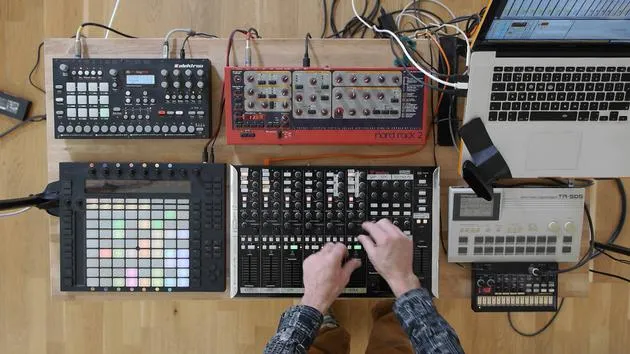
Mark Burnett muestra cómo organiza las pistas y enruta las señales de audio en Ableton Live para que sus instrumentos y controladores externos funcionen juntos.
Qué incluye el curso
16 lecciones (2h 26m) · 2 gratis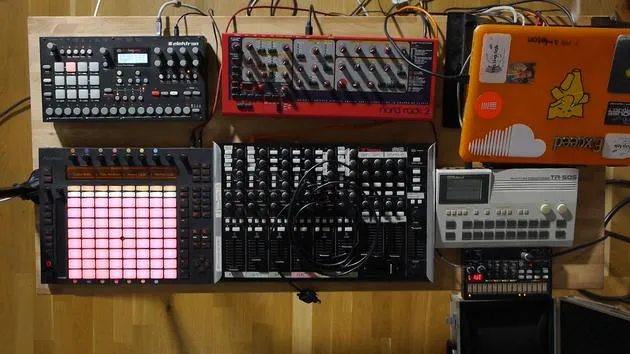
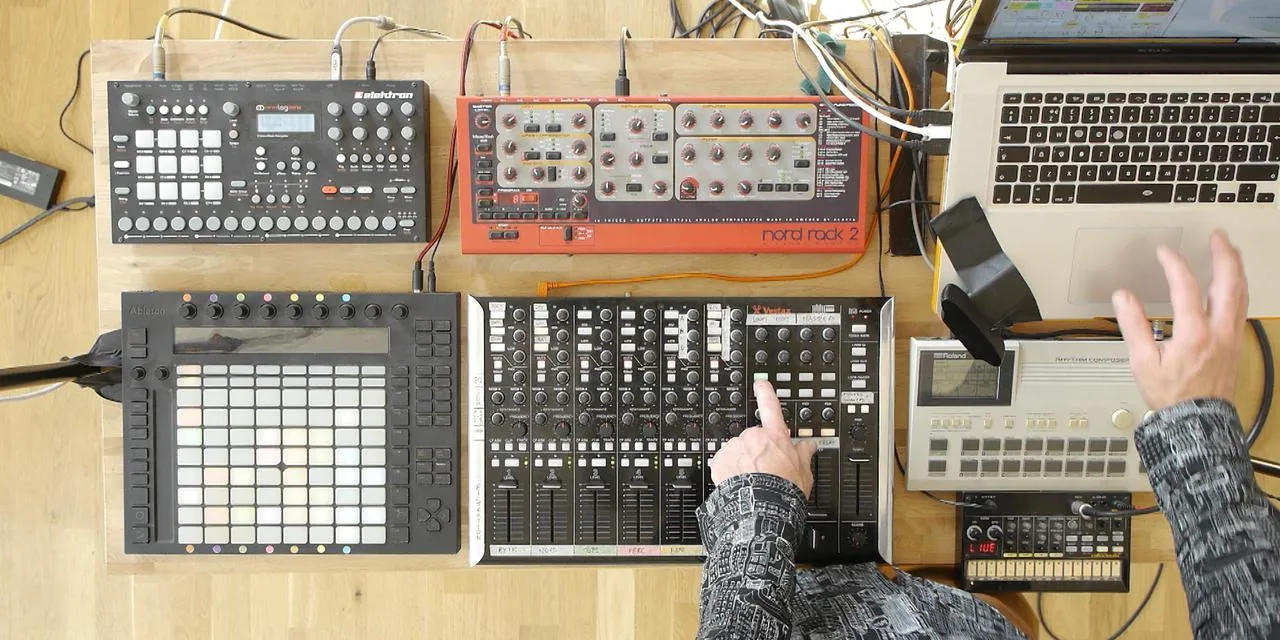
01. Preparar el equipo
1:29
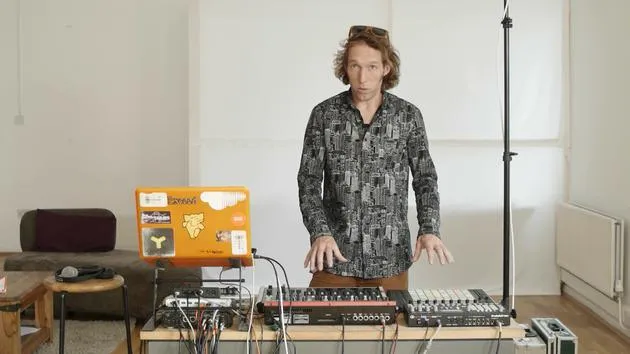
02. Presentación de los instrumentos
Lección gratis5:44
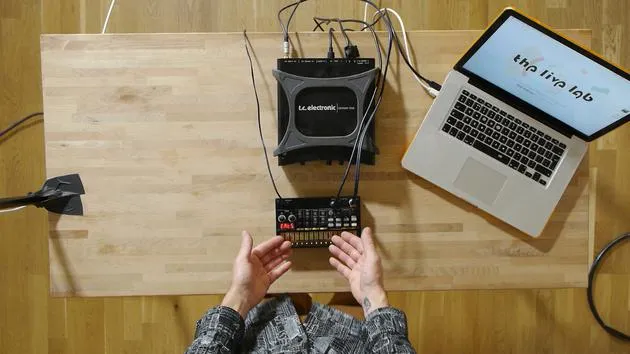
03. BONUS - Configurar un instrumento externo (Korg Volca Beats) en Ableton desde cero
Lección gratis12:51
04. Entender el cableado, el MIDI y el enrutamiento de audio analógico
4:01
05. Configurar las preferencias de MIDI y audio en Ableton
10:44
06. Configurar pistas y enrutamiento de señal en Ableton Live
Estás aquí6:46
07. Configurar pistas de instrumento externo en Ableton Live
8:33
08. Configurar una pista de micrófono en Ableton Live
6:09
09. Configurar thru-tracks y loopers
9:08
10. El arma secreta del set: movers and shakers
8:08
11. Enrutamiento de salida y FX máster
13:36
12. Mapeo MIDI, racks y macros (parte 1)
14:16
13. Mapeo MIDI, Racks y Macros (parte 2)
12:35
14. Pista de delay y tiempos de delay
3:33
15. Cambios de programa e instrumentos externos
7:11
16. Contenido del set y técnica de interpretación
21:23
Transcripción de la lección
Setting Up Your Devices in Ableton Live
Right. So, assuming that you've managed to connect all your various devices and controllers to Live, and you've set the preferences up so that you're receiving and transmitting information on the right channels, the next step is to get them working within the tracks in Live.
Overview of the Track Setup
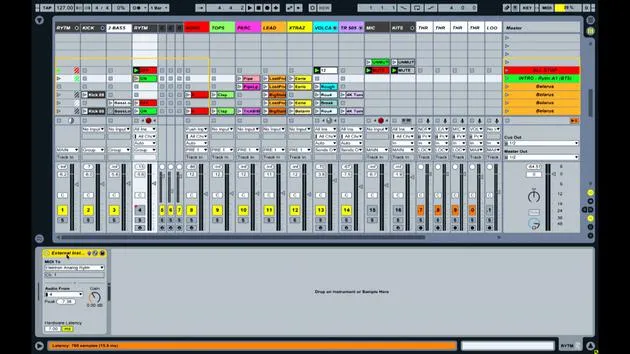
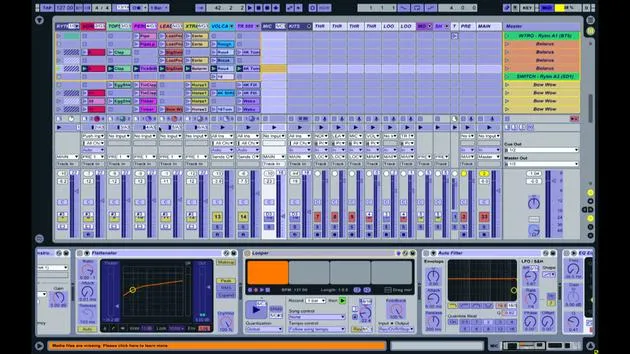
Let's take another look at the screen to see where those routing selection options are and how we set it up. I'm using a combination of different approaches depending on the instrument and what I'm trying to achieve from it.
Track Breakdown
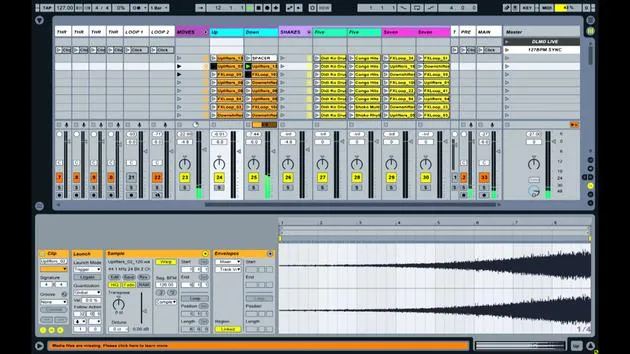
Starting from the very top, the first track in my set is labeled Rhythm. This tracks core rhythmical components.
- Rhythm Track Components:
- Kick Drum: Triggered from inside Ableton Live (audio sample).
- Bass Part: Audio from within Ableton Live.
- Rhythm Clips: A bunch of clips labeled "off" and "on" to mute and unmute the rhythm channel.
The purpose of these clips is to automatically deactivate or activate audio at specific moments during my performance. This is necessary because it's the only device running on its own internal sequencer.
Routing and the I/O Panel
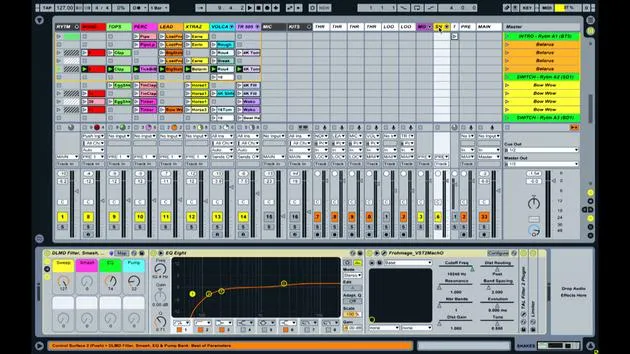
To see where all this routing is happening, we need to open up the I/O Panel. Simply click on the small I/O button in the center right of the screen. This opens a window with various dropdown boxes.
- It may look complicated, but the most important thing is recognizing where we are bringing signals from.
Audio Routing
The first two tracks under the rhythm group are just audio from inside Live, which is a straightforward process. Triggering the sounds from the engine comes out of the sound card.
Using the External Instrument Device
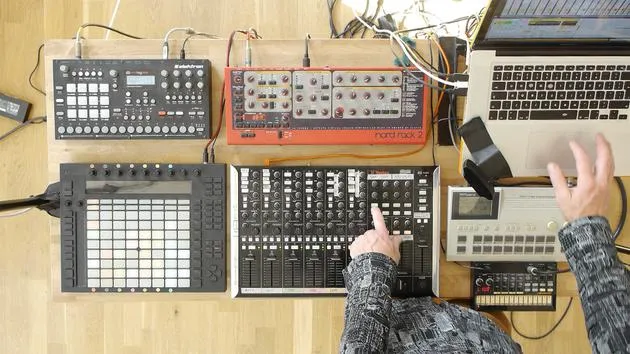
For the rhythm track, I've inserted one of Ableton Live's external instrument devices. This allows me to assign where I'm sending some MIDI information and where I'm getting audio back from. With everything set in the preferences, when I trigger sounds on the analog rhythm, the signal comes in, and the audio flows into the mix.
- MIDI Information: I'm sending start/stop messages, which tell the rhythm sequencer when to start and stop.
- Testing the Setup: Upon pressing Play, the engine runs, and audio returns to the track. Stopping it will also stop the sequence.
Exploring the NORD Track
Looking at the NORD track (track two), we see MIDI clips. Here's how it works:
- MIDI Pattern: A sequence of zero notes is played from inside Live, sending MIDI into the NORD to create sound.
- Audio Return: The sound comes back into the computer via the external instrument device.
External Instrument Device Functionality
In the NORD track, the external instrument is key for:
- Sending MIDI information (e.g., to MT4 port 3).
- Receiving audio back into audio channel 3.
As I play notes from inside the set, the audio comes back, confirming the connection.
Similar Setup for Other Devices
I'm using the same external instrument approach for both the Roland 505 and the Volker Beats, sending notes out and receiving audio back in.
By using these techniques, you can effectively manage your devices and ensure a smooth performance workflow in Ableton Live.
16 lecciones
2h 26m de lecciones en vídeo estructuradas
Funciones de vídeo avanzadas
Ralentiza, repite un pasaje, sigue la partitura
Móvil, tablet y ordenador
Practica donde quieras
Garantía de satisfacción 100%
30 días de garantía de devolución
Conoce a tu gurú
Conoce a tu gurú
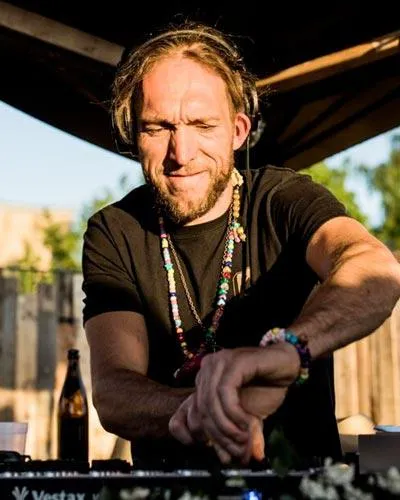
Mark Burnett es un Ableton Certified Trainer que lleva más de 14 años trabajando con productos de Ableton. Como productor y DJ en Funk'n Deep Records, sus temas han sonado en grandes festivales y en sesiones y podcasts de artistas como Carl Cox y Richie Hawtin, y ha tocado ante multitudes de miles de personas. También organiza eventos a gran escala como Workhouse Project, y estudió en el Imperial College London. Su curso trata sobre el uso de Ableton Live para construir actuaciones en directo, y está pensado para productores y artistas de música electrónica que quieran llevar su espectáculo del estudio al escenario.







