



Automatización del arreglo

Con
Isaac CotecAutomatiza el volumen y otros parámetros en la vista de arreglo (Arrangement View) de Ableton, usando puntos de ruptura para dibujar fundidos y dar forma a los cambios a lo largo de tu tema.
Qué incluye el curso
17 lecciones (1h 52m) · 1 gratis
Transcripción de la lección
Automation in Arrangement View
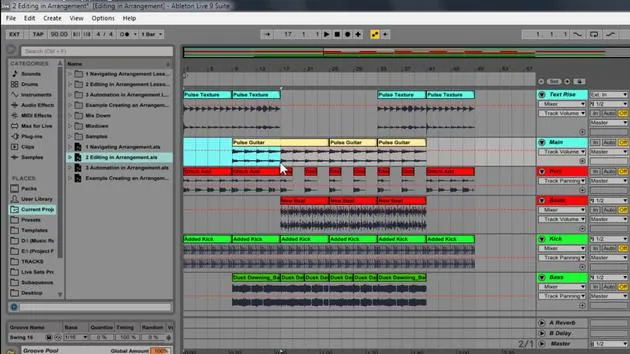
Now we're going to look at automation in Arrangement View. We've already talked about how we can edit and move samples around, but what if we want to automate the volume and create some changes?
What is Automation?
The movement of a control across the song, timeline, or session clip is called automation. A control whose value changes in the course of this timeline is automated.
Ableton Live allows us to automate parameters in Arrangement View easily with breakpoints.
Creating Volume Automation
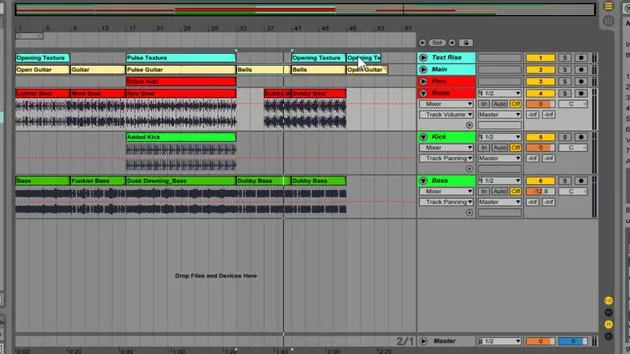
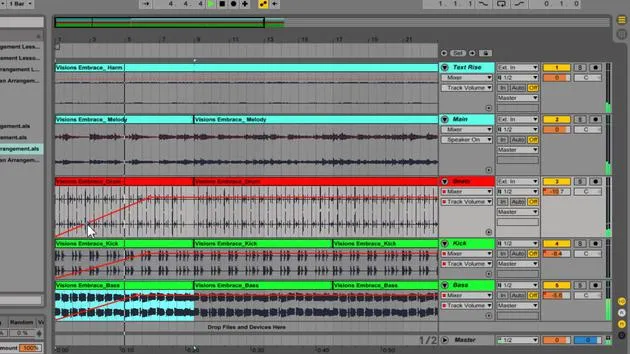
For example, if I want to create a fade in the volume from one setting (let's say 0dB) to all the way quiet, then I would automate it. I would create changes that automatically happen every time I hear that playback. I do this with breakpoints.
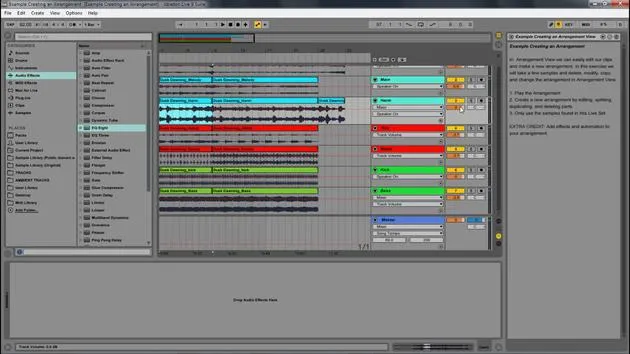
- In the image, these little points are the breakpoints.
- You can start creating different shapes of how you want the volumes to come in and out.
You'll also notice that I get these little red squares on a parameter whenever I automate it. For instance:
- The solo is not automated.
- The record is not automated.
- However, I have automated my panning, volume, and bypass.
Demonstrating Automation in Ableton Live
Let's look at that within Ableton Live. Here we go; we have this track. I'm going to play it.
- If I want to change this drum part where the volume slowly fades in, all I need to do is click the volume.
- You'll notice we get this line here that is currently dotted.
- A dotted line means nothing is automated, but if I click it, I create what's called a breakpoint.
- That breakpoint turns the line into a solid line.
Adding Breakpoints
- You'll also notice a little dot over by the volume, indicating that automation has been created.
- If I click again, I can make another dot and move that one to slowly fade up.
Let's do the same thing for the kick. And there we go, now we're at full volume. Just to demonstrate this, let's also do it for the bass:
- All you have to do is click to create a breakpoint.
- If you want to delete a breakpoint, simply click it when it appears blue, and it deletes it.
Deleting Automation
If I had many movements and decided I didn't like any of them, I can select all of that and then right-click > Delete Envelope.
I can also delete individual breakpoints as needed.
Applying Automation to Audio Effects
Just like with envelopes within a session clip, I can automate any parameter. For instance:
- If I go to my audio effects and add a reverb to my melody, I might set the dry/wet very wet at the beginning and then bring it down to dry as we go.
- As I listen, the reverb will move from very far in the background to more prominent, thanks to the red dot indicating automation.
Recording Automation
Another way to create automation is by recording what you're doing. Here's how:
- Let's say I have a chorus effect; I'll start here and just play around with it.
- If I start by hitting the automation record button and then move parameters, you'll see each moved parameter receives a little red dot.
- Clicking that dot allows me to see what movements were recorded, and I can always edit things.
Pro Trick: Smoothing Automation
Here's a pro trick:
- If I have a lot of movements but don't want the ups and downs, I can select my volume, create a breakpoint, and then hold Shift as I move it.
- This action deletes everything it goes over. If I don't hold Shift, it stops at the next breakpoint, allowing control between just two points.
Deleting All Automation
You can delete all automation on a parameter by right-clicking and selecting Delete Automation.
Draw Mode for Automation
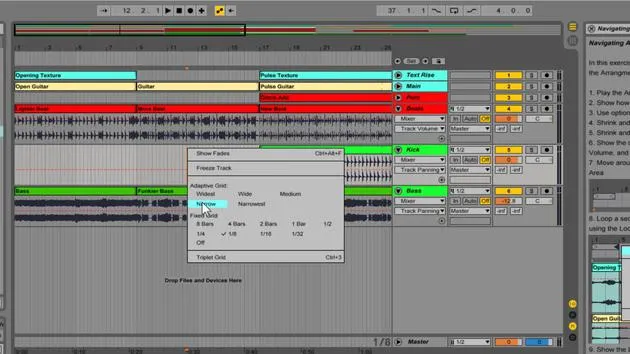
Another powerful feature is Draw Mode. Here's how to use it:
- Press B to enter draw mode, which gives you a pencil tool.
- You can draw automation directly onto your timeline in relation to the grid.
- To exit draw mode, press B again, and you'll see the breakpoints created from your drawing.
Granular Control in Draw Mode
If I have no fixed grid, hitting B allows for granular control:
- I can draw whatever I want for automation.
- After drawing, press B again to see everything.
If I don't like any of the automation, I can hold Shift and drag across to delete it all.
Conclusion
That covers how to edit breakpoints and create automation within Arrangement View.
17 lecciones
1h 52m de lecciones en vídeo estructuradas
Funciones de vídeo avanzadas
Ralentiza, repite un pasaje, sigue la partitura
Móvil, tablet y ordenador
Practica donde quieras
Garantía de satisfacción 100%
30 días de garantía de devolución
Conoce a tu gurú
Conoce a tu gurú
Isaac Cotec es, posiblemente, ¡uno de los mejores formadores de Ableton del mundo! Mientras trabajaba en su propia música, empezó a enseñar técnicas de grabación, diseño sonoro y Ableton Live a alumnos particulares y, desde que obtuvo su certificación como Ableton Certified Trainer oficial, ha ayudado a miles de productores a mejorar su nivel y triunfar como músicos.
Isaac comenzó a producir música electrónica en 2005 con Psyche Sonics, un grupo experimental que trabajaba con la ciencia y la investigación de los binaural beats y la alteración de la consciencia a través del sonido. Tras salir de gira, siguió componiendo música bajo el alias Cotec y más tarde surgió como el artista Subaqueous, fusionando su pasado electrónico con técnicas de producción tanto futuristas como orgánicas. Hasta la fecha ha publicado 3 álbumes y 4 EPs.
Isaac es también fundador y gerente del sello discográfico Invibe Music, que representa a algunos de los mejores artistas de música electrónica del Pacífico Noroeste y se especializa en dance de midtempo.
En sus cursos de Ableton Live, Isaac comparte las técnicas de producción, diseño sonoro y composición que ha pasado años perfeccionando: justo las habilidades que emplea para convertir la chispa de una idea en un tema terminado.







