



Ejercicio - Ejemplo de Arrangement y Session View - Remezcla de un Live Set

Con
Isaac CotecUn ejercicio práctico de remezcla con las pistas de un tema de Jamie Blake en Ableton Live, moviendo clips entre Session y Arrangement View.
Qué incluye el curso
17 lecciones (1h 52m) · 1 gratis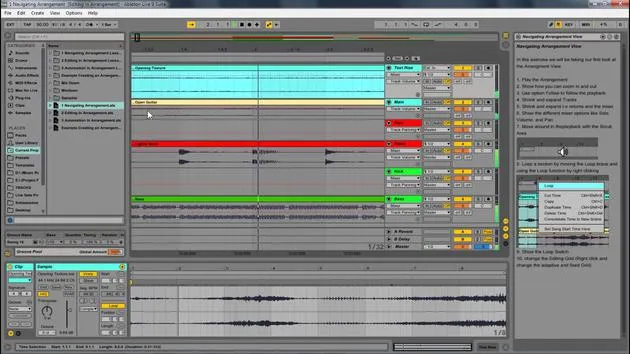

Transcripción de la lección
Remixing in Ableton Live
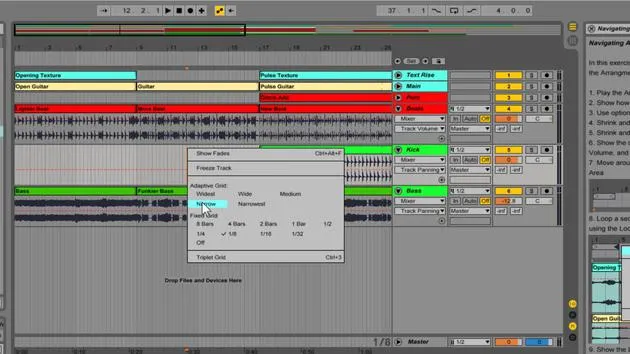
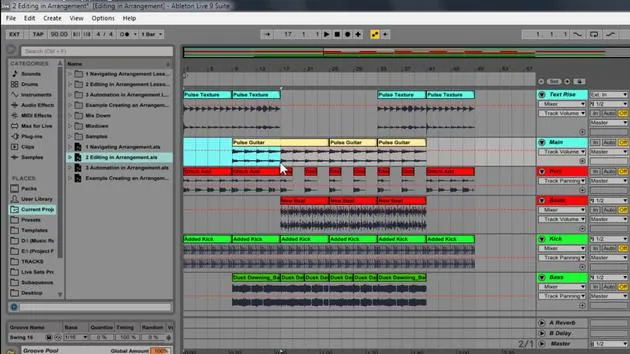
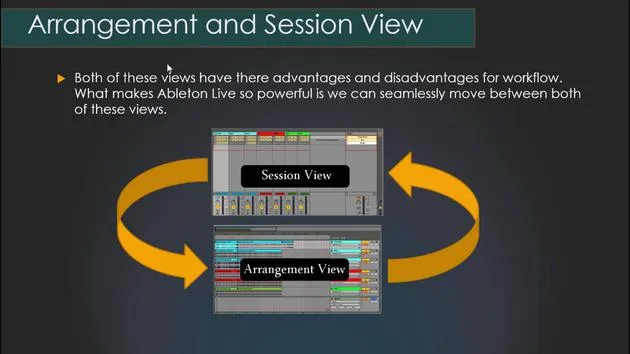
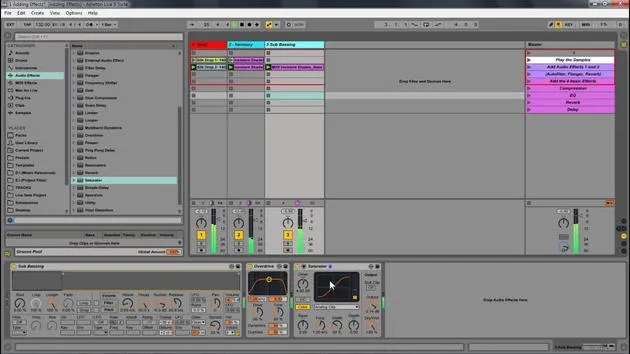
Now that we looked at all the different aspects of Arrangement View, let's dive into remixing in Live. This example set is a great way for you to get your hands dirty with Ableton Live and start remixing, building out tracks, and moving between Session and Arrangement View.
Getting Started
-
Download the Ableton Live Pack:
- Install it and run through the activity in the help view on the side.
- This activity focuses on cutting up stems for remixing.
-
Track Information:
- We will be remixing stems from a track by Jamie Blake.
- Check out his music at: Jamie Blake on Soundcloud. His music is totally awesome, and I think you'll enjoy playing with his sounds and stems in this live set.
Exploring the Live Set
- Open up the example remix set in Live.
- Follow the instructions in the help view.
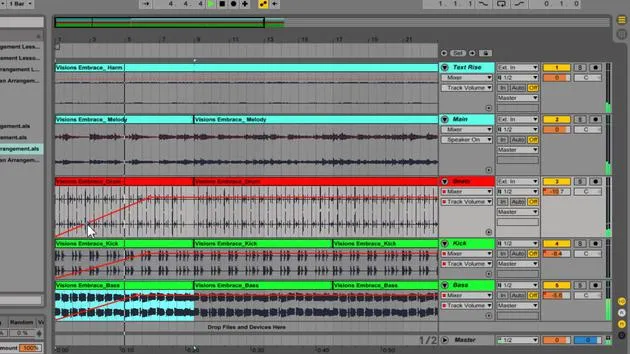
- Play the track to get familiar with what it's about:
- It features cool percussions and interesting vocal samples with everything laid out.
- It's in B minor, and all the tracks are warped to fit together.
Creating a New Arrangement
-
Select Sections:
- Identify sections to use (e.g., let's take a section here).
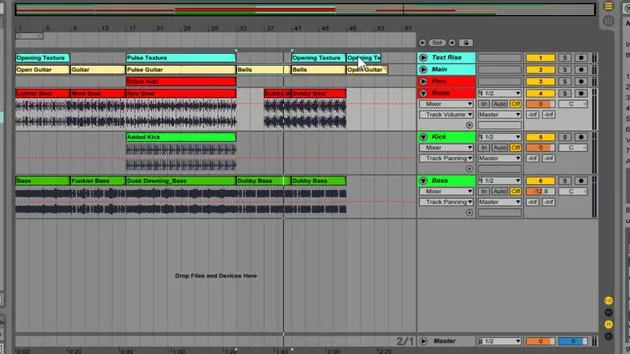
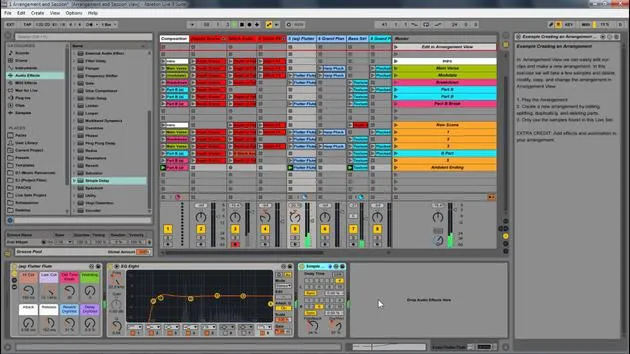
- Right-click and select Consolidate Time to New Scene.
-
Continue the Process:
- Keep right-clicking to consolidate the time through the track.
- Different scenes will be visually obvious based on where certain parts come in and out.
-
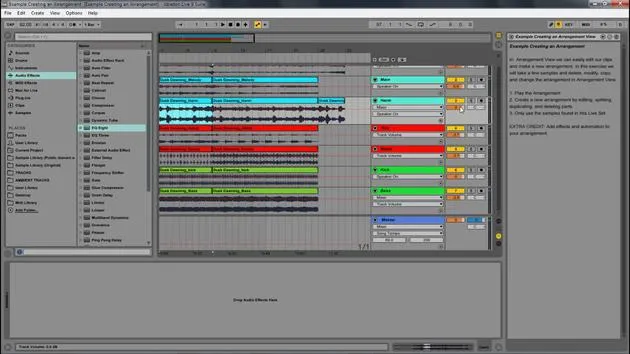
Organizing in Arrangement View:
- Once you've cut everything up, hide the sends and returns.
- Start naming your sections (e.g., Intro, Main Section, Breakdown, Ending).
- Color-code them for easy reference.
Adding New Samples
- Within the set, you'll find a folder called E6 Load Stems containing different drums.
- Insert a New Audio Track:
- Drag in the new drums and rename the track.
Experimenting with Beats
- Choose new beats for different sections.
- Combine different clips to form a new scene:
- Right-click and select Capture and Insert Scene to create a new scene with all active clips.
- Rename and color code these new scenes for clarity.
Using an External Keyboard
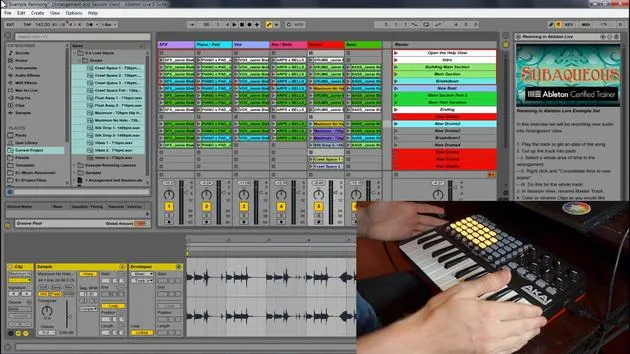
- With the APC Key 25 plugged in, use it to navigate and play different elements live in Ableton.
- Make sure to record your live arrangements into Arrangement View.
Refining Your Remix
-
Record with the APC:
- Bring in different parts, and edit as you go.
- Create new variations and scenes by capturing and inserting new scenes.
-
Insertion and Effects:
- Use basic controls (like Control+D to duplicate) to manage your workflow.
- Experiment with audio effects, modulation, and automation to create unique soundscapes.
-
Final Adjustments:
- After creating variations, right-click and consolidate again to organize new changes.
- Rename sections as needed and continue editing and tweaking until satisfied.
Conclusion: The Power of Ableton
You have now created a completely different arrangement with various elements coming in and out, effectively remixing the original track.
- Next Steps:
- Download the provided live set and explore it yourself.
- Practice moving between the Session and Arrangement View, editing, and adding effects.
- Work towards deeply understanding these tools to enhance your music-making skills.
Questions and Further Learning
If you have any questions, such as how to create automation in Ableton or how to navigate between views, refer to the additional videos provided. Take your time to grasp everything thoroughly, ensuring you're confident before progressing in your music endeavors with Ableton Live.
17 lecciones
1h 52m de lecciones en vídeo estructuradas
Funciones de vídeo avanzadas
Ralentiza, repite un pasaje, sigue la partitura
Móvil, tablet y ordenador
Practica donde quieras
Garantía de satisfacción 100%
30 días de garantía de devolución
Conoce a tu gurú
Conoce a tu gurú
Isaac Cotec es, posiblemente, ¡uno de los mejores formadores de Ableton del mundo! Mientras trabajaba en su propia música, empezó a enseñar técnicas de grabación, diseño sonoro y Ableton Live a alumnos particulares y, desde que obtuvo su certificación como Ableton Certified Trainer oficial, ha ayudado a miles de productores a mejorar su nivel y triunfar como músicos.
Isaac comenzó a producir música electrónica en 2005 con Psyche Sonics, un grupo experimental que trabajaba con la ciencia y la investigación de los binaural beats y la alteración de la consciencia a través del sonido. Tras salir de gira, siguió componiendo música bajo el alias Cotec y más tarde surgió como el artista Subaqueous, fusionando su pasado electrónico con técnicas de producción tanto futuristas como orgánicas. Hasta la fecha ha publicado 3 álbumes y 4 EPs.
Isaac es también fundador y gerente del sello discográfico Invibe Music, que representa a algunos de los mejores artistas de música electrónica del Pacífico Noroeste y se especializa en dance de midtempo.
En sus cursos de Ableton Live, Isaac comparte las técnicas de producción, diseño sonoro y composición que ha pasado años perfeccionando: justo las habilidades que emplea para convertir la chispa de una idea en un tema terminado.







