



Introducción

Con
Isaac CotecUna introducción a cómo añadir efectos de audio y MIDI a tus pistas en Ableton Live para dar forma a tu sonido.
Qué incluye el curso
17 lecciones (1h 52m) · 1 gratis

Transcripción de la lección
Adding Effects in Ableton Live
In this module, we're going to look at adding effects and how we can change the sound of our different audio or MIDI tracks using effects within Ableton Live.
Overview of Audio Effects
Live comes with a selection of custom designed, built-in audio effects. Every track in Live can host a number of devices or effects, including:
- Audio Effects
- MIDI Effects
Each of these devices can significantly alter the sound and quality of your audio.
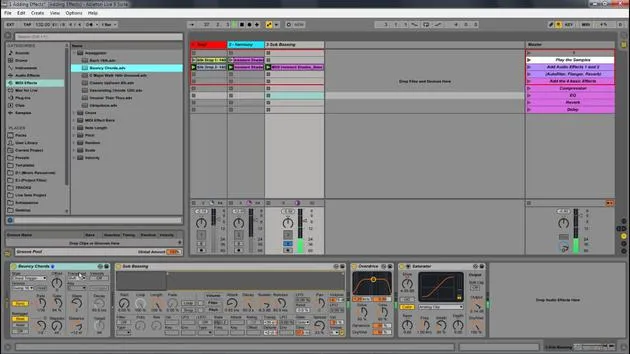
Adding an Audio Effect
To add an audio effect to a track:
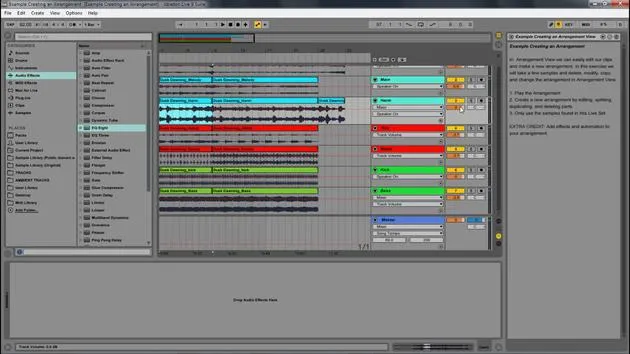
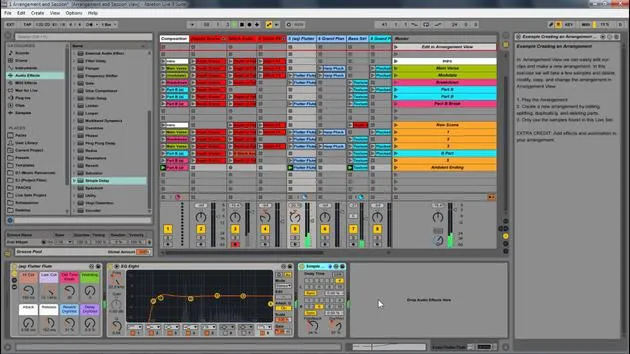
- Open the Browser: Navigate to your audio effects.
- Drag and Drop: Click on the desired audio effect and drag it into your track.
Using Presets
Each audio or MIDI effect has presets. To access these:
- Click the triangle next to the effect to open the list of presets.
For example, when viewing the presets for the Auto Pan:
- After selecting audio effects in the browser, click the triangle next to Auto Pan to see the available presets (e.g., 1 to 4 note).
Demonstration in Ableton Live
-
Open the browser and select audio effects.
-
Click the triangle next to Auto Pan to view its presets.
-
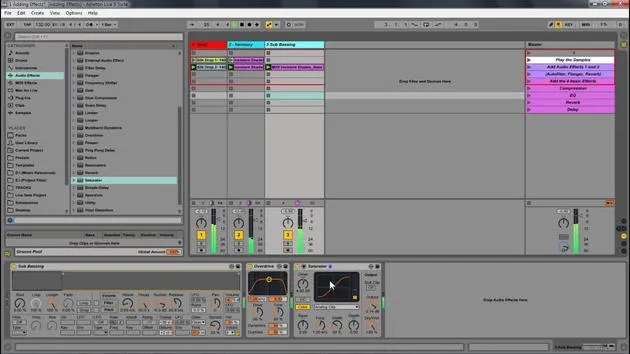
To demonstrate an effect, let's say we choose Flanger:
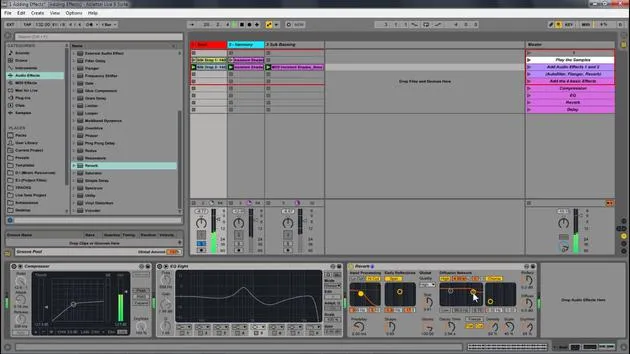
- Simply drag the Flanger effect into your drum track.
-
Adding More Effects:
- You can also add Overdrive to your bass.
- Consider adding a Saturator to further enhance the sound quality.
Working with MIDI Effects
If you want to add a MIDI effect:
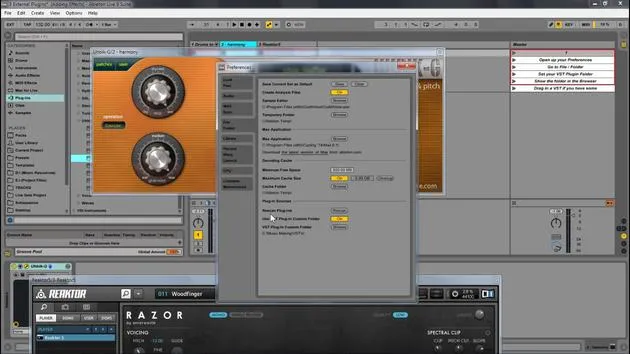
- Choose something like Arpeggiation and place it before the instrument in the chain.
Experimentation
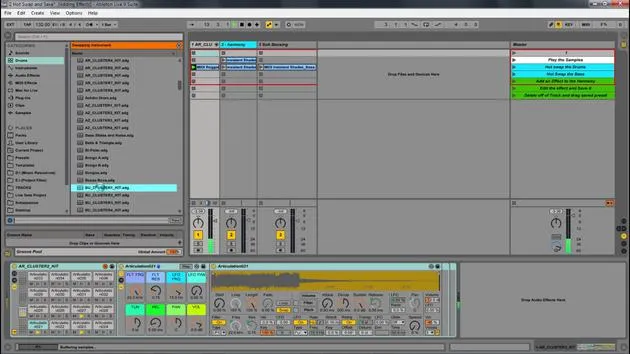
Feel free to delete effects and return to the original sound to compare. Remember, the range of effects available is vast, and you can easily insert them into your track to explore their potential.
Suggestions for Exploration:
- Play around with different presets to discover how they affect your sound.
- Refer to the Ableton Live manual (both online and printed) for detailed descriptions of each audio effect and its functionalities.
Conclusion
As you can see, by adding a Flanger, along with an Overdrive and Saturation effect to your bass, the overall quality of your sound has already improved. Experiment and have fun discovering the possibilities within Ableton Live!
17 lecciones
1h 52m de lecciones en vídeo estructuradas
Funciones de vídeo avanzadas
Ralentiza, repite un pasaje, sigue la partitura
Móvil, tablet y ordenador
Practica donde quieras
Garantía de satisfacción 100%
30 días de garantía de devolución
Conoce a tu gurú
Conoce a tu gurú
Isaac Cotec es, posiblemente, ¡uno de los mejores formadores de Ableton del mundo! Mientras trabajaba en su propia música, empezó a enseñar técnicas de grabación, diseño sonoro y Ableton Live a alumnos particulares y, desde que obtuvo su certificación como Ableton Certified Trainer oficial, ha ayudado a miles de productores a mejorar su nivel y triunfar como músicos.
Isaac comenzó a producir música electrónica en 2005 con Psyche Sonics, un grupo experimental que trabajaba con la ciencia y la investigación de los binaural beats y la alteración de la consciencia a través del sonido. Tras salir de gira, siguió componiendo música bajo el alias Cotec y más tarde surgió como el artista Subaqueous, fusionando su pasado electrónico con técnicas de producción tanto futuristas como orgánicas. Hasta la fecha ha publicado 3 álbumes y 4 EPs.
Isaac es también fundador y gerente del sello discográfico Invibe Music, que representa a algunos de los mejores artistas de música electrónica del Pacífico Noroeste y se especializa en dance de midtempo.
En sus cursos de Ableton Live, Isaac comparte las técnicas de producción, diseño sonoro y composición que ha pasado años perfeccionando: justo las habilidades que emplea para convertir la chispa de una idea en un tema terminado.







