



Exercice - Exemple d'Arrangement et de Session View - Remix d'un Live Set

Avec
Isaac CotecUn exercice pratique de remix à partir des stems d'un morceau de Jamie Blake dans Ableton Live, en déplaçant des clips entre la Session et l'Arrangement View.
Le contenu du cours
17 leçons (1h 52min) · 1 gratuites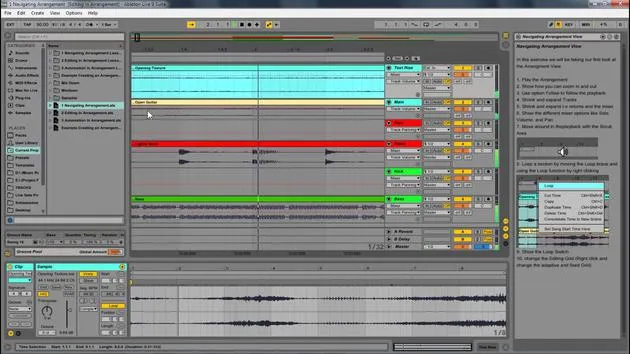
Transcription de la leçon
Remixing in Ableton Live
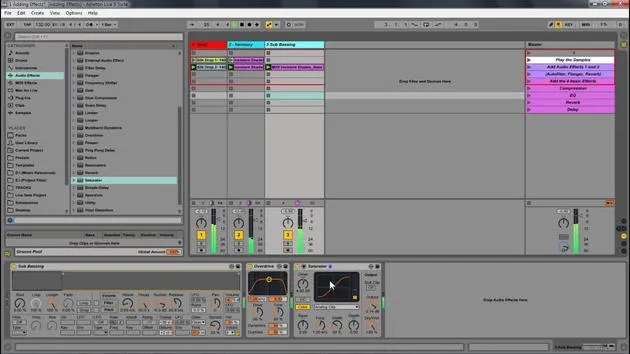
Now that we looked at all the different aspects of Arrangement View, let's dive into remixing in Live. This example set is a great way for you to get your hands dirty with Ableton Live and start remixing, building out tracks, and moving between Session and Arrangement View.
Getting Started
-
Download the Ableton Live Pack:
- Install it and run through the activity in the help view on the side.
- This activity focuses on cutting up stems for remixing.
-
Track Information:
- We will be remixing stems from a track by Jamie Blake.
- Check out his music at: Jamie Blake on Soundcloud. His music is totally awesome, and I think you'll enjoy playing with his sounds and stems in this live set.
Exploring the Live Set
- Open up the example remix set in Live.
- Follow the instructions in the help view.
- Play the track to get familiar with what it's about:
- It features cool percussions and interesting vocal samples with everything laid out.
- It's in B minor, and all the tracks are warped to fit together.
Creating a New Arrangement
-
Select Sections:
- Identify sections to use (e.g., let's take a section here).
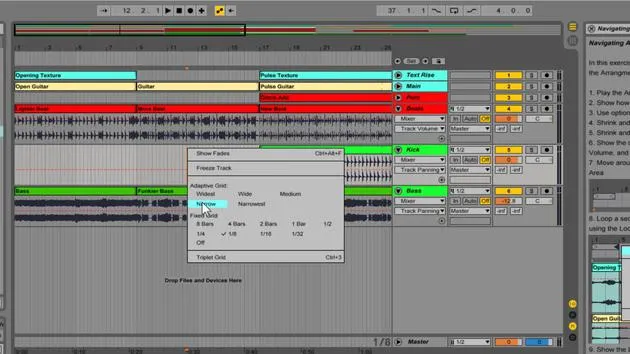
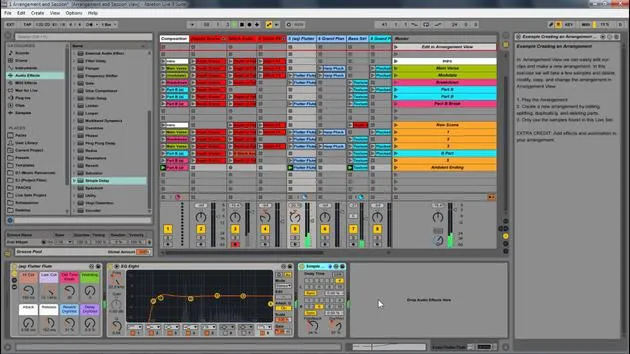
- Right-click and select Consolidate Time to New Scene.
-
Continue the Process:
- Keep right-clicking to consolidate the time through the track.
- Different scenes will be visually obvious based on where certain parts come in and out.
-
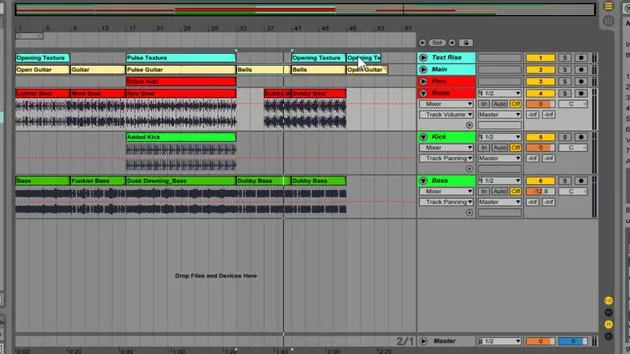
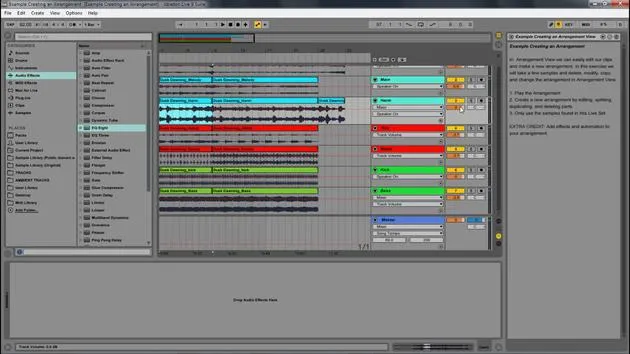
Organizing in Arrangement View:
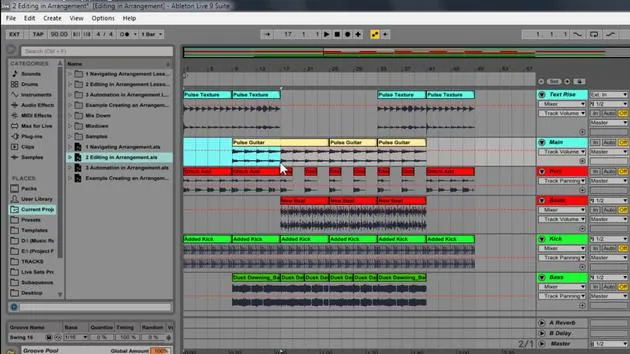
- Once you've cut everything up, hide the sends and returns.
- Start naming your sections (e.g., Intro, Main Section, Breakdown, Ending).
- Color-code them for easy reference.
Adding New Samples
- Within the set, you'll find a folder called E6 Load Stems containing different drums.
- Insert a New Audio Track:
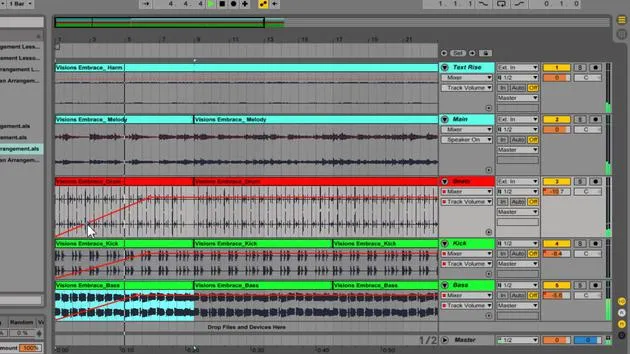
- Drag in the new drums and rename the track.
Experimenting with Beats
- Choose new beats for different sections.
- Combine different clips to form a new scene:
- Right-click and select Capture and Insert Scene to create a new scene with all active clips.
- Rename and color code these new scenes for clarity.
Using an External Keyboard
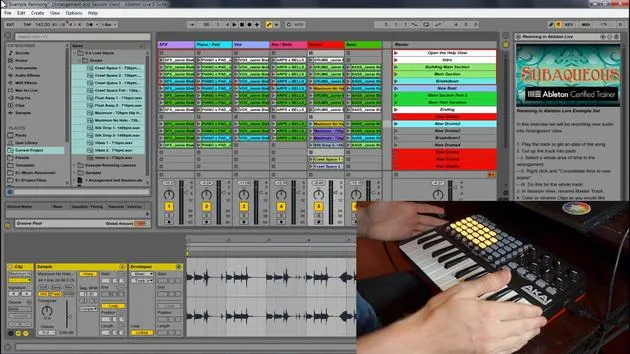
- With the APC Key 25 plugged in, use it to navigate and play different elements live in Ableton.
- Make sure to record your live arrangements into Arrangement View.
Refining Your Remix
-
Record with the APC:
- Bring in different parts, and edit as you go.
- Create new variations and scenes by capturing and inserting new scenes.
-
Insertion and Effects:
- Use basic controls (like Control+D to duplicate) to manage your workflow.
- Experiment with audio effects, modulation, and automation to create unique soundscapes.
-
Final Adjustments:
- After creating variations, right-click and consolidate again to organize new changes.
- Rename sections as needed and continue editing and tweaking until satisfied.
Conclusion: The Power of Ableton
You have now created a completely different arrangement with various elements coming in and out, effectively remixing the original track.
- Next Steps:
- Download the provided live set and explore it yourself.
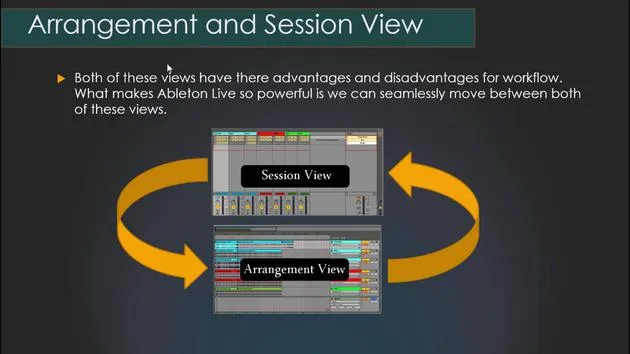
- Practice moving between the Session and Arrangement View, editing, and adding effects.
- Work towards deeply understanding these tools to enhance your music-making skills.
Questions and Further Learning
If you have any questions, such as how to create automation in Ableton or how to navigate between views, refer to the additional videos provided. Take your time to grasp everything thoroughly, ensuring you're confident before progressing in your music endeavors with Ableton Live.
17 leçons
1h 52m de leçons vidéo structurées
Fonctions vidéo avancées
Ralentissez, bouclez un passage, suivez la partition
Mobile, tablette et ordinateur
Pratiquez où vous voulez
Satisfaction garantie à 100 %
Garantie remboursement 30 jours
Rencontrez votre guru
Rencontrez votre guru
Isaac Cotec est, sans doute, l'un des meilleurs formateurs Ableton au monde ! Tout en travaillant sur sa propre musique, il a commencé à enseigner les techniques d'enregistrement, le design sonore et Ableton Live à des élèves particuliers et, depuis qu'il a obtenu sa certification d'Ableton Certified Trainer officiel, il a aidé des milliers de producteurs à passer un cap et à réussir comme musiciens.
Isaac a commencé à produire de la musique électronique en 2005 avec Psyche Sonics, un groupe expérimental travaillant sur la science et la recherche des binaural beats et la modification de la conscience par le son. Après avoir tourné, il a continué à écrire de la musique sous l'alias Cotec puis a émergé comme l'artiste Subaqueous, mêlant son passé électronique à des techniques de production à la fois futuristes et organiques. À ce jour, il a sorti 3 albums et 4 EPs.
Isaac est aussi le fondateur et le gérant du label Invibe Music, qui représente certains des meilleurs artistes de musique électronique du Pacific Northwest et se spécialise dans la dance midtempo.
Dans ses cours Ableton Live, Isaac partage les techniques de production, de design sonore et d'écriture qu'il a passé des années à affiner — les compétences mêmes qu'il utilise pour transformer l'étincelle d'une idée en un morceau fini.







