



Introduction

Avec
Isaac CotecUne introduction à l'ajout d'effets audio et MIDI à tes pistes dans Ableton Live pour façonner ton son.
Le contenu du cours
17 leçons (1h 52min) · 1 gratuites

Transcription de la leçon
Adding Effects in Ableton Live
In this module, we're going to look at adding effects and how we can change the sound of our different audio or MIDI tracks using effects within Ableton Live.
Overview of Audio Effects
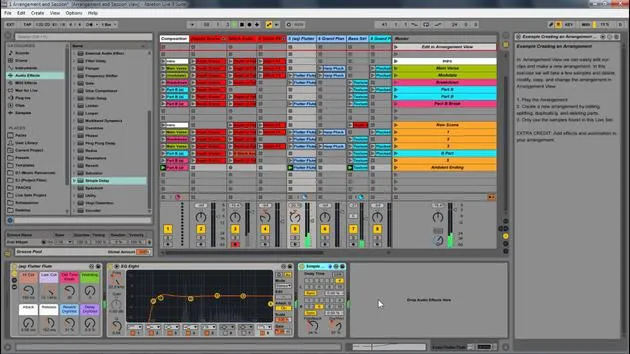
Live comes with a selection of custom designed, built-in audio effects. Every track in Live can host a number of devices or effects, including:
- Audio Effects
- MIDI Effects
Each of these devices can significantly alter the sound and quality of your audio.
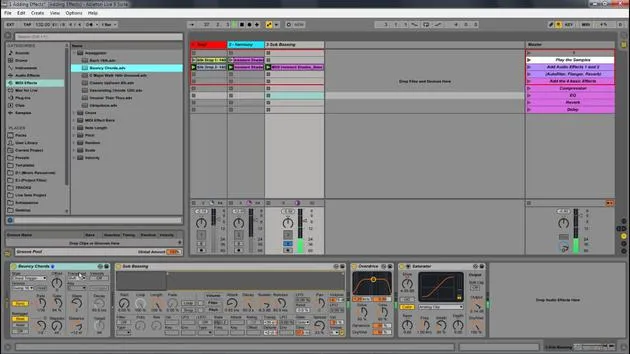
Adding an Audio Effect
To add an audio effect to a track:
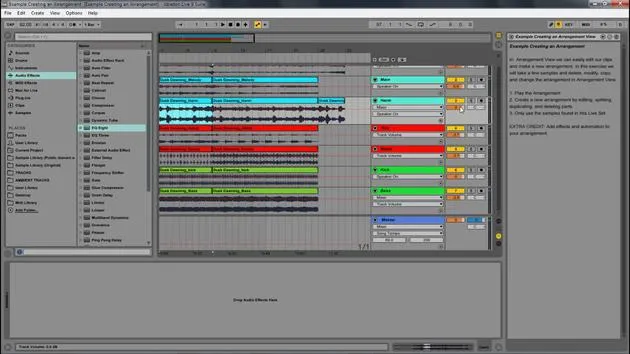
- Open the Browser: Navigate to your audio effects.
- Drag and Drop: Click on the desired audio effect and drag it into your track.
Using Presets
Each audio or MIDI effect has presets. To access these:
- Click the triangle next to the effect to open the list of presets.
For example, when viewing the presets for the Auto Pan:
- After selecting audio effects in the browser, click the triangle next to Auto Pan to see the available presets (e.g., 1 to 4 note).
Demonstration in Ableton Live
-
Open the browser and select audio effects.
-
Click the triangle next to Auto Pan to view its presets.
-
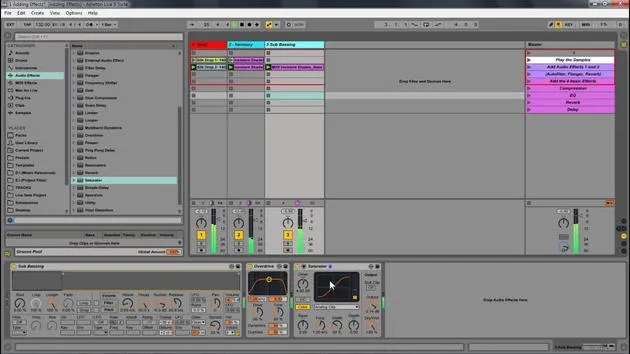
To demonstrate an effect, let's say we choose Flanger:
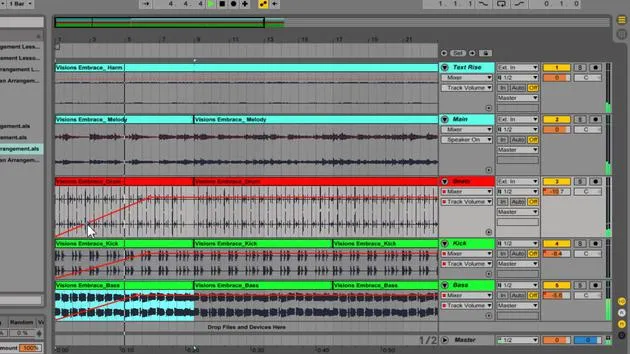
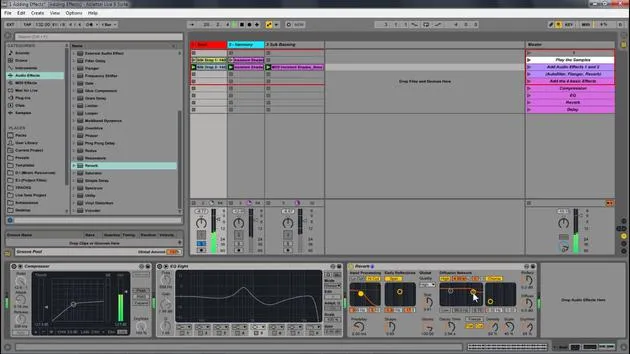
- Simply drag the Flanger effect into your drum track.
-
Adding More Effects:
- You can also add Overdrive to your bass.
- Consider adding a Saturator to further enhance the sound quality.
Working with MIDI Effects
If you want to add a MIDI effect:
- Choose something like Arpeggiation and place it before the instrument in the chain.
Experimentation
Feel free to delete effects and return to the original sound to compare. Remember, the range of effects available is vast, and you can easily insert them into your track to explore their potential.
Suggestions for Exploration:
- Play around with different presets to discover how they affect your sound.
- Refer to the Ableton Live manual (both online and printed) for detailed descriptions of each audio effect and its functionalities.
Conclusion
As you can see, by adding a Flanger, along with an Overdrive and Saturation effect to your bass, the overall quality of your sound has already improved. Experiment and have fun discovering the possibilities within Ableton Live!
17 leçons
1h 52m de leçons vidéo structurées
Fonctions vidéo avancées
Ralentissez, bouclez un passage, suivez la partition
Mobile, tablette et ordinateur
Pratiquez où vous voulez
Satisfaction garantie à 100 %
Garantie remboursement 30 jours
Rencontrez votre guru
Rencontrez votre guru
Isaac Cotec est, sans doute, l'un des meilleurs formateurs Ableton au monde ! Tout en travaillant sur sa propre musique, il a commencé à enseigner les techniques d'enregistrement, le design sonore et Ableton Live à des élèves particuliers et, depuis qu'il a obtenu sa certification d'Ableton Certified Trainer officiel, il a aidé des milliers de producteurs à passer un cap et à réussir comme musiciens.
Isaac a commencé à produire de la musique électronique en 2005 avec Psyche Sonics, un groupe expérimental travaillant sur la science et la recherche des binaural beats et la modification de la conscience par le son. Après avoir tourné, il a continué à écrire de la musique sous l'alias Cotec puis a émergé comme l'artiste Subaqueous, mêlant son passé électronique à des techniques de production à la fois futuristes et organiques. À ce jour, il a sorti 3 albums et 4 EPs.
Isaac est aussi le fondateur et le gérant du label Invibe Music, qui représente certains des meilleurs artistes de musique électronique du Pacific Northwest et se spécialise dans la dance midtempo.
Dans ses cours Ableton Live, Isaac partage les techniques de production, de design sonore et d'écriture qu'il a passé des années à affiner — les compétences mêmes qu'il utilise pour transformer l'étincelle d'une idée en un morceau fini.







