



Clips steuern - Clip Box und Übersicht

Mit
Isaac CotecEin Rundgang durch die Clip View von Ableton Live, die Bereiche Clip, Launch, Sample und Envelopes, und wie jeder die Wiedergabe deiner Clips formt.
Das steckt im Kurs
20 Lektionen (2h 16m) · 1 gratis
Transkript der Lektion
Controlling Clips in Ableton Live
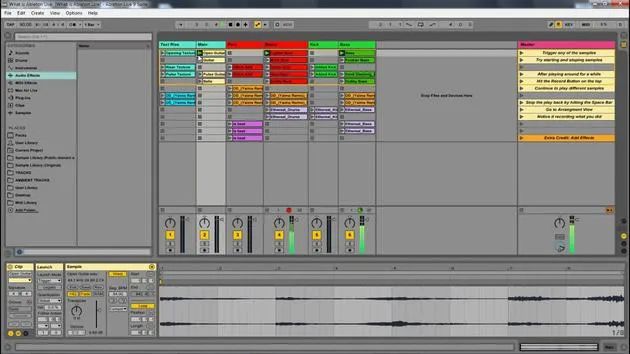
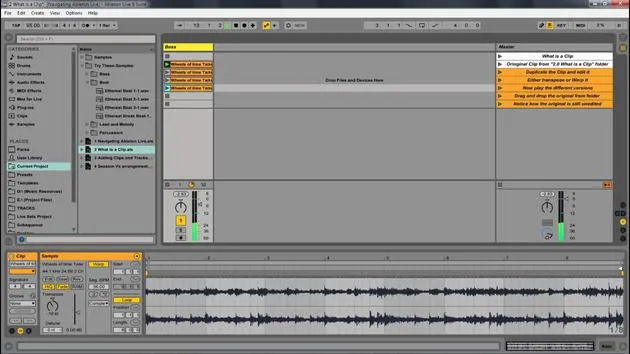
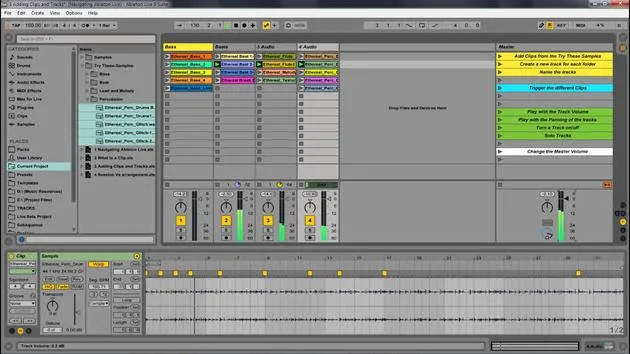
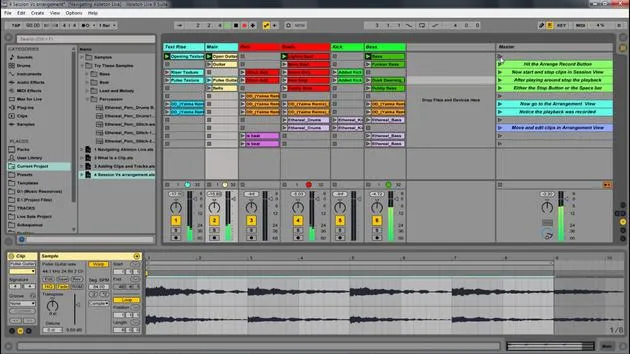
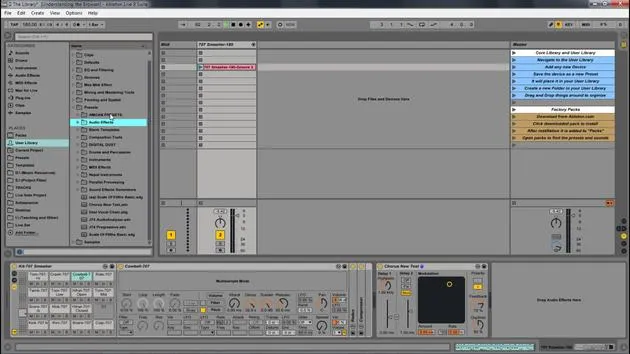
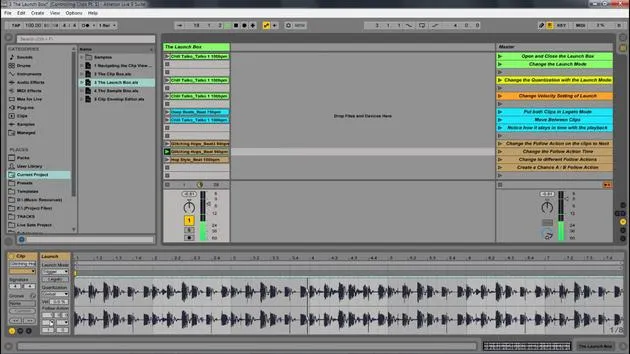
In this module, we're going to look deeper into controlling our clips. A big part of that is using the Clip View. You can use the Clipbox, Sample editor, and all these different features found within Ableton to control the specific playback of your clips.
Navigating the Clip View
Accessing the Clip View
- To access the Clip View, double click any clip.
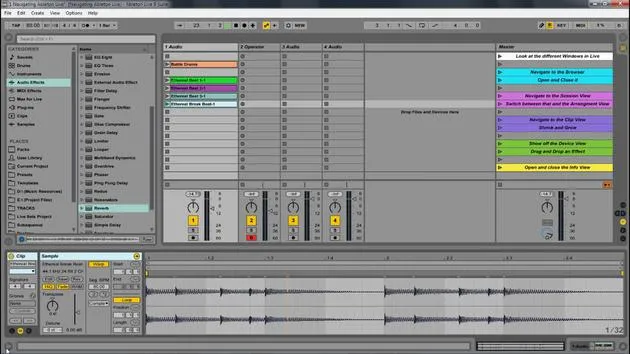
- If you're in the Devices view, you can navigate between views using the tabs or by pressing Shift + Tab.
In the Clip View, you'll find several different boxes and options. Each box can be opened and closed using the buttons available:
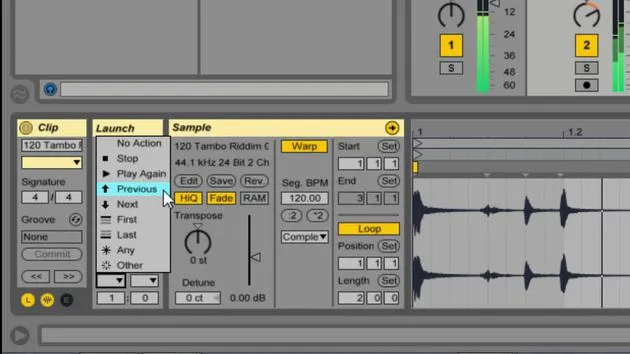
- Launch Box
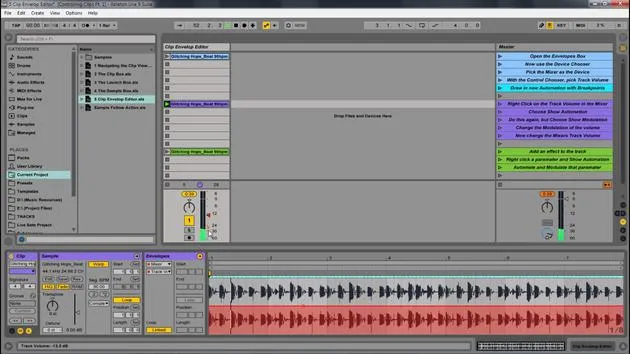
- Envelopes Box
- Sample Box
- Clip Box (This one is always visible and cannot be closed.)
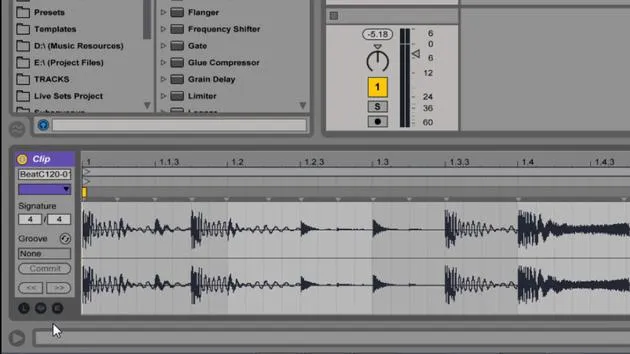
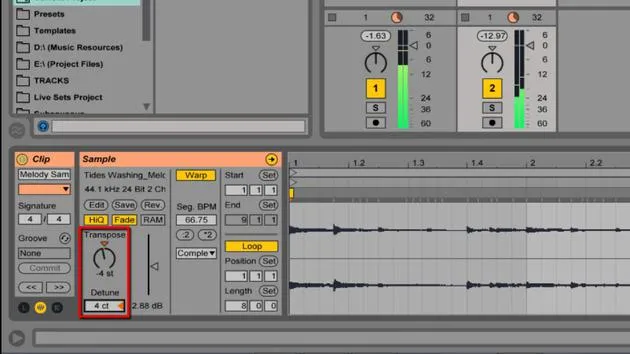
The Clipbox
The first box we're going to look at is the Clipbox.
Features of the Clipbox
The Clipbox allows you to:
- Change the name and color of the clip.
- Adjust the time signature of a track from your master time signature.
- Open other clip view boxes.
Example Usage
-
Changing Clip Color:
- You can easily adjust the clip color from this box.
-
Renaming the Clip:
- The name field is right here; you can rename it as needed.
-
Adjusting Time Signature:
- Let's change the time signature to 3/4.
- Notice how it did not change the playback; it only alters the way we interpret this sample in the Sample editor.
- Changing it to 24 or 284 8 simply changes the ruler in which we are viewing the sample. This is particularly helpful if you need to visualize placements within a different time signature.
The Groove Pool
Another useful feature within the Clip View is the Groove Pool.
- To add a groove, simply hit the hot swap button to see all your different grooves.
- This is a more advanced feature that deals with quantization and timing.
- Although we won't explore it in detail, you can easily double click on a groove to add it to your sample.
In this case, I'll exit out of there and set that to none.
Summary
That's the overview of the Clip Box and its functionalities in the Clip View. Understanding these controls will enhance your ability to manage clips effectively in Ableton Live.
20 Lektionen
2 Std. 16 Min. strukturierte Videolektionen
Erweiterte Videofunktionen
Verlangsamen, Passagen loopen, mitlesen
Handy, Tablet & Desktop
Üben, wo du willst
100 % Zufriedenheitsgarantie
30 Tage Geld-zurück-Garantie
Lern deinen Guru kennen
Lern deinen Guru kennen
Isaac Cotec ist wohl einer der besten Ableton-Trainer der Welt! Während er an seiner eigenen Musik arbeitete, begann er, Privatschülern Aufnahmetechniken, Sounddesign und Ableton Live beizubringen, und seit seiner Zertifizierung als offizieller Ableton Certified Trainer hat er Tausenden von Produzenten geholfen, ihr Niveau zu steigern und als Musiker erfolgreich zu sein.
Isaac begann 2005 mit Psyche Sonics elektronische Musik zu produzieren, einer experimentellen Gruppe, die sich mit der Wissenschaft und Erforschung binauraler Beats und der Bewusstseinsveränderung durch Klang beschäftigte. Nach dem Touren schrieb er weiter Musik unter dem Alias Cotec und trat später als Künstler Subaqueous hervor, der seine elektronische Vergangenheit mit zukunftsgewandten wie organischen Produktionstechniken verband. Bis heute hat er 3 Alben und 4 EPs veröffentlicht.
Isaac ist außerdem Gründer und Manager des Plattenlabels Invibe Music, das einige der besten Elektronik-Künstler des Pacific Northwest vertritt und sich auf Midtempo-Dance-Musik spezialisiert.
In seinen Ableton-Live-Kursen teilt Isaac die Produktions-, Sounddesign- und Songwriting-Techniken, die er über Jahre verfeinert hat – genau jene Fähigkeiten, mit denen er aus dem Funken einer Idee einen fertigen Track macht.







