



Exercise - Arrangement and Session View Example - Remixing Live Set

With
Isaac CotecA hands-on exercise remixing stems from a Jamie Blake track in Ableton Live, moving clips between Session and Arrangement View.
What's in the course
17 lessons (1h 52m) · 1 free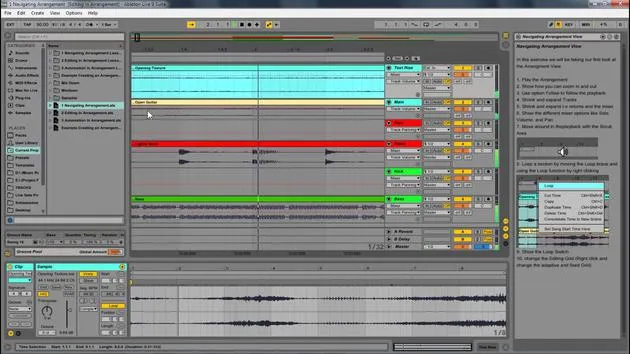

Lesson transcript
Remixing in Ableton Live
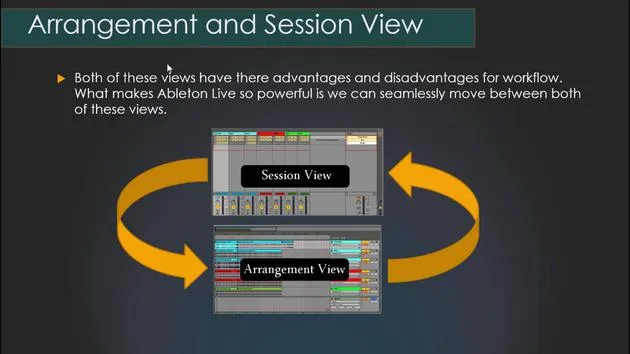
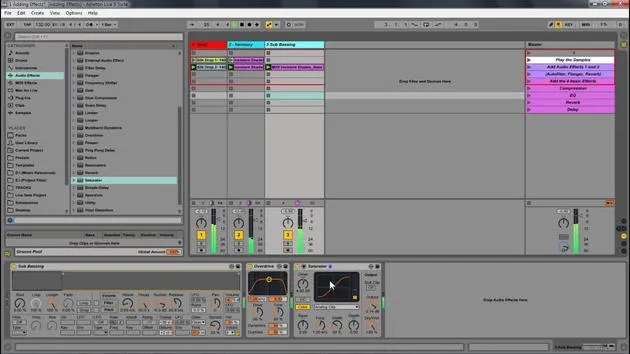
Now that we looked at all the different aspects of Arrangement View, let's dive into remixing in Live. This example set is a great way for you to get your hands dirty with Ableton Live and start remixing, building out tracks, and moving between Session and Arrangement View.
Getting Started
-
Download the Ableton Live Pack:
- Install it and run through the activity in the help view on the side.
- This activity focuses on cutting up stems for remixing.
-
Track Information:
- We will be remixing stems from a track by Jamie Blake.
- Check out his music at: Jamie Blake on Soundcloud. His music is totally awesome, and I think you'll enjoy playing with his sounds and stems in this live set.
Exploring the Live Set
- Open up the example remix set in Live.
- Follow the instructions in the help view.
- Play the track to get familiar with what it's about:
- It features cool percussions and interesting vocal samples with everything laid out.
- It's in B minor, and all the tracks are warped to fit together.
Creating a New Arrangement
-
Select Sections:
- Identify sections to use (e.g., let's take a section here).
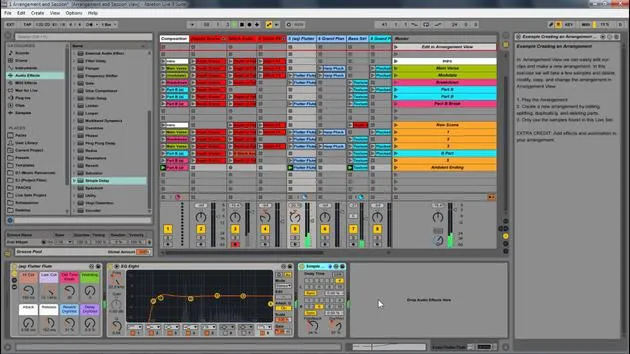
- Right-click and select Consolidate Time to New Scene.
-
Continue the Process:
- Keep right-clicking to consolidate the time through the track.
- Different scenes will be visually obvious based on where certain parts come in and out.
-
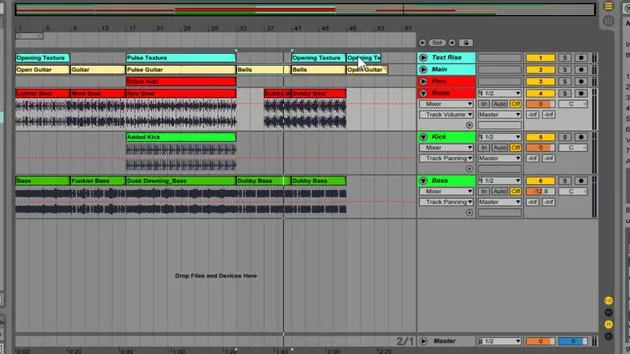
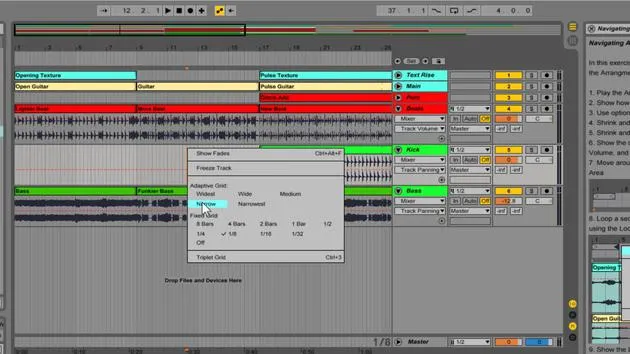
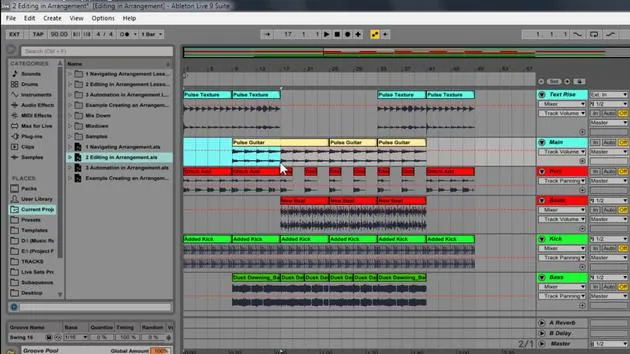
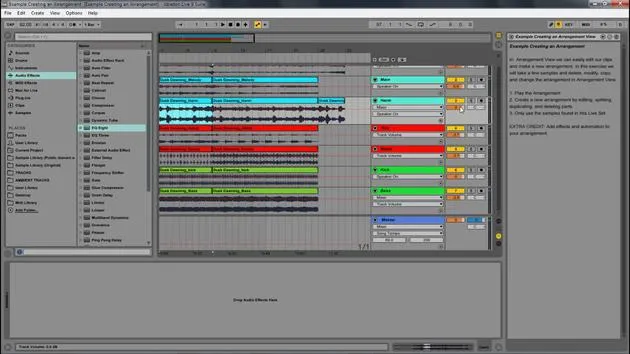
Organizing in Arrangement View:
- Once you've cut everything up, hide the sends and returns.
- Start naming your sections (e.g., Intro, Main Section, Breakdown, Ending).
- Color-code them for easy reference.
Adding New Samples
- Within the set, you'll find a folder called E6 Load Stems containing different drums.
- Insert a New Audio Track:
- Drag in the new drums and rename the track.
Experimenting with Beats
- Choose new beats for different sections.
- Combine different clips to form a new scene:
- Right-click and select Capture and Insert Scene to create a new scene with all active clips.
- Rename and color code these new scenes for clarity.
Using an External Keyboard
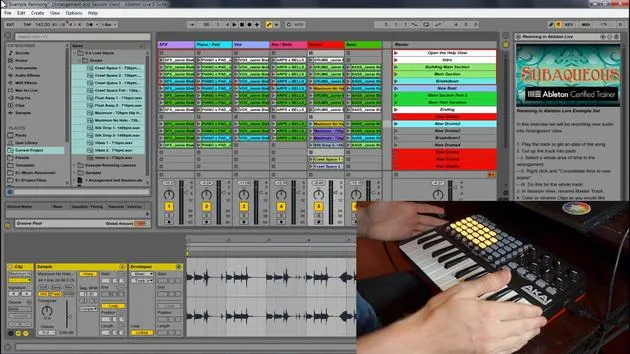
- With the APC Key 25 plugged in, use it to navigate and play different elements live in Ableton.
- Make sure to record your live arrangements into Arrangement View.
Refining Your Remix
-
Record with the APC:
- Bring in different parts, and edit as you go.
- Create new variations and scenes by capturing and inserting new scenes.
-
Insertion and Effects:
- Use basic controls (like Control+D to duplicate) to manage your workflow.
- Experiment with audio effects, modulation, and automation to create unique soundscapes.
-
Final Adjustments:
- After creating variations, right-click and consolidate again to organize new changes.
- Rename sections as needed and continue editing and tweaking until satisfied.
Conclusion: The Power of Ableton
You have now created a completely different arrangement with various elements coming in and out, effectively remixing the original track.
- Next Steps:
- Download the provided live set and explore it yourself.
- Practice moving between the Session and Arrangement View, editing, and adding effects.
- Work towards deeply understanding these tools to enhance your music-making skills.
Questions and Further Learning
If you have any questions, such as how to create automation in Ableton or how to navigate between views, refer to the additional videos provided. Take your time to grasp everything thoroughly, ensuring you're confident before progressing in your music endeavors with Ableton Live.
17 lessons
1h 52m of structured video lessons
Advanced video features
Slow down, loop a passage, follow along
Mobile, tablet & desktop
Practise wherever you are
100% satisfaction guarantee
30-day money-back guarantee
Meet your guru
Meet your guru
Isaac Cotec is, arguably, one of the best Ableton trainers in the world! While working on his own music, he began teaching recording techniques, sound design, and Ableton Live to private students, and since earning his certification as an official Ableton Certified Trainer he has helped thousands of producers step up their game and succeed as musicians.
Isaac started producing electronic music in 2005 with Psyche Sonics, an experimental group working with the science and research of binaural beats and altering consciousness through sound. After touring, he continued writing music under the alias Cotec and later emerged as the artist Subaqueous, blending his electronic past with both future and organic production techniques. To date, he has released 3 albums and 4 EPs.
Isaac is also the founder and manager of the record label Invibe Music, which represents some of the Pacific Northwest's best electronic music and specialises in midtempo dance music.
In his Ableton Live courses, Isaac shares the production, sound design and songwriting techniques he has spent years refining - the very skills he uses to turn a spark of an idea into a finished track.







