



Hot-Swap and Save

With
Isaac CotecLearn how to use Hot Swap in Ableton Live to quickly switch out instruments, drum kits, and effects, and how to save your own presets.
What's in the course
17 lessons (1h 52m) · 1 free

Lesson transcript
Hot Swapping and Saving in Ableton Live
Now let's look at hot swapping and saving within Ableton Live. You have a few options here to really help you create and switch out instruments whenever you want. You can also use Hot Swap to quickly move between presets.
Hot Swap Button
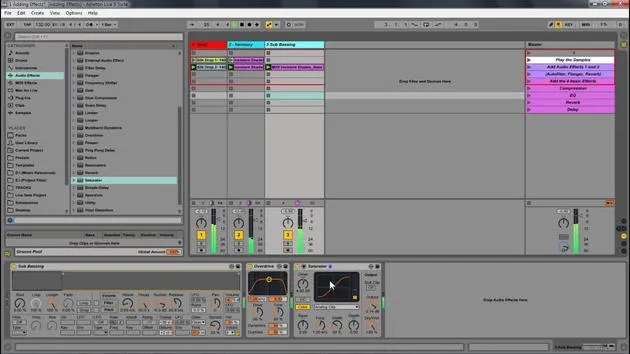
Right here we have this little hot swap button, and that is on every single device in Live.
- If I go over to Ableton now, Hot Swap lets us easily switch out our different effects, instruments, you name it. It's a very useful feature within Live.
Example: Drums
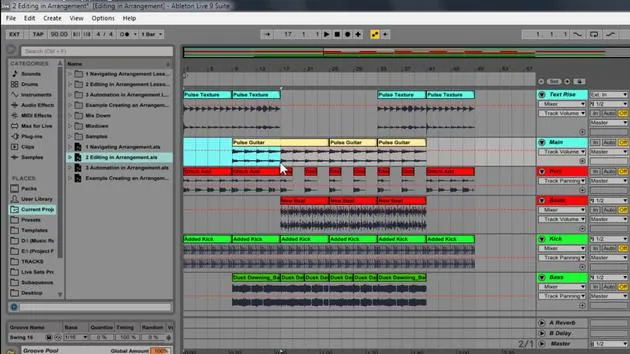
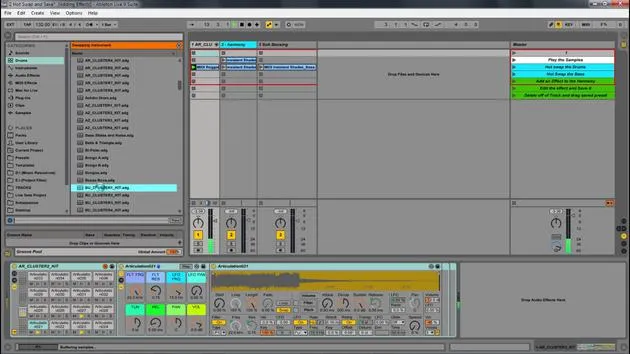
A good example is, let's say I'm playing these drums. If I want to, I can hit the Hot Swap button.
- This brings me to the window where I had these drums, and I can just pick different ones.
- For instance, let's change it now to hear what that acoustic kit sounds like.
You have all these different strange kits to choose from. Let's go with an acoustic kit again. That one's great!
Effects and Instruments
This same concept for drum racks and instruments works for your effects as well.
- Let's say I come into my audio effects. I'm going to do something like dragging my flanger.
- Now, if I hit my Hot Swap, it brings me over to the flanger here in the browser.
- If I double-click, it'll switch out that sound. Let's change it to a different one. Great!
Then I can adjust my dry/wet here to not be so intense.
Swapping Bass Sounds
As an example, I can hot swap out this bass.
- I just click the Hot Swap button, which brings me to my browser.
- Here I can pick any other sound, and there we go, we have a different bass sound!
Adding an Effect: Auto Pan
Now, let's say I want to add an effect. I'll go with something like an auto pan:
- I want to create a kind of gating effect, so I'll turn up the amount and turn down the phase, making it just like a volume control.
- I will sync it to 1/4 and change the shape a little.
This is how it sounds with it off, and this is with it on. This is like a dry/wet adjustment, so I'm going to turn it down a little.
Renaming and Saving Presets
Now, let's say I got that the way I want it, right?
- I can rename this effect to Fourth Gate.
- If I wanted to, I can hit what's called the Save button.
Ableton Live also lets you save presets. This is a powerful way to start building your own library of effects.
- Saved presets are now added to your user library.
- Here we have an arrow pointing to what the Save Preset button looks like.
Let's go back to Ableton:
- When I hit save, you'll notice that it went to my user library in my Auto Pan and added this new gate.
Utilizing Saved Presets
Now I can drag it in; I can add it to the bass, and I can add the same effect over into my drums, and so on.
This way, you don't have to reinvent your audio effects every single time. You can make them, save them, and they go into your user library for you to drag them in anytime you want.
With Ableton Live, this makes both swapping out presets and making your own presets very easy!
17 lessons
1h 52m of structured video lessons
Advanced video features
Slow down, loop a passage, follow along
Mobile, tablet & desktop
Practise wherever you are
100% satisfaction guarantee
30-day money-back guarantee
Meet your guru
Meet your guru
Isaac Cotec is, arguably, one of the best Ableton trainers in the world! While working on his own music, he began teaching recording techniques, sound design, and Ableton Live to private students, and since earning his certification as an official Ableton Certified Trainer he has helped thousands of producers step up their game and succeed as musicians.
Isaac started producing electronic music in 2005 with Psyche Sonics, an experimental group working with the science and research of binaural beats and altering consciousness through sound. After touring, he continued writing music under the alias Cotec and later emerged as the artist Subaqueous, blending his electronic past with both future and organic production techniques. To date, he has released 3 albums and 4 EPs.
Isaac is also the founder and manager of the record label Invibe Music, which represents some of the Pacific Northwest's best electronic music and specialises in midtempo dance music.
In his Ableton Live courses, Isaac shares the production, sound design and songwriting techniques he has spent years refining - the very skills he uses to turn a spark of an idea into a finished track.







