



Eine Vorlage erstellen

Mit
Isaac CotecSpiel die Dur- und Moll-Dreiklänge in drei Umkehrungen für Gruppe C deiner Rockschool-Guitar-Grade-5-Übungen – kompakte Voicings, die im Funk gut funktionieren.
Das steckt im Kurs
19 Lektionen (2h 54m) · 1 gratis
Transkript der Lektion
Creating a Template in Ableton Live
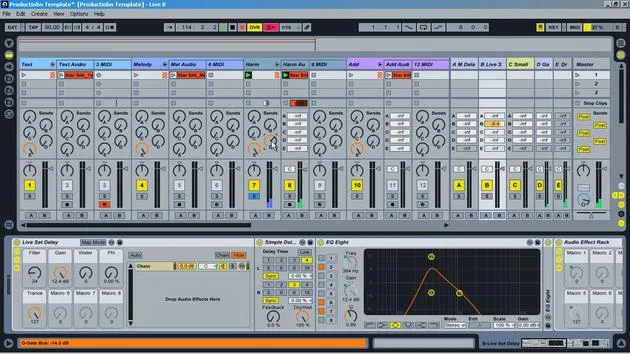
Next, we're going to be looking at creating a template.
What is a Template?
A template is basically an Ableton Live set that you can open each time. It will have similar sounds or qualities to it, making it a lot easier to produce from that point on. This is particularly beneficial:
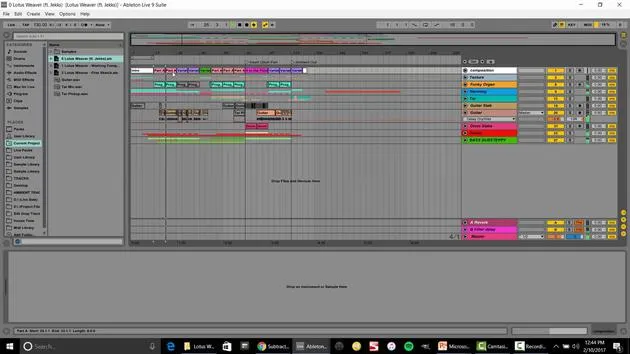
- For an album: When I was starting my Emerge album from Subaqueous, I spent a week creating a template first to get the types of sounds and organization ready. This ensured that when I wrote songs, they were all organized and kept the same way, which sped up my process immensely.
You get so much faster when you use templates, and we'll explore that within Ableton Live.
Tools for Making Our Template
Here are a few tools we'll use for making our template:
- Color coding: Color coding the different clips or tracks.
- Groups
- Return tracks
- Routing
- Resampling track
These tools are all really important and make production much easier.
Advice for Templates
A few words of advice for templates:
- Only add elements you can use all the time: Don't clutter your template with things you won't be using in the future.
- Feel free to evolve your template: A template is a starting point, and elements can change.
- Different templates for different projects can be really helpful.
Hands-On Template Creation
Now, let's open up Live and make a template from scratch.
-
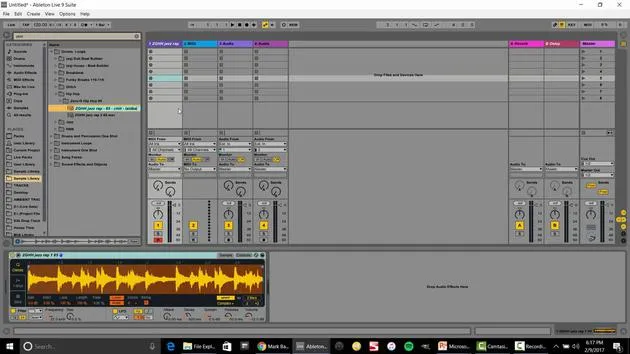
Start with a Blank Set: We have a blank set. Let's turn it into a usable template.
-
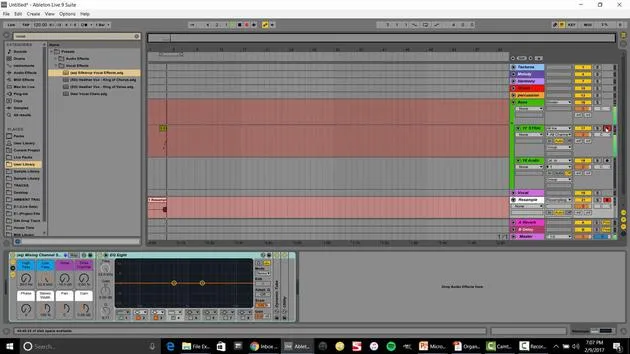
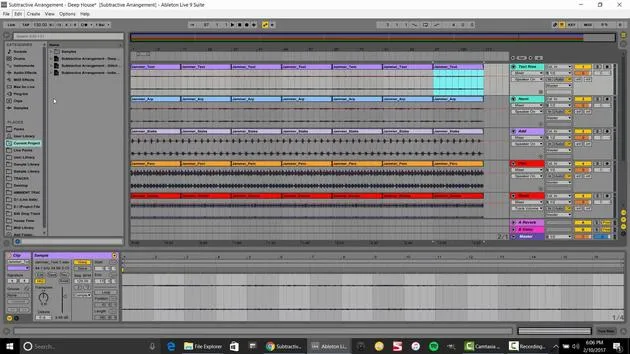
Group Tracks: I often group MIDI and audio tracks together. I usually separate them by eight groups:
- Drums
- Bass
- Melody
- Harmony
- Percussion
- Vocals
For this example, I named one track Textures for background sounds or ambient noises.
-
Color Coding: Everything sounds better when you color it, believe me! I have a personal color coding system where:
- Green = Bass
- Orange = Percussion
You can create your own system based on your preference.
-
Common Effects: Consider what effects you use regularly. For instance, I always place an EQ on every channel, even if it's just to adjust the mids or highs.
-
Compressors: I might also have a compressor, but it shouldn't affect the base sound until I adjust the threshold settings.
-
Consistent Elements: Think about consistent elements you use across projects. For example, I always include a sub bass and certain vocal effects that I prefer.
Setting Up Additional Tracks
-
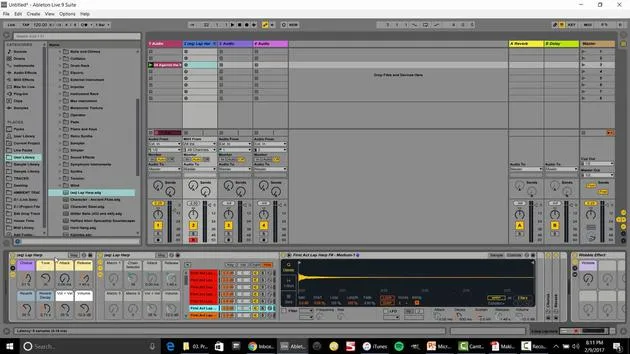
Return Tracks: If there's a specific effect you use a lot, include that in your template.
-
Resample Track:
- Right-click and insert an audio track. I call this Resample and like to color it white.
- Set the input to Resampling, which records anything playing from the master out.
This feature can be very handy when you want to capture a sound quickly while working.
Saving Your Template
- After setting everything up, go to File > Options Preferences (or Live Preferences on Mac).
- Head over to File/Folder, and select Save Current Set as Default.
- Hit Save.
Now, every time you open a new Live set, it will come up with all the parameters you saved, including the EQs and organization setup.
Final Thoughts
The idea here is: If there's something you do repeatedly, set it up as part of your template. This will save time and enhance your workflow.
For example, if you frequently use the Serum VST for your bass, add it to your template.
And there you have it! That's how to create and use a template in Ableton Live.
19 Lektionen
2 Std. 54 Min. strukturierte Videolektionen
Erweiterte Videofunktionen
Verlangsamen, Passagen loopen, mitlesen
Handy, Tablet & Desktop
Üben, wo du willst
100 % Zufriedenheitsgarantie
30 Tage Geld-zurück-Garantie
Lern deinen Guru kennen
Lern deinen Guru kennen
Isaac Cotec ist wohl einer der besten Ableton-Trainer der Welt! Während er an seiner eigenen Musik arbeitete, begann er, Privatschülern Aufnahmetechniken, Sounddesign und Ableton Live beizubringen, und seit seiner Zertifizierung als offizieller Ableton Certified Trainer hat er Tausenden von Produzenten geholfen, ihr Niveau zu steigern und als Musiker erfolgreich zu sein.
Isaac begann 2005 mit Psyche Sonics elektronische Musik zu produzieren, einer experimentellen Gruppe, die sich mit der Wissenschaft und Erforschung binauraler Beats und der Bewusstseinsveränderung durch Klang beschäftigte. Nach dem Touren schrieb er weiter Musik unter dem Alias Cotec und trat später als Künstler Subaqueous hervor, der seine elektronische Vergangenheit mit zukunftsgewandten wie organischen Produktionstechniken verband. Bis heute hat er 3 Alben und 4 EPs veröffentlicht.
Isaac ist außerdem Gründer und Manager des Plattenlabels Invibe Music, das einige der besten Elektronik-Künstler des Pacific Northwest vertritt und sich auf Midtempo-Dance-Musik spezialisiert.
In seinen Ableton-Live-Kursen teilt Isaac die Produktions-, Sounddesign- und Songwriting-Techniken, die er über Jahre verfeinert hat – genau jene Fähigkeiten, mit denen er aus dem Funken einer Idee einen fertigen Track macht.







