



Geräte-Randomisierung mit M4L

Mit
Isaac CotecIsaac Cotec zeigt, wie du das Randomization-Gerät von Max for Live nutzt, um Bewegung hinzuzufügen und Effekte in deinem Ableton-Track zu erzeugen. Nur Live Suite und optional.
Das steckt im Kurs
19 Lektionen (2h 54m) · 1 gratis
Transkript der Lektion
Exploring the Randomization Device in Ableton Live
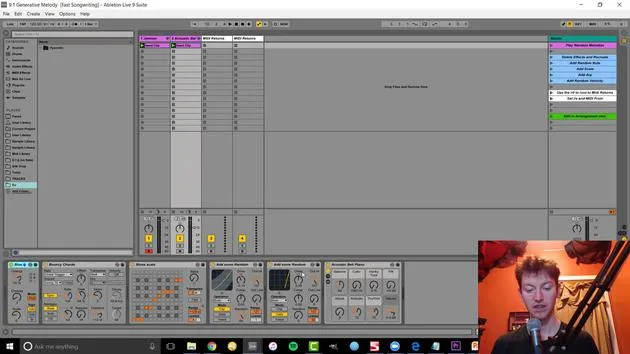
All right, let's look at another thing: the randomization device. This can be more helpful for creating effects compared to what we were doing before. Previously, we focused on making whole sounds using generative techniques. Now, let's explore this randomization idea.
Getting Started with the Randomization Device
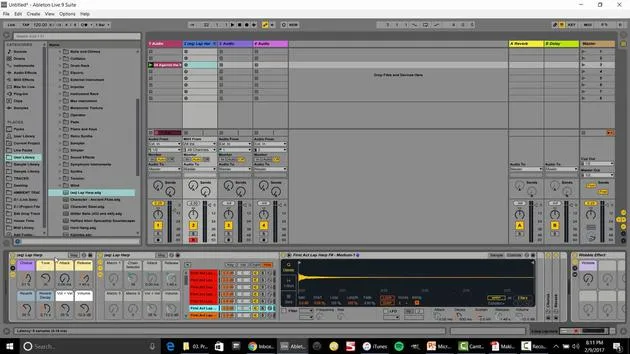
- Load the Randomization Device:
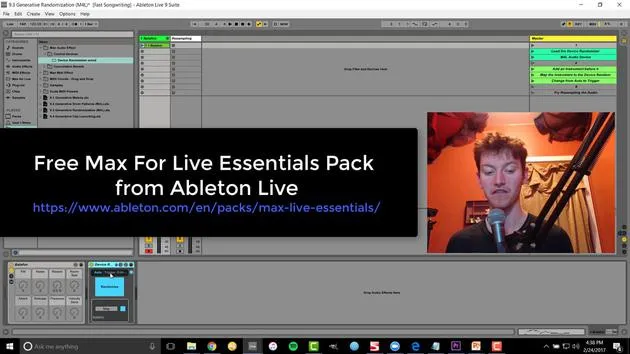
- This device comes with the Ableton Live Max for Live kit, which includes most of the different effects you see in Ableton Live videos.
How It Works
The randomization device randomizes whatever it's pointed to. Let's open it up and check it out.
-
Play the Device:
- Randomization is already set.
-
Turning Off Randomization:
- Nothing is happening right now.
-
Mapping to Randomize:
- Map this device by hitting map and clicking. This takes it over.
Exploring Controls
Once you hit a little button to open it up, you'll see the different controls available:
- Frequency
- Depth
- Smoothness
- And many other options
You can easily randomize anything! For example, add a frozen smear and adjust the sync amount to make it like super slow.
Now, we have a slow-evolving change, and you can see how that's going to create a cool new morphing sound that we might not think of or create by hand. This is a much faster way of doing it!
Additional Features of the Randomization Device
When using the Randomizer, if you switch from Auto to Trigger or Edit, you access a lot more parameters:
- You can edit which effects are being affected.
- You can turn off parameters selectively.
For instance, you could:
- Turn off a couple to narrow it down.
- This leaves you with the desired effects to tweak further.
Using the Trigger Option
The Trigger option allows you to:
- Randomize only once by hitting randomize.
- This way, you can find an effect you like, and it will stay consistent rather than always changing over time.
In conclusion, adding randomization to your audio opens up a world of creative possibilities!
19 Lektionen
2 Std. 54 Min. strukturierte Videolektionen
Erweiterte Videofunktionen
Verlangsamen, Passagen loopen, mitlesen
Handy, Tablet & Desktop
Üben, wo du willst
100 % Zufriedenheitsgarantie
30 Tage Geld-zurück-Garantie
Lern deinen Guru kennen
Lern deinen Guru kennen
Isaac Cotec ist wohl einer der besten Ableton-Trainer der Welt! Während er an seiner eigenen Musik arbeitete, begann er, Privatschülern Aufnahmetechniken, Sounddesign und Ableton Live beizubringen, und seit seiner Zertifizierung als offizieller Ableton Certified Trainer hat er Tausenden von Produzenten geholfen, ihr Niveau zu steigern und als Musiker erfolgreich zu sein.
Isaac begann 2005 mit Psyche Sonics elektronische Musik zu produzieren, einer experimentellen Gruppe, die sich mit der Wissenschaft und Erforschung binauraler Beats und der Bewusstseinsveränderung durch Klang beschäftigte. Nach dem Touren schrieb er weiter Musik unter dem Alias Cotec und trat später als Künstler Subaqueous hervor, der seine elektronische Vergangenheit mit zukunftsgewandten wie organischen Produktionstechniken verband. Bis heute hat er 3 Alben und 4 EPs veröffentlicht.
Isaac ist außerdem Gründer und Manager des Plattenlabels Invibe Music, das einige der besten Elektronik-Künstler des Pacific Northwest vertritt und sich auf Midtempo-Dance-Musik spezialisiert.
In seinen Ableton-Live-Kursen teilt Isaac die Produktions-, Sounddesign- und Songwriting-Techniken, die er über Jahre verfeinert hat – genau jene Fähigkeiten, mit denen er aus dem Funken einer Idee einen fertigen Track macht.







