



Advanced parameters in Drummer

With
Aamir YaqubDiscover how to make Drummer interact with Logic Pro Arrangement Markers to unlock some really advanced Drummer settings.
What's in the course
12 lessons (1h 20m) · 1 free
01. Intro to Making Beats
Free lesson0:33
02. What is MIDI
1:07
03. Connecting USB controller
1:46
04. Recording with USB-MIDI controller
9:08
05. Hidden feature - Capture recording
3:09
06. Quantizing
6:38
07. Editing tools in the Piano Roll
13:24
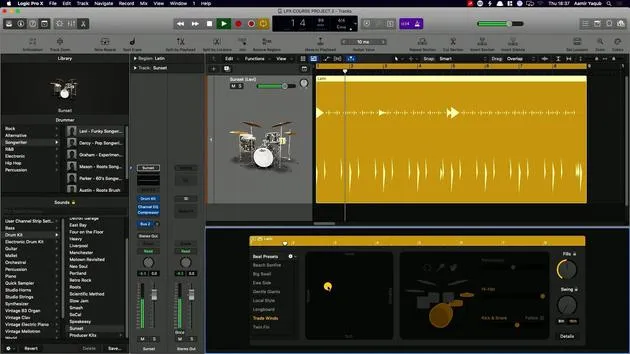
08. Making beats using Drummer
6:42
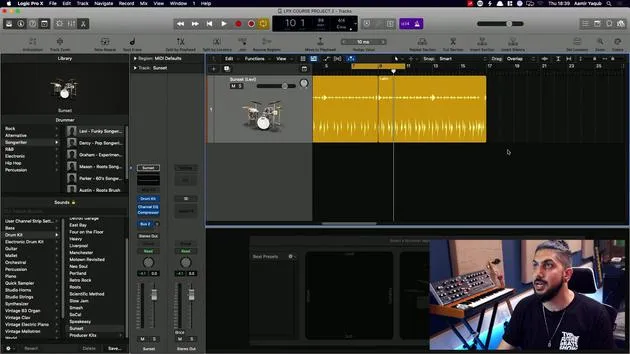
09. Getting the best out of drummer
13:55
10. Advanced parameters in Drummer
You are here4:32
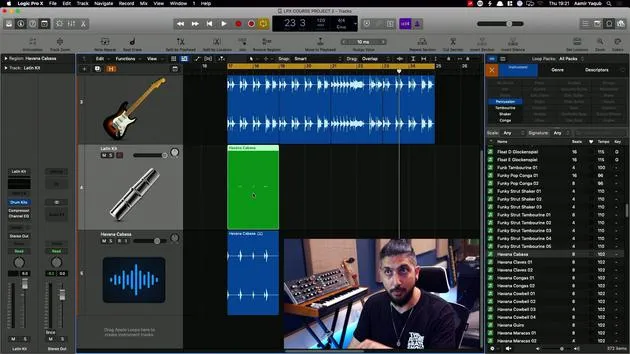
11. Making beats using Apple Loops
10:16
12. Browsing Loops and using Loop metadata
9:17
Lesson transcript
Understanding Drummer and Arrangement Markers
One great feature of Drummer is when it interacts with arrangement markers.
What are Arrangement Markers?
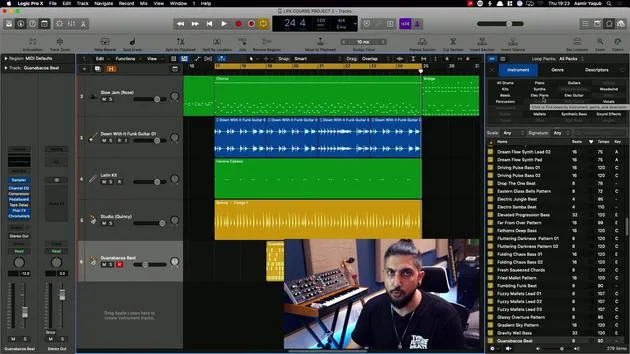
Arrangement markers are something we're going to look at when we take a further look into arranging. Here, I have a new drummer track pulled up.
Let's go for some R&B, right?
Arrangement Markers Overview
- Intro
- Verse
- Chorus
- Bridge
- Outro
At the top here, our drummer roles are going to play something that fits those sections very well.
Drummer's Intelligent Interaction
The data and patterns are essentially determined from the drummer reading what is going on in the arrangement markers. It essentially says,
"Yep, I got it. I know what you want for an intro, I know what you want for a verse, and so on."
Example of Transitions
-
Transition from Intro to Verse
You can hear already how it feels like a real drummer. -
End of the Verse to the Chorus
Very cleverly puts in a fill, knowing exactly what to do. -
End of the Chorus to the Bridge
The energy is obviously taken up, and as per usual, you can go in and edit all of this.
More Control with MIDI Regions
We've established that Drummer is quite intelligent, but we may want more control than it actually allows. This is where we convert the drummer region into a MIDI region.
-
Select All Drummer Regions
Right-click and choose Convert to MIDI Region. -
Working with MIDI Data
Now we have all the MIDI data available in the piano roll, allowing for adjustments that weren't possible when working in Drummer.
Important Notes
- When you make changes here, you cannot convert it back to a Drummer region.
- The only option to revert is using Command + Z repeatedly.
Copying and Hiding Tracks
You can select all of the MIDI data, hold Option to copy them down, and then mute or hide that track if desired.
"Do you remember we went over how to hide a track?"
Quick Shortcut for Converting
- Convert to MIDI Region Shortcut:
Control + Option + Command + M
If you frequently convert tracks, learn the shortcut to save time!
Returning to the Original Drummer Track
If you ever need to return to the original Drummer track, just:
- Unhide
- Unmute
Now you can edit the region as you wish.
Making Adjustments
For example, if you see a snare hit that you don't want in the bridge, you can click on it and remove it.
And that is how you would work with Drummer in Logic!
12 lessons
1h 20m of structured video lessons
Advanced video features
Slow down, loop a passage, follow along
Mobile, tablet & desktop
Practise wherever you are
100% satisfaction guarantee
30-day money-back guarantee
Meet your guru
Meet your guru
Aamir Yaqub is a music producer and engineer based in London. He has worked with some of the biggest names in music, including Alicia Keys, David Guetta, Rihanna, Sia and will.i.am, as well as developing independent artists.
Across his courses he teaches his complete Logic Pro workflow - from the interface and recording through beat-making, synthesis and MIDI effects to mixing and finishing a track.







