



Editing tools in the Piano Roll

With
Aamir YaqubAamir Yaqub walks through editing MIDI by hand in Logic Pro's Piano Roll, covering note velocity and the Pencil, Eraser and other tools for adding and reshaping notes.
What's in the course
12 lessons (1h 20m) · 1 free
01. Intro to Making Beats
Free lesson0:33
02. What is MIDI
1:07
03. Connecting USB controller
1:46
04. Recording with USB-MIDI controller
9:08
05. Hidden feature - Capture recording
3:09
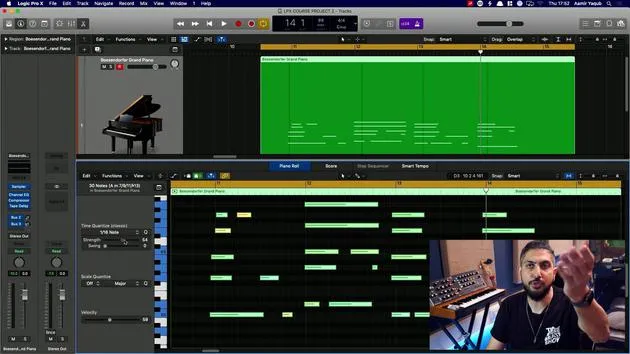
06. Quantizing
6:38
07. Editing tools in the Piano Roll
You are here13:24
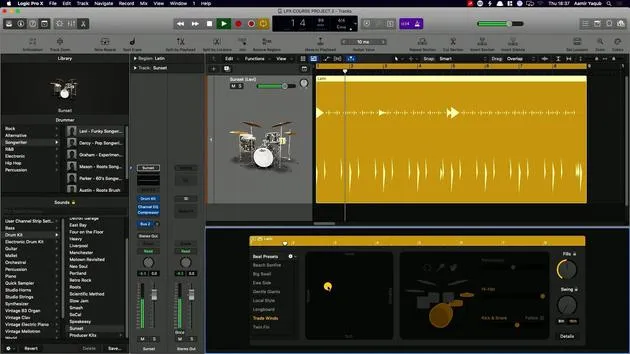
08. Making beats using Drummer
6:42
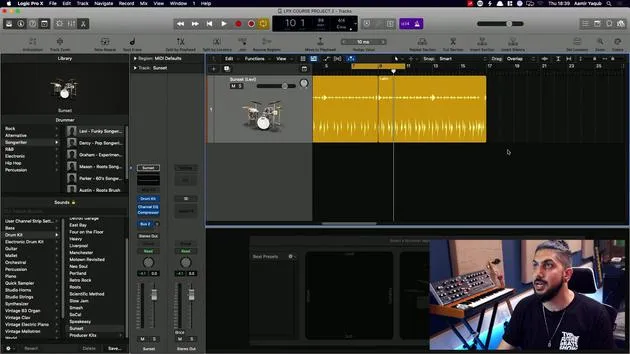
09. Getting the best out of drummer
13:55
10. Advanced parameters in Drummer
4:32
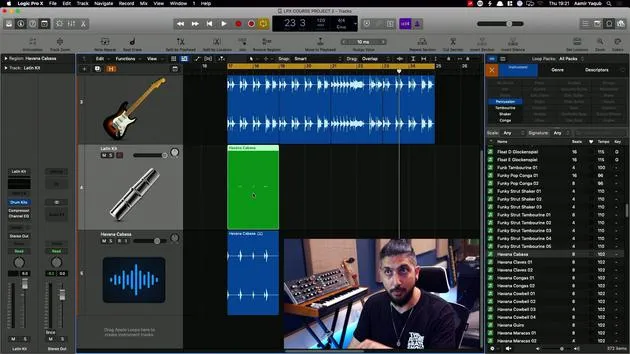
11. Making beats using Apple Loops
10:16
12. Browsing Loops and using Loop metadata
9:17
Lesson transcript
Understanding the Piano Roll Editor
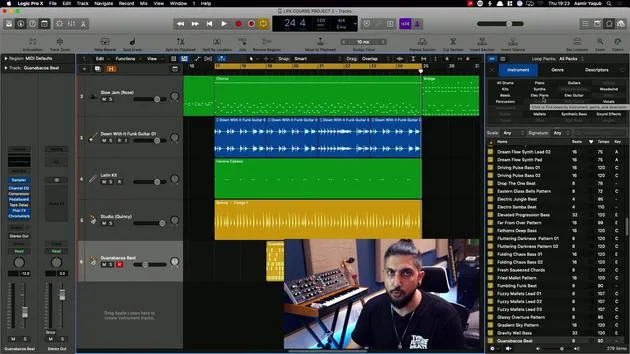
Welcome to today's lesson on the Piano Roll Editor, where we will spend some time working with MIDI data and MIDI information. This tool is essential whether you're playing a piano, a synth bass, or drums. When we input data, it comes into both the region and the Piano Roll Editor.
Velocity in MIDI
One noteworthy aspect of MIDI performance is velocity.
-
What is Velocity?
- Velocity refers to how hard a note is played:
- Hitting an instrument harder produces a louder sound.
- Hitting it softer results in a quieter sound.
- Velocity refers to how hard a note is played:
-
Visual Representation:
- The colors and lines you see in the MIDI data represent this velocity.
- For instance:
- A velocity value of 67 appears as a certain color.
- A value of 127 turns red, while 0 is purple.
- You can adjust the velocity of any sound (e.g., notes, drum hits) by changing this value.
Exploring the Piano Roll Tools
When working with MIDI data, it is crucial to understand the various tools available in the Piano Roll Editor:
- List of Tools:
- Pointer Tool
- Pencil Tool
- Eraser Tool
- Finger Tool
- Scissors Tool
- Glue
- Mute
- Quantize Velocity
- Zoom
- Automation
- Select Automation Curve
- Brush Tool
Using the Pencil Tool
- The Pencil Tool allows you to enter new data:
- Use Command Click to access it.
- The note takes on the velocity and length of the last note clicked.
- To change the note length, simply click and drag similar to working with regions.
Duplicating Notes
- Option + Drag: You can duplicate notes by holding the Option key and dragging the note up or down to find another note or drum hit.
Moving Notes
- Adjusting Notes:
- Use the arrow keys while holding the Option key to move notes up and down.
- To drop a note an octave: hold Option + Shift and press down.
Introducing the Brush Tool
Logic recently introduced the Brush Tool, a fantastic feature in the Piano Roll Editor. Here's how to use it:
-
Create a New Region:
- Select your Pencil Tool and create a new region (2 bars).
-
Load Drum Kit:
- This works especially well for programming hi-hats that may be difficult to play on a keyboard.
-
Using the Brush Tool:
- Once selected, you can find your hi-hat sound.
- Click and drag to create patterns, like a hi-hat rhythm.
Erasing with the Brush Tool
- If you need to erase, simply hover over the data you want to remove while using the Brush Tool.
Adjusting Note Values
To change the note values (e.g., from sixteenth notes to eighth notes):
- Erase Existing Data: Use a quick swipe with the Brush Tool to clear old information.
- Change Value: Adjust it to eighth notes, and your closed hi-hat will now play eighth notes.
Note Repeat and Spot Erase
These features streamline your workflow:
-
Note Repeat:
- Allows you to hold a note, triggering repeated MIDI input.
- Access it from the toolbar, and it can perform at various rates (e.g., sixteenth notes).
- Press R to record your performance.
-
Spot Erase:
- Found next to Note Repeat, this feature will erase notes instead of repeating them when held down.
- It functions without needing to press record; just hit play!
Conclusion
You've now learned various techniques to manipulate and enter MIDI data using the Piano Roll Editor. With tools like the Brush Tool and Note Repeat, along with methods for adjusting velocity and notes, you're well-equipped to enhance your music production workflow!
12 lessons
1h 20m of structured video lessons
Advanced video features
Slow down, loop a passage, follow along
Mobile, tablet & desktop
Practise wherever you are
100% satisfaction guarantee
30-day money-back guarantee
Meet your guru
Meet your guru
Aamir Yaqub is a music producer and engineer based in London. He has worked with some of the biggest names in music, including Alicia Keys, David Guetta, Rihanna, Sia and will.i.am, as well as developing independent artists.
Across his courses he teaches his complete Logic Pro workflow - from the interface and recording through beat-making, synthesis and MIDI effects to mixing and finishing a track.







