



Einführung

Mit
Isaac CotecEine Einführung, wie du Audio- und MIDI-Effekte zu deinen Tracks in Ableton Live hinzufügst, um deinen Sound zu formen.
Das steckt im Kurs
17 Lektionen (1h 52m) · 1 gratis

Transkript der Lektion
Adding Effects in Ableton Live
In this module, we're going to look at adding effects and how we can change the sound of our different audio or MIDI tracks using effects within Ableton Live.
Overview of Audio Effects
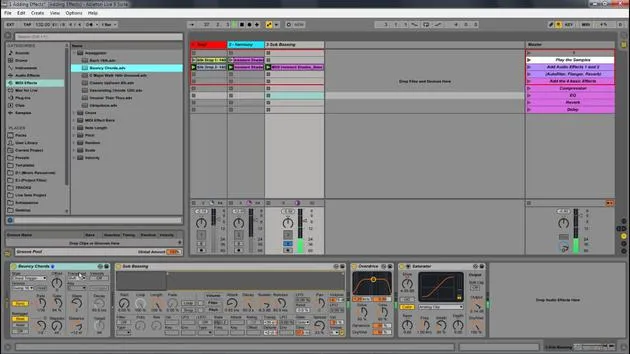
Live comes with a selection of custom designed, built-in audio effects. Every track in Live can host a number of devices or effects, including:
- Audio Effects
- MIDI Effects
Each of these devices can significantly alter the sound and quality of your audio.
Adding an Audio Effect
To add an audio effect to a track:
- Open the Browser: Navigate to your audio effects.
- Drag and Drop: Click on the desired audio effect and drag it into your track.
Using Presets
Each audio or MIDI effect has presets. To access these:
- Click the triangle next to the effect to open the list of presets.
For example, when viewing the presets for the Auto Pan:
- After selecting audio effects in the browser, click the triangle next to Auto Pan to see the available presets (e.g., 1 to 4 note).
Demonstration in Ableton Live
-
Open the browser and select audio effects.
-
Click the triangle next to Auto Pan to view its presets.
-
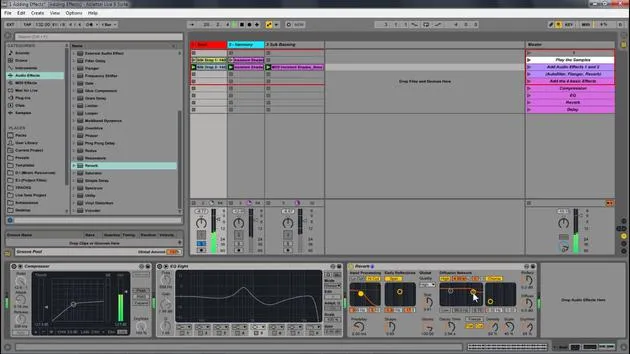
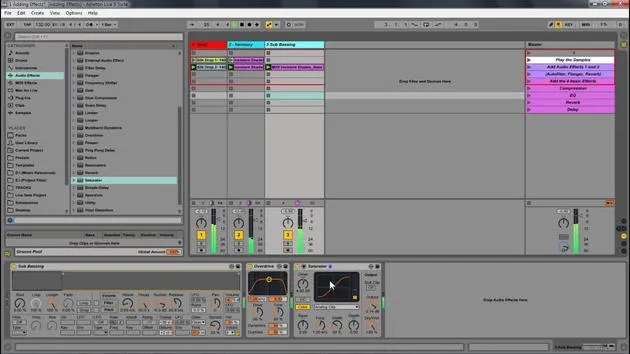
To demonstrate an effect, let's say we choose Flanger:
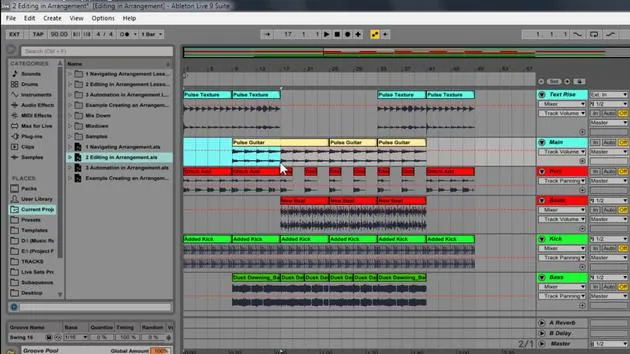
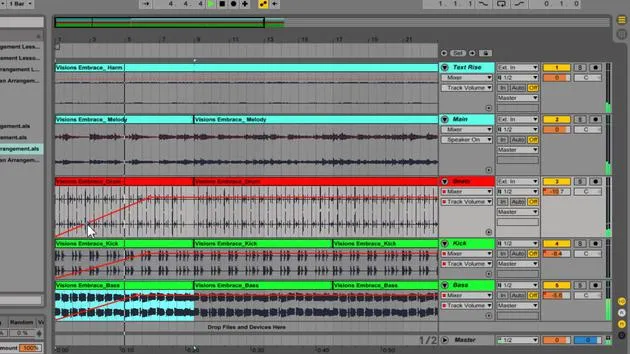
- Simply drag the Flanger effect into your drum track.
-
Adding More Effects:
- You can also add Overdrive to your bass.
- Consider adding a Saturator to further enhance the sound quality.
Working with MIDI Effects
If you want to add a MIDI effect:
- Choose something like Arpeggiation and place it before the instrument in the chain.
Experimentation
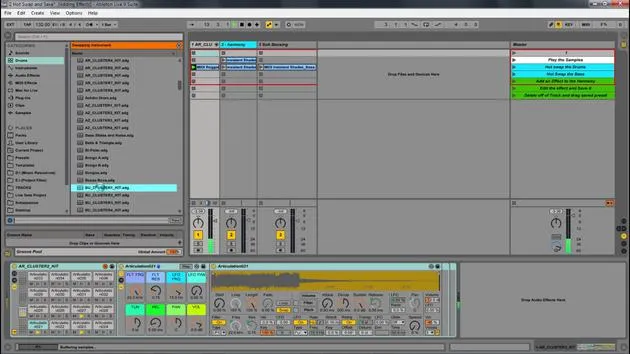
Feel free to delete effects and return to the original sound to compare. Remember, the range of effects available is vast, and you can easily insert them into your track to explore their potential.
Suggestions for Exploration:
- Play around with different presets to discover how they affect your sound.
- Refer to the Ableton Live manual (both online and printed) for detailed descriptions of each audio effect and its functionalities.
Conclusion
As you can see, by adding a Flanger, along with an Overdrive and Saturation effect to your bass, the overall quality of your sound has already improved. Experiment and have fun discovering the possibilities within Ableton Live!
17 Lektionen
1 Std. 52 Min. strukturierte Videolektionen
Erweiterte Videofunktionen
Verlangsamen, Passagen loopen, mitlesen
Handy, Tablet & Desktop
Üben, wo du willst
100 % Zufriedenheitsgarantie
30 Tage Geld-zurück-Garantie
Lern deinen Guru kennen
Lern deinen Guru kennen
Isaac Cotec ist wohl einer der besten Ableton-Trainer der Welt! Während er an seiner eigenen Musik arbeitete, begann er, Privatschülern Aufnahmetechniken, Sounddesign und Ableton Live beizubringen, und seit seiner Zertifizierung als offizieller Ableton Certified Trainer hat er Tausenden von Produzenten geholfen, ihr Niveau zu steigern und als Musiker erfolgreich zu sein.
Isaac begann 2005 mit Psyche Sonics elektronische Musik zu produzieren, einer experimentellen Gruppe, die sich mit der Wissenschaft und Erforschung binauraler Beats und der Bewusstseinsveränderung durch Klang beschäftigte. Nach dem Touren schrieb er weiter Musik unter dem Alias Cotec und trat später als Künstler Subaqueous hervor, der seine elektronische Vergangenheit mit zukunftsgewandten wie organischen Produktionstechniken verband. Bis heute hat er 3 Alben und 4 EPs veröffentlicht.
Isaac ist außerdem Gründer und Manager des Plattenlabels Invibe Music, das einige der besten Elektronik-Künstler des Pacific Northwest vertritt und sich auf Midtempo-Dance-Musik spezialisiert.
In seinen Ableton-Live-Kursen teilt Isaac die Produktions-, Sounddesign- und Songwriting-Techniken, die er über Jahre verfeinert hat – genau jene Fähigkeiten, mit denen er aus dem Funken einer Idee einen fertigen Track macht.







