



Tranches de console et plugins

Avec
Aamir YaqubUn tour d'horizon de la tranche de console de Logic Pro : charger des patches depuis la bibliothèque et les instruments, effets et plugins qu'ils apportent.
Le contenu du cours
13 leçons (1h 23min) · 1 gratuites
01. Bienvenue dans le cours
0:39
02. Qu'est-ce que Logic ?
2:21
03. Démarrer Logic et personnaliser le logiciel
Leçon gratuite4:55
04. Barre de contrôle et zone d'affichage
7:35
05. Exploration de l'espace de travail - Zone de la règle
5:09
06. Zone d'en-tête de piste
7:35
07. Naviguer parmi tes premiers sons
7:51
08. Utiliser les pistes et les régions
4:44
09. Tranches de console et plugins
Tu es ici4:35
10. Propriétés du projet, Enregistrement, Modèles
14:58
11. Travailler avec les pistes
3:42
12. Travailler avec les régions
8:11
13. Couper, boucler et cycler des régions
11:04
Transcription de la leçon
Building and Enhancing Tracks
So now that we've taken a look at regions, how else can we build and enhance tracks?
Exploring Different Sounds and Styles
What it will come down to is different sounds and different styles. One place we can go for that is obviously the library, which we've already taken a brief look at. But I want to show you a little bit further.
Accessing the Library
- By pressing Y to access the library,
- If I create a new software instrument track (Option + Command + S),
- You can see I'm presented with a bunch of patches and categories that I can load.
Essentially, what this will do here is populate my channel strip with an instrument, some effects, maybe even some delays and reverbs, and stuff like that.
Selecting a Patch
So, I'm going to go ahead and pick something else, which might be like a piano sound, for instance:
- This piano is going to be a Steinway grand piano.
- When I load that patch, things happen in the track header (a piano icon appears) and in the channel strip.
Whenever I load a different patch (e.g., mallet and marimba), it will load a different set of instruments and effects, including delays.
Using Patches for Different Instruments
Your patches can be selected for software instruments in order to trigger those sounds. But we can also load patches for audio instruments as well.
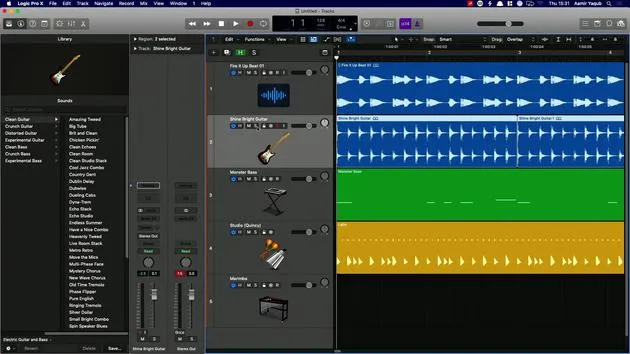
For example, if I go to my guitar part:
- I could load a patch, which is essentially a chain of effects for my guitar sound.
- I could choose electric guitar and bass, and then select something like crunch guitar, distorted guitar, or clean guitar.
- I'm going to do clean echoes, for instance.
Soloing and Comparing Sounds
This will allow me to add something to that sound.
- I can press Command + Z (or Z) and solo this by pressing the S button.
- I can also just press S on my computer keyboard, and this will solo that.
I'm going to play the sound, add that patch in, and you can hear the difference in the sound. Obviously, that sounds a lot better to me there.
Understanding Patches and Channel Strips
What we've established is that a patch is essentially a bunch of different things that change the sound, and it differs whether we're working with software instruments or audio tracks.
Examining the Channel Strip
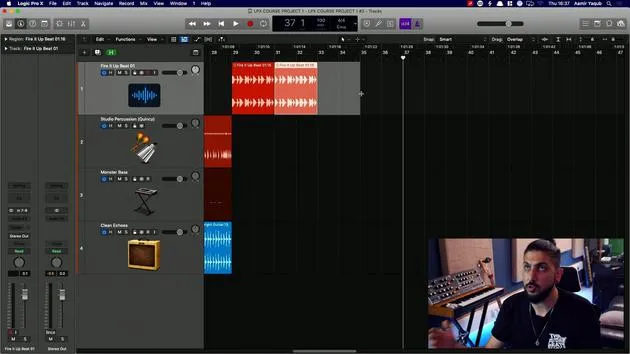
Now, I want to show you how a patch is made up and focus on the channel strip:
- The channel strip is in the inspector section on the left-hand side.
You can see here that I have effects like:
- A noise gate
- A pedal board
- An amp
- A channel EQ
- Compression
- Sample delay
We'll be going through all of that kind of stuff very shortly.
Plugins in the Channel Strip
What I have are all of these plugins:
- A plugin can be either an instrument plugin (like the one for this bass sound) or it can be audio effects (like the things on this audio channel).
- A patch is essentially us putting all of that stuff together.
When we are in our library, what we're doing is selecting a patch. That patch is comprised of plugins that have been put onto our channel strip.
Channel Strip Functionality
Our channel strip is there to host plugins and software instruments, but it's also there for us to:
- Adjust the volume of something (up or down)
- Pan something to the left or right speaker
- And obviously much more than that.
13 leçons
1h 23m de leçons vidéo structurées
Fonctions vidéo avancées
Ralentissez, bouclez un passage, suivez la partition
Mobile, tablette et ordinateur
Pratiquez où vous voulez
Satisfaction garantie à 100 %
Garantie remboursement 30 jours
Rencontrez votre guru
Rencontrez votre guru
Aamir Yaqub est un producteur et ingénieur du son basé à Londres. Il a travaillé avec certains des plus grands noms de la musique, dont Alicia Keys, David Guetta, Rihanna, Sia et will.i.am, tout en développant des artistes indépendants.
Au fil de ses cours, il enseigne l'intégralité de son flux de travail sur Logic Pro : de l'interface et de l'enregistrement à la création de beats, la synthèse et les effets MIDI, jusqu'au mixage et à la finalisation d'un morceau.







